The Credit Notes section in Billingnow allows you to issue refunds or corrections linked to invoices, or create standalone credit notes when needed.
Credit notes follow the same inline editing, real-time preview, and status-based workflow as invoices and estimates, ensuring full accounting traceability.
From the Credit Notes module, you can:
- Create credit notes inline with real-time preview
- Link credit notes to existing invoices
- Send credit notes by email
- Track credit note status and payments
- Add, edit, or delete payments
- Download credit note PDFs
- Apply credits to invoices automatically
- Filter, search, and export credit notes
📂 Credit Notes Dashboard
Navigation:
Sidebar → Credit Notes
The dashboard displays all credit notes in a structured, sortable table.
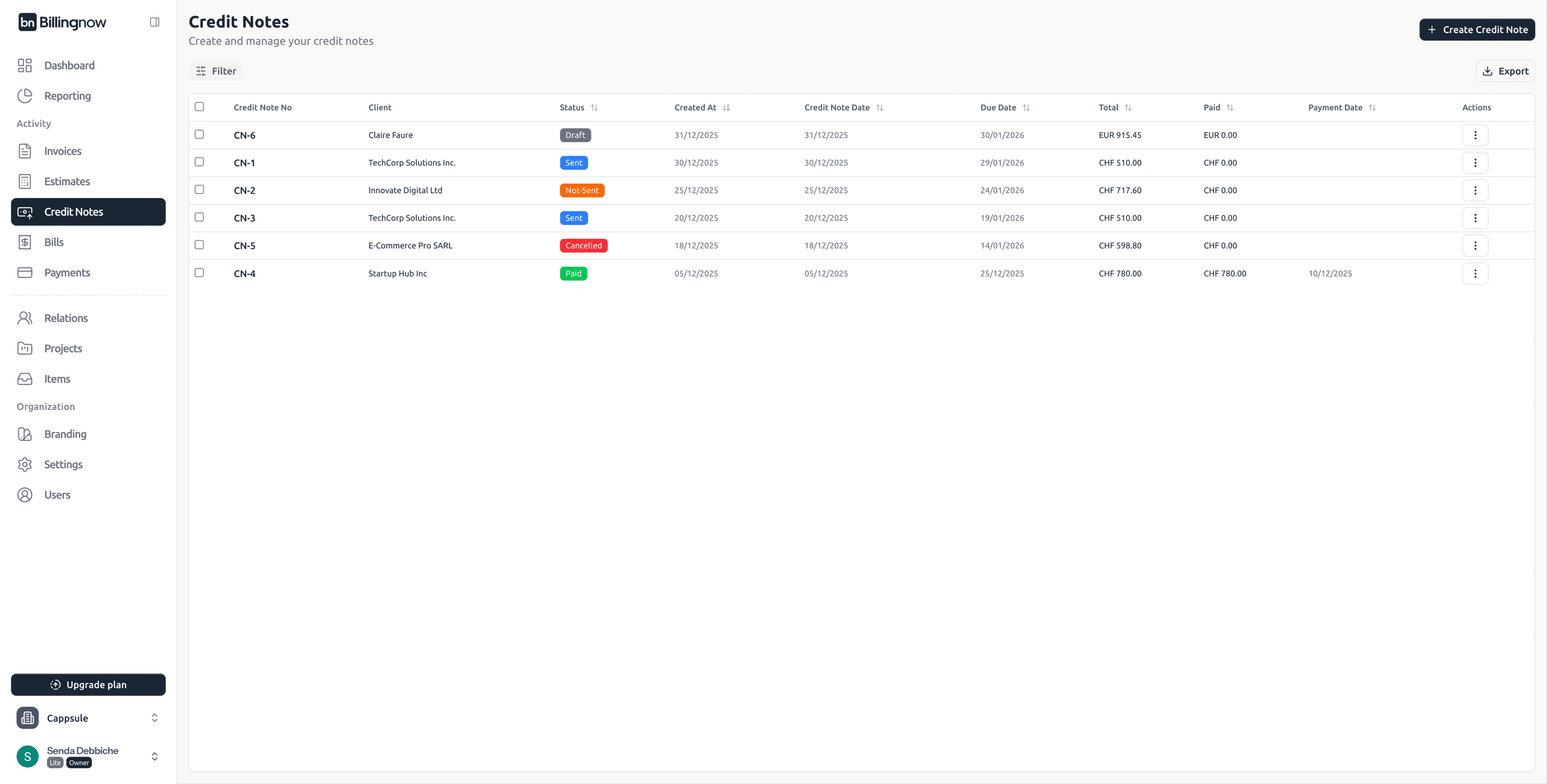
Table Columns
| Column | Description |
|---|---|
| Credit Note No | Unique reference (clickable) |
| Client | Customer receiving the credit |
| Status | Current credit note status |
| Created At | Creation date |
| Credit Note Date | Issue date |
| Due Date | Payment / refund deadline |
| Total | Total credited amount |
| Paid | Amount refunded |
| Payment Date | Date of last payment |
| Actions | Contextual actions menu |
🔍 Filters & Search
Click Filter at the top of the page to refine results.
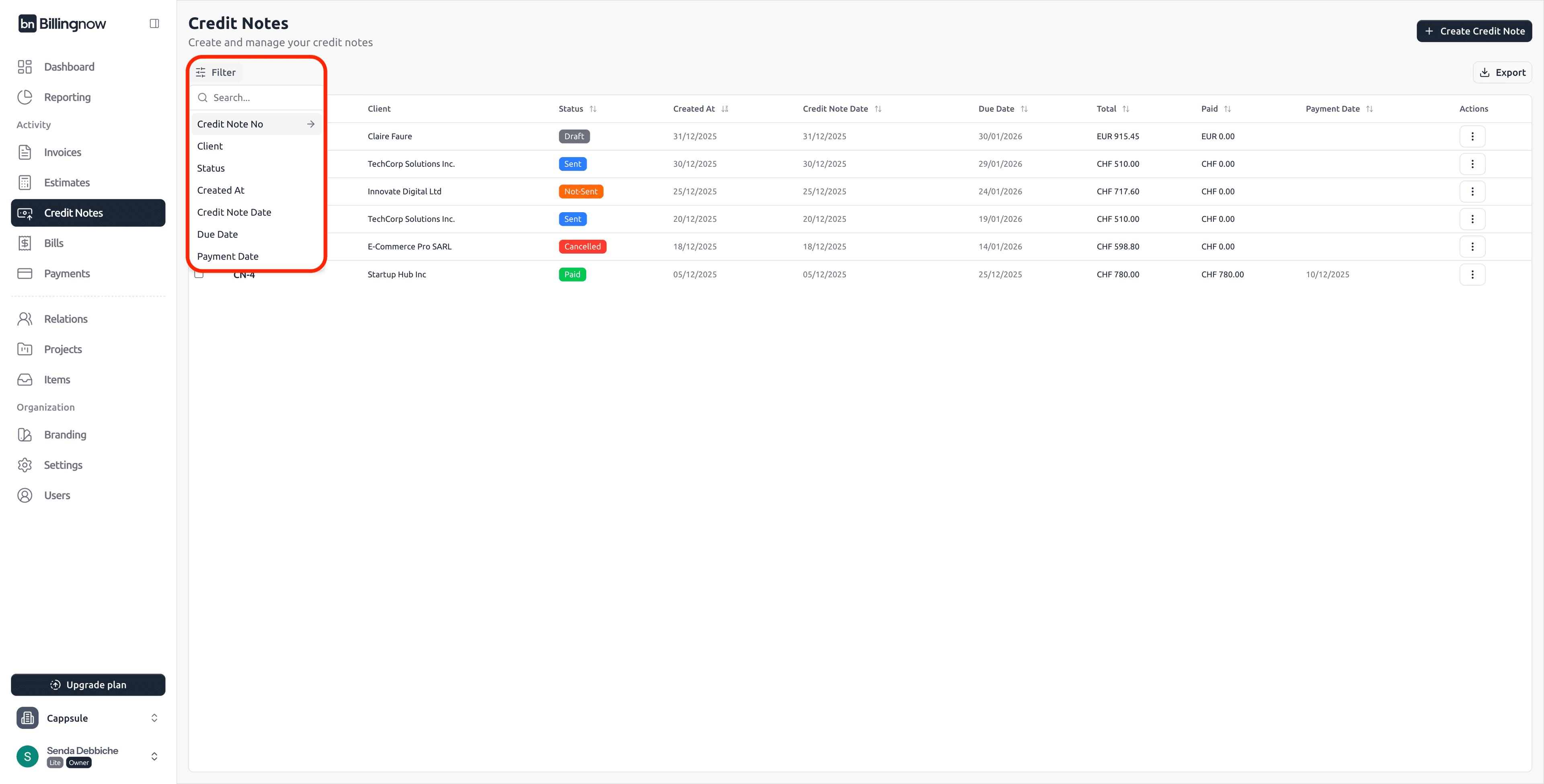
Available Filters
| Filter | Description |
|---|---|
| Credit Note No | Search by reference (e.g. CN-1) |
| Client | Filter by customer |
| Status | Filter by credit note status |
| Created At | Filter by creation date |
| Credit Note Date | Filter by issue date |
| Due Date | Filter by due date |
You can combine:
- Filters
- Free-text search
- Column sorting
to quickly locate specific credit notes.
🏷️ Credit Note Statuses
| Status | Meaning |
|---|---|
| ⚪ Draft | Being prepared |
| 🟠 Not Sent | Finalized but not sent |
| 🔵 Sent | Sent to the client |
| 🟢 Paid | Fully refunded |
| 🟡 Partially Paid | Partial payment received. |
| 🔴 Cancelled | Cancelled credit note |
🔍 Credit Note Detail Page
Click on a Credit Note No to open its detail view.
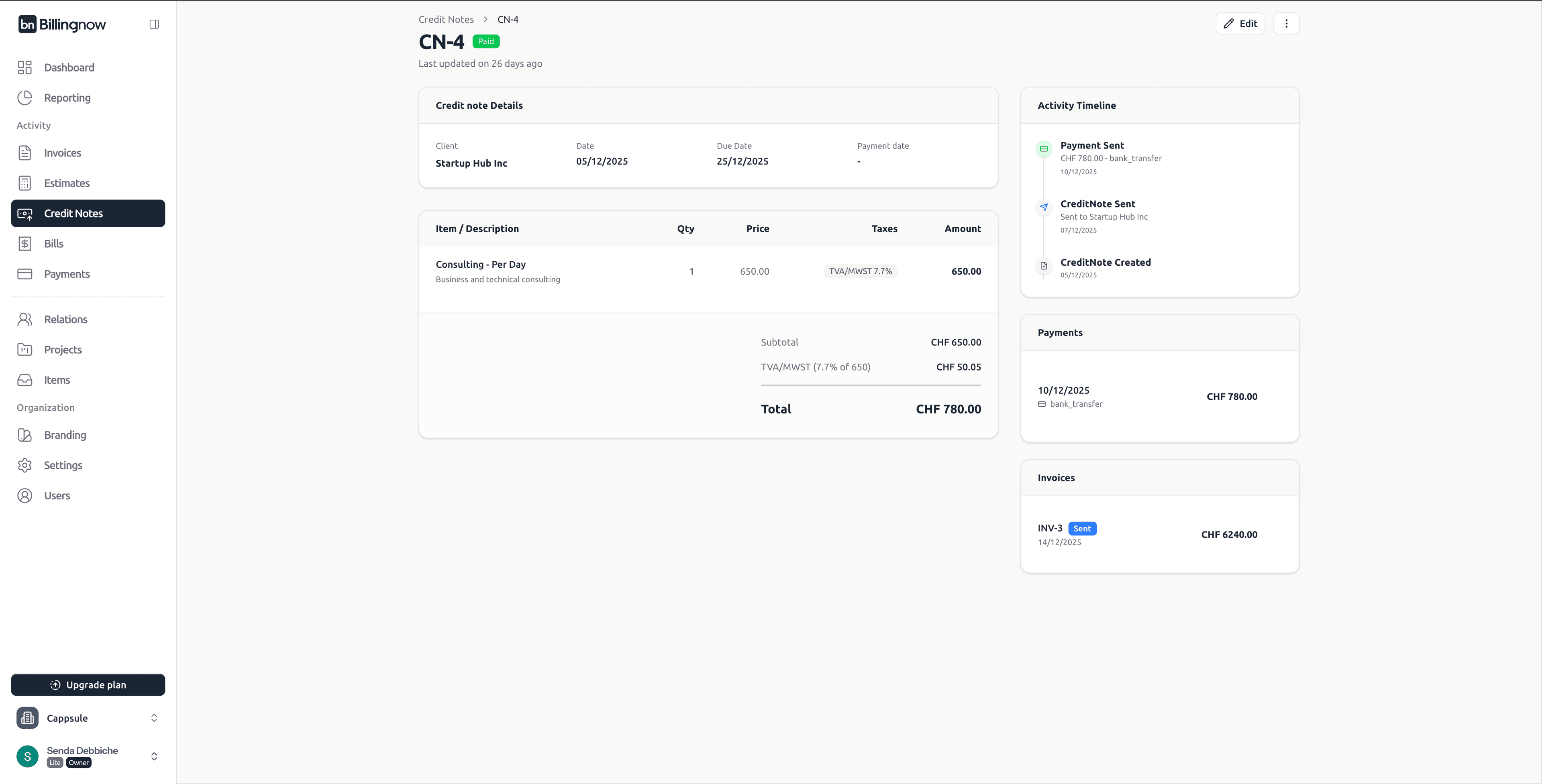
Sections Overview
📄 Credit Note Details
- Client
- Credit note date
- Due date
- Payment date (if any)
🕒 Activity Timeline
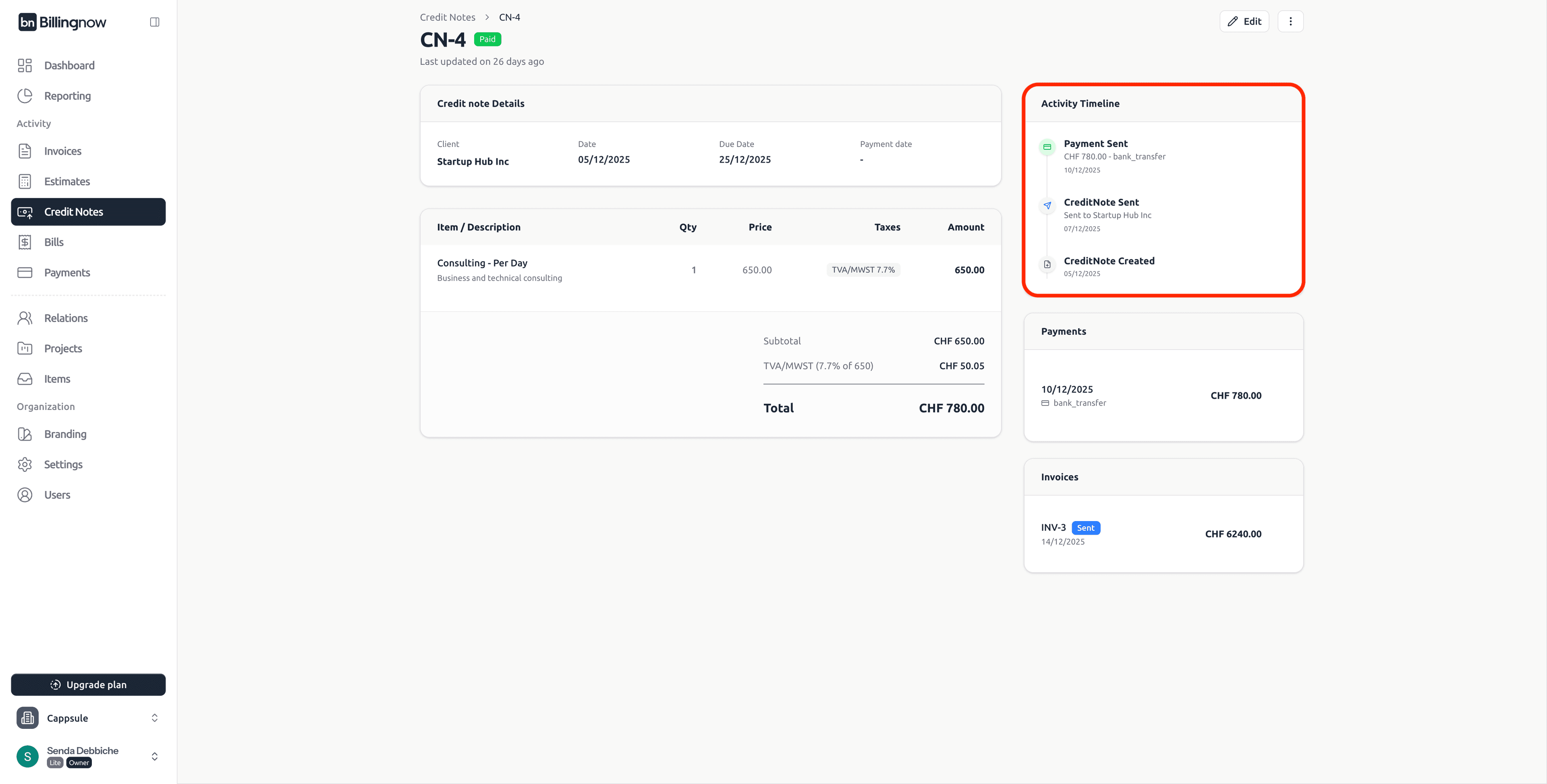
Tracks all events:
- Credit note created
- Credit note sent
- Payments recorded
💰 Payments
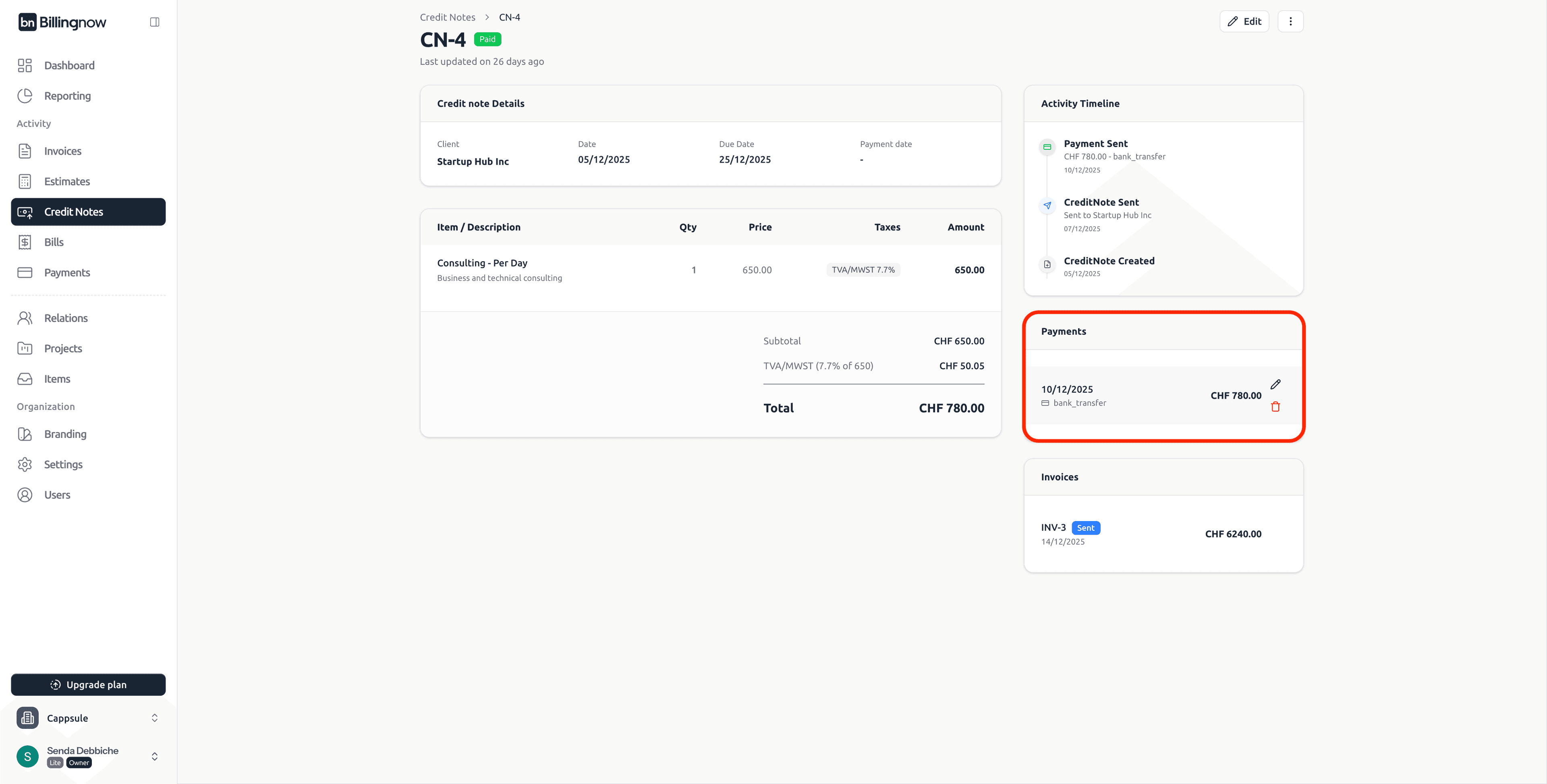
- Displays refund history
- Shows payment method and date
🔗 Linked Invoices
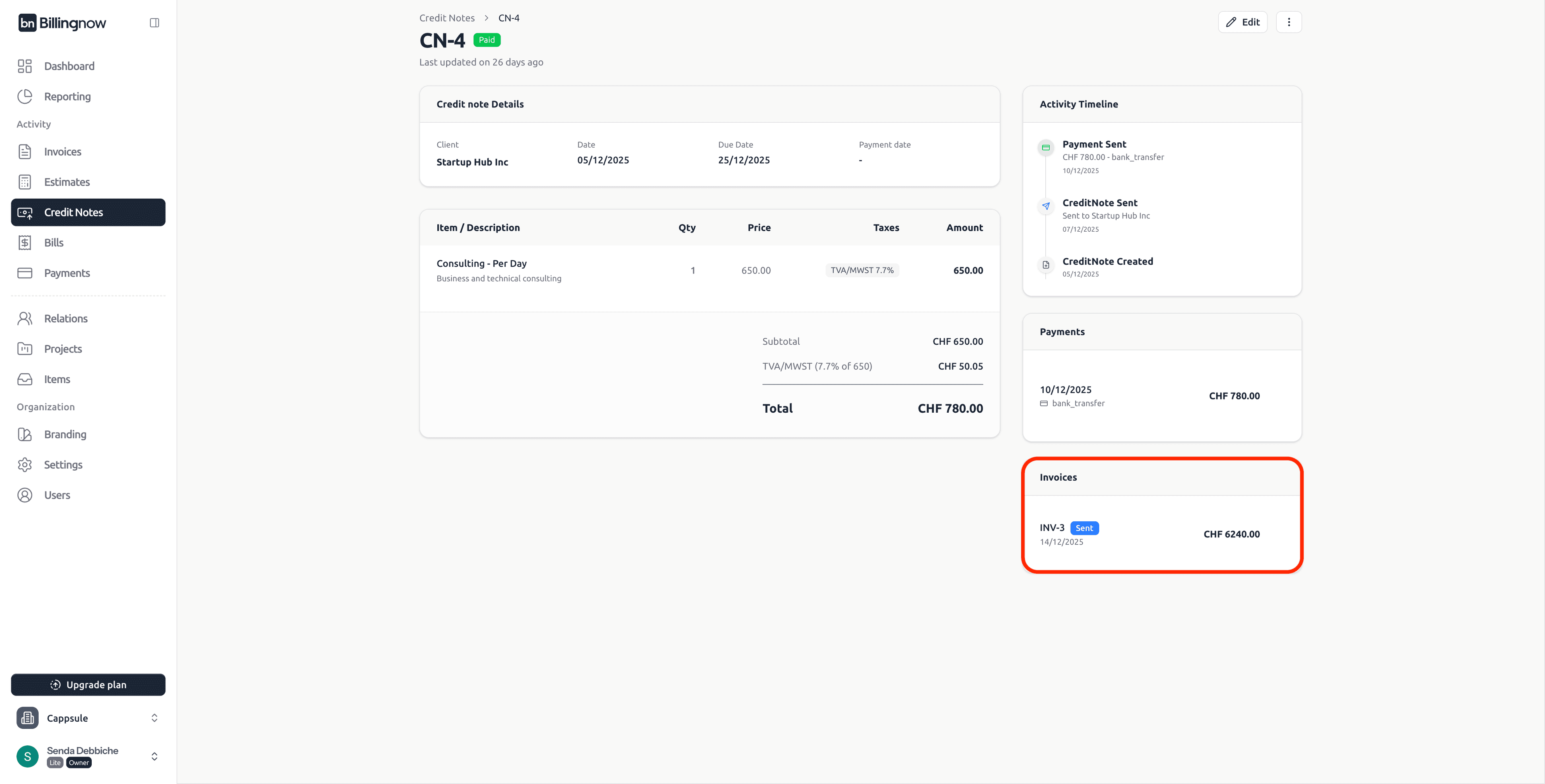
- Displays invoices linked to this credit note
- Shows invoice number, status, and amount
➕ Creating a New Credit Note (Inline Editor)
Click ➕ Create Credit Note (top-right).
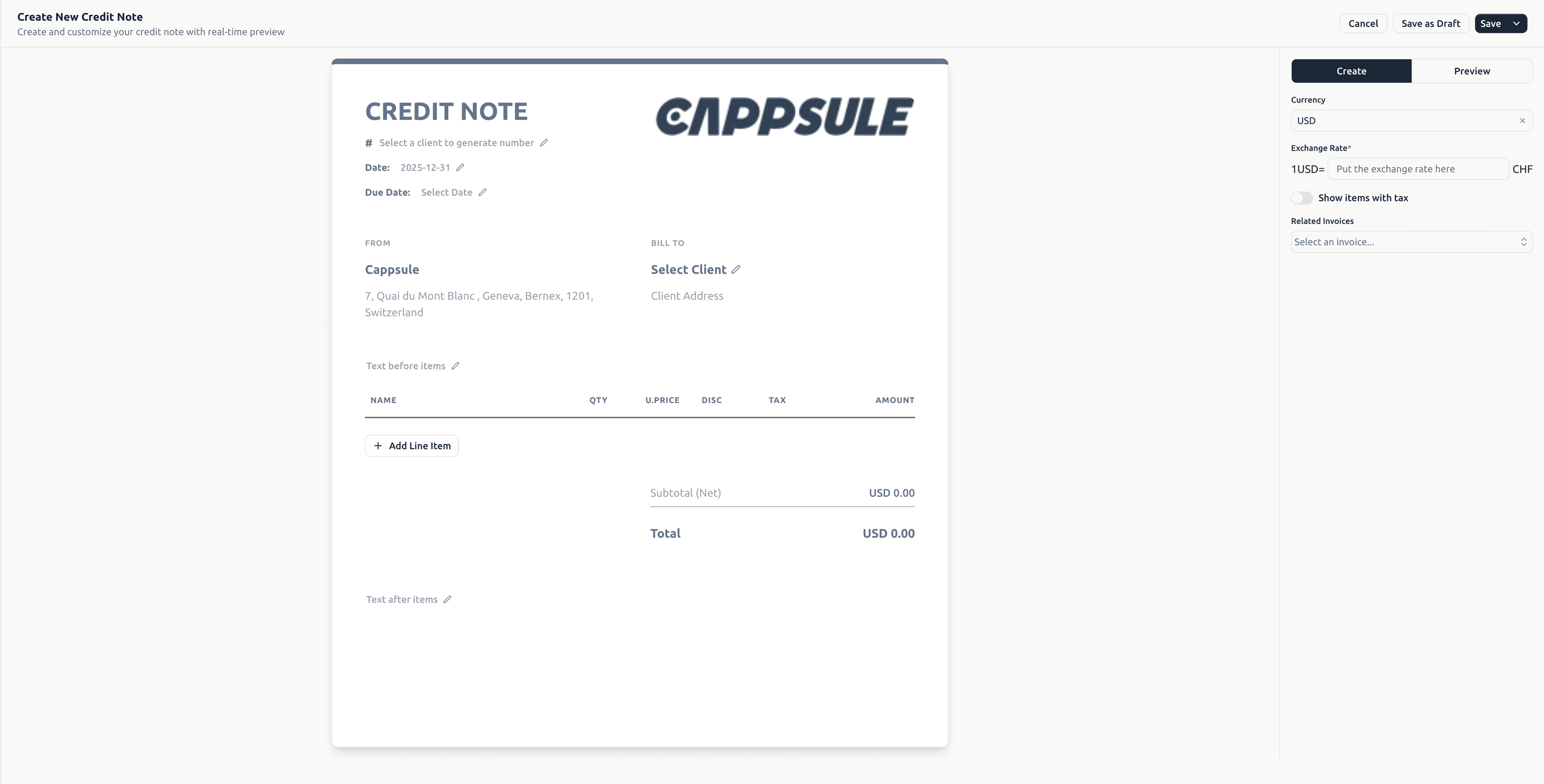
✨ Inline Credit Note Editor
Important
BillingNow uses an INLINE editor.
You edit directly inside the credit note document, and all changes are applied instantly.
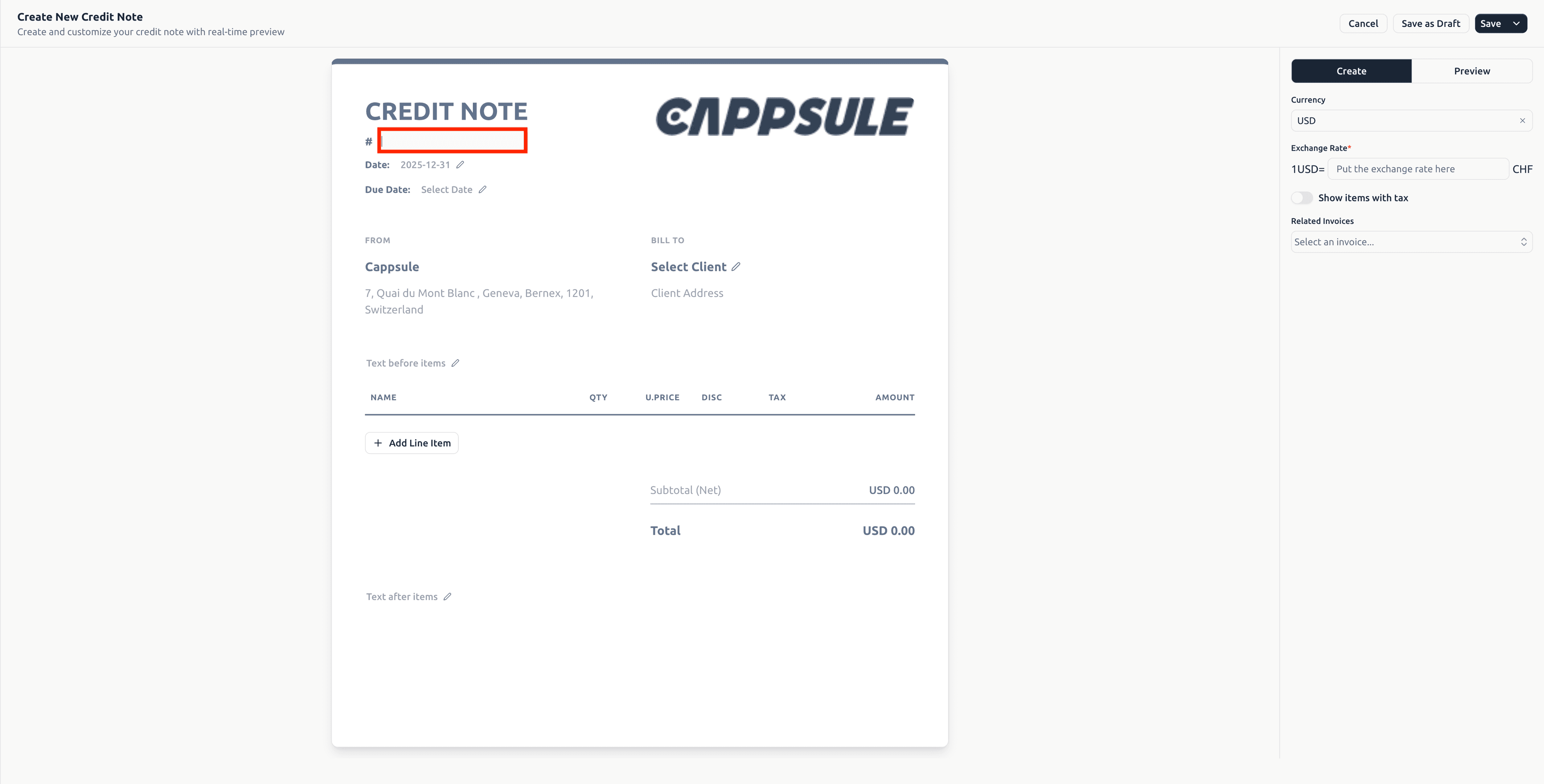
🧾 Header Fields (Inline)
| Field | Behavior |
|---|---|
| Credit Note Number | Auto-generated or editable |
| Credit Note Date | Click to edit |
| Due Date | Click to edit |
| From | Auto-filled from company profile |
| Bill To | Select or edit client inline |
🧮 Line Items (Inline)
Click ➕ Add Line Item directly in the document.
Each line supports:
- Item / description
- Quantity
- Unit price
- Discount
- Tax
- Auto-calculated amount
Totals update in real time.
📝 Additional Texts
Editable directly inside the credit note:
| Section | Usage |
|---|---|
| Text before items | Reason for credit |
| Text after items | Additional explanation |
| Footer | Legal or accounting notes |
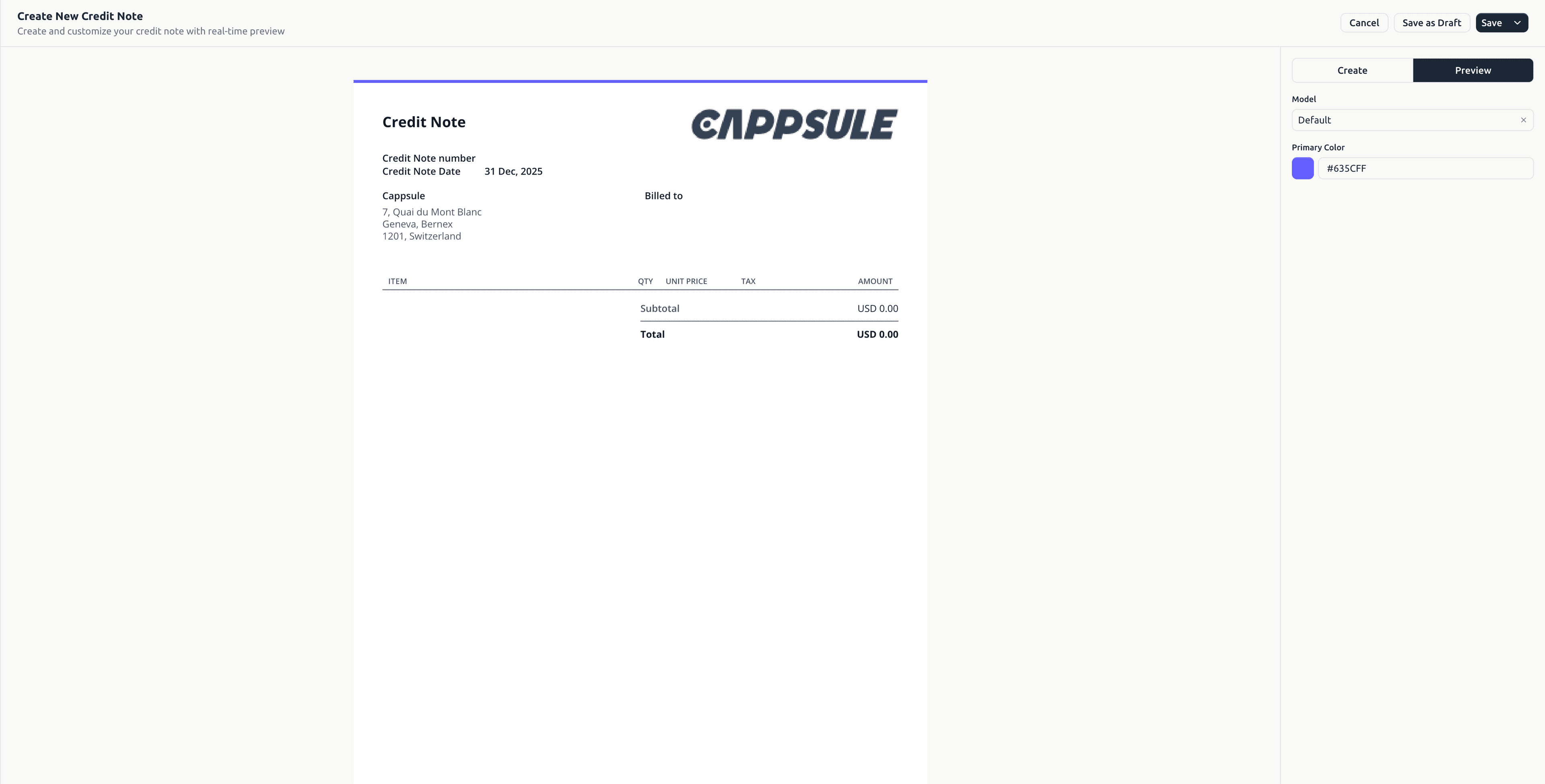
⚙️ Right Panel Settings
The right panel controls credit note configuration.
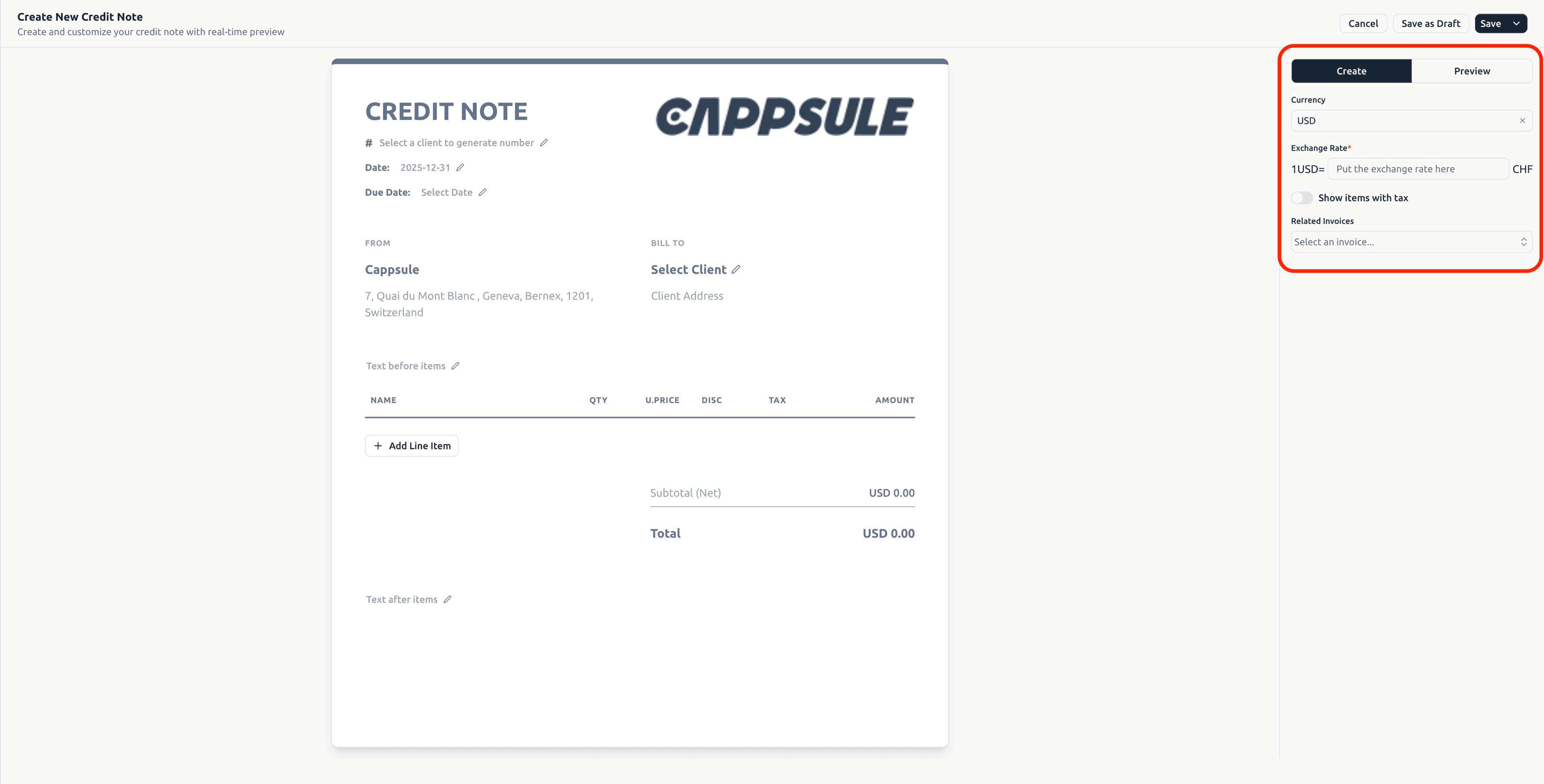
Available options:
- Currency
- Exchange rate
- Show items with tax
- Related invoice
- Model
- Primary color
- Preview mode
💾 Saving & Actions
Actions are available:
- From the editor
- From the list
- From the detail page
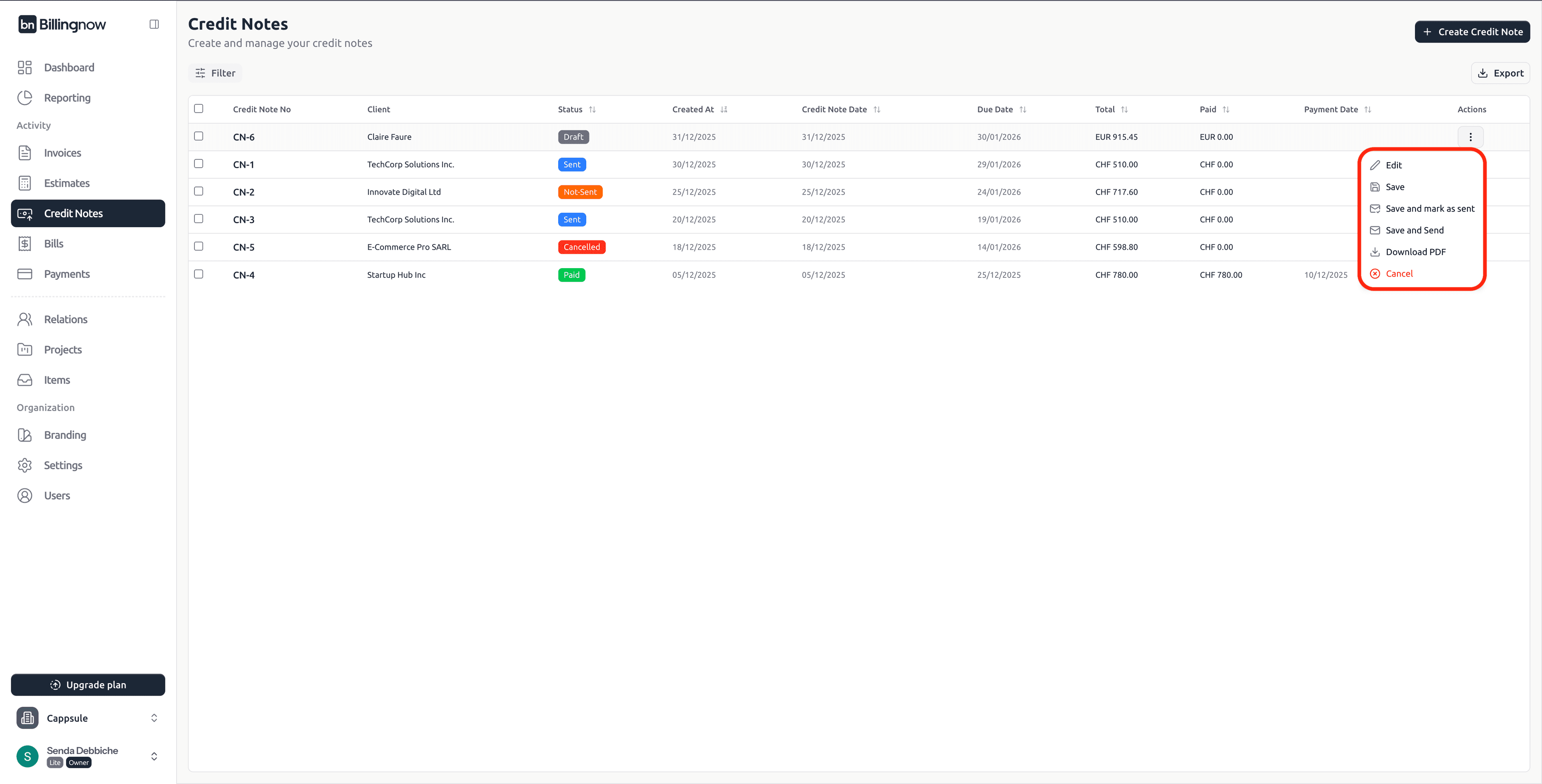
Common Actions
| Action | Result |
|---|---|
| Save as Draft | Keeps editable |
| Save | Saves as Not Sent |
| Save and mark as sent | Manual sending |
| Save and send | Sends by email |
| Download PDF | Downloads PDF |
| Cancel | Cancels credit note |
| Delete | Permanent deletion |
💌 Sending Credit Notes by Email
Click Send from actions.
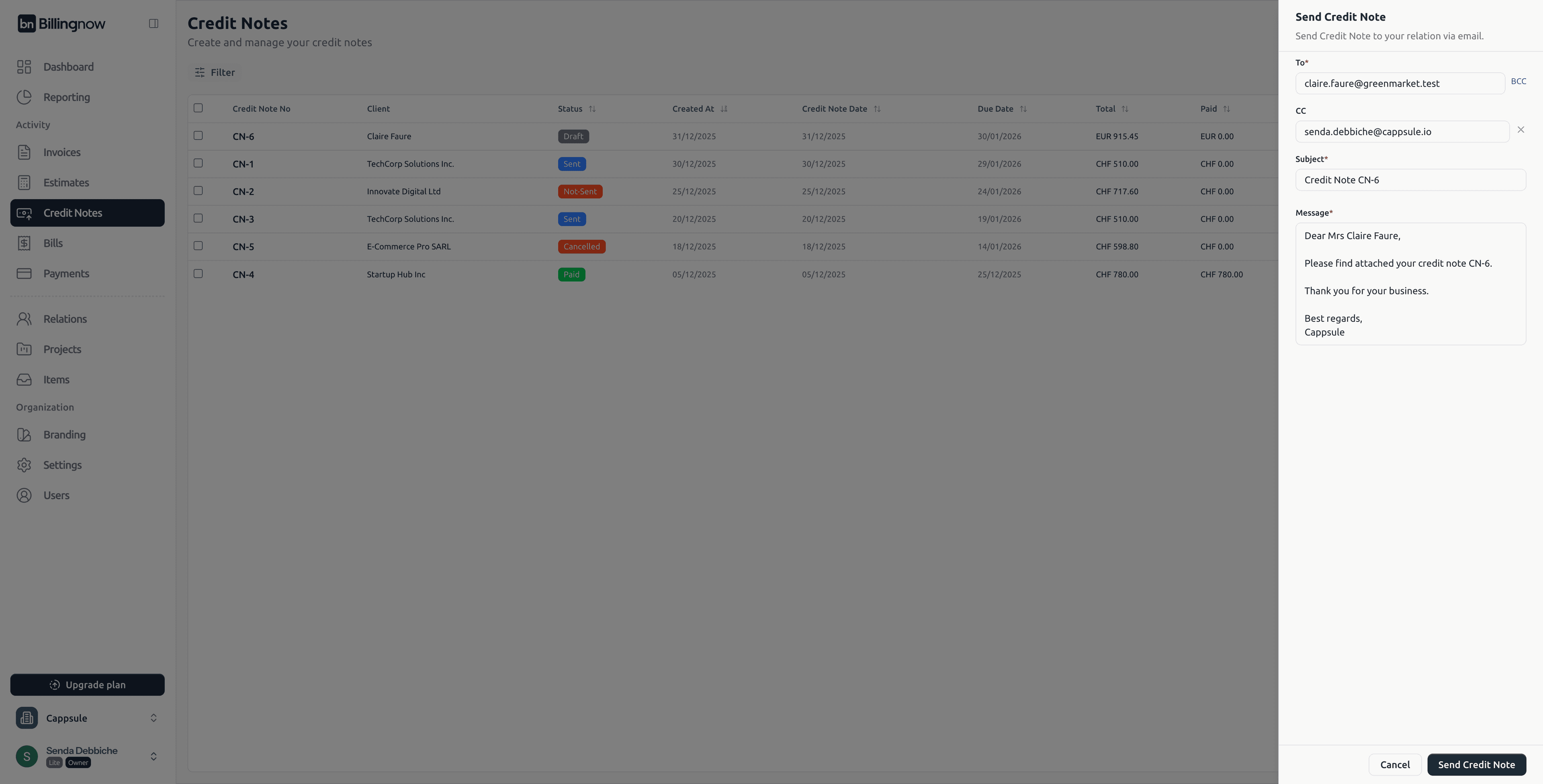
Email Example
Subject: Credit Note CN-6

Dear Mrs Claire Faure,

Please find attached your credit note CN-6.

Thank you for your business.

Best regards,
Cappsule
After sending:
- Status becomes Sent
- Timestamp is recorded
- PDF is attached automatically
- Credit note can be resent anytime
Send Manually from Your Personal Email
If you prefer to use your own mailbox (e.g., Outlook, Gmail):
- Click Download PDF on the credit note.
- Attach the downloaded file to your personal email.
- Write your own message and send it manually.
- After sending manually, return to the credit note and click Mark as Sent to update its status in BillingNow.
💰 Adding Payments
Payments can only be added when the credit note is Sent
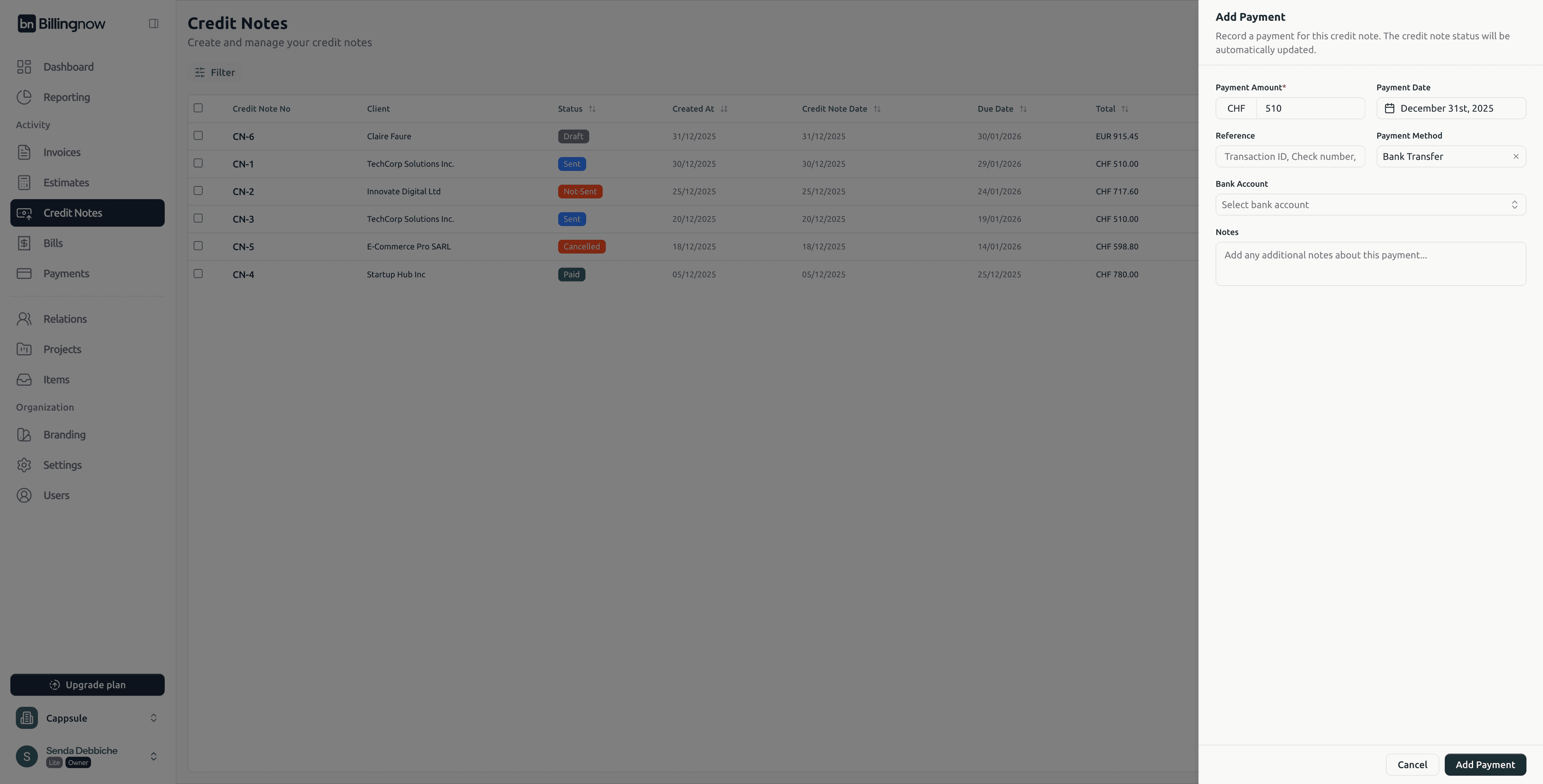
Steps
- Open the credit note or use the list actions
- Click Add Payment
- Enter:
- Amount
- Date
- Payment method
- Bank account
- Reference (optional)
- Save
Status updates automatically:
- Partial amount → Partially Paid
- Full amount → Paid
🔁 Applying Credit to an Invoice
If the credit note is linked to an invoice:
- The invoice balance is reduced automatically
- Invoice status updates accordingly
- Both documents remain linked for audit and accounting
💡 Best Practices
✔ Always link credit notes to invoices when applicable ✔ Use Draft for internal validation ✔ Review Preview mode before sending ✔ Keep consistent numbering (CN-001, CN-002…) ✔ Record refund reasons in text sections
✅ Summary
The Credit Notes module provides:
- Inline real-time editing
- Status-based workflows
- Integrated payments
- Automatic invoice reconciliation
- Email sending with PDF
- Full audit trail
BillingNow ensures clarity, traceability, and financial accuracy across all credit operations.