The Profile page allows you to manage your personal account information and permanently delete your account if needed.
You can access it from the sidebar by clicking on Profile.
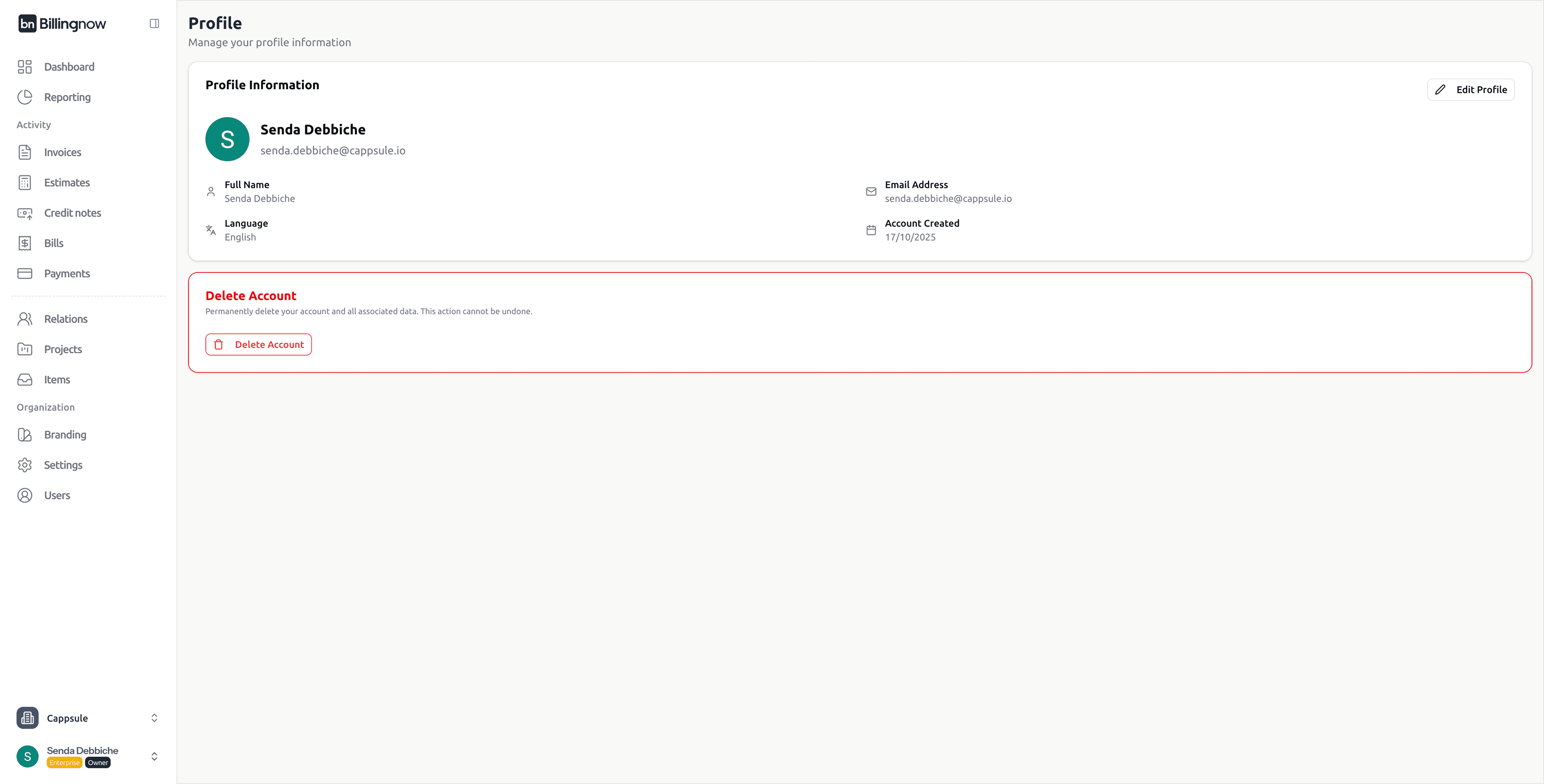
👤 Profile Information
This section displays your personal details used across the platform.
| Field | Description |
|---|---|
| Full Name | Your display name. |
| Email Address | The email associated with your account. |
| Language | Your preferred language for the interface. |
| Account Created | The date your account was created. |
✏️ Editing Your Profile
- Click Edit Profile at the top-right of the profile card.
- Update your name, email, or language in the drawer that opens.
- Click Save to apply your changes.
[!NOTE] If you change your email address, a verification email will be sent to your current email to confirm the change.
🗑️ Delete Account
At the bottom of the Profile page, you will find the Delete Account section. This feature allows you to permanently delete your account and all associated data, as required by data protection regulations (GDPR Right to Erasure).
What gets deleted
When you delete your account, all of the following data is permanently removed:
- Your user account and profile information
- All organizations you own
- All invoices, estimates, credit notes, and expenses
- All payments and payment history
- All relations (clients and suppliers)
- All projects, work logs, and comments
- All items and tax configurations
- All bank accounts
- Your subscription and billing history
- All sessions and authentication data
[!IMPORTANT] This action is permanent and irreversible. Once your account is deleted, there is no way to recover any of your data. Make sure to export any important data before proceeding.
How to delete your account
- Go to Profile from the sidebar.
- Scroll down to the Delete Account card (highlighted with a red border).
- Click the Delete Account button.
- A confirmation dialog will appear showing your account email.
- Click Delete Account to confirm.
- You will be automatically signed out after deletion.
[!TIP] If you only want to remove a specific organization and its data, you can do so from Organization > Settings instead of deleting your entire account.