The Estimates section in BillingNow allows you to create, send, manage, and track professional quotations.
Estimates can be approved, rejected, expired, or converted into invoices all with real-time preview and inline editing.
From this module, you can:
- Create professional estimates
- Edit estimates inline with real-time preview
- Send estimates by email
- Track approval and lifecycle status
- Convert approved estimates into invoices
- Download PDFs at any stage
- Manage estimate actions based on status
📂 Estimate Management Dashboard
Navigate to Sidebar → Estimates
The Estimates dashboard displays all quotes in a structured, sortable table.
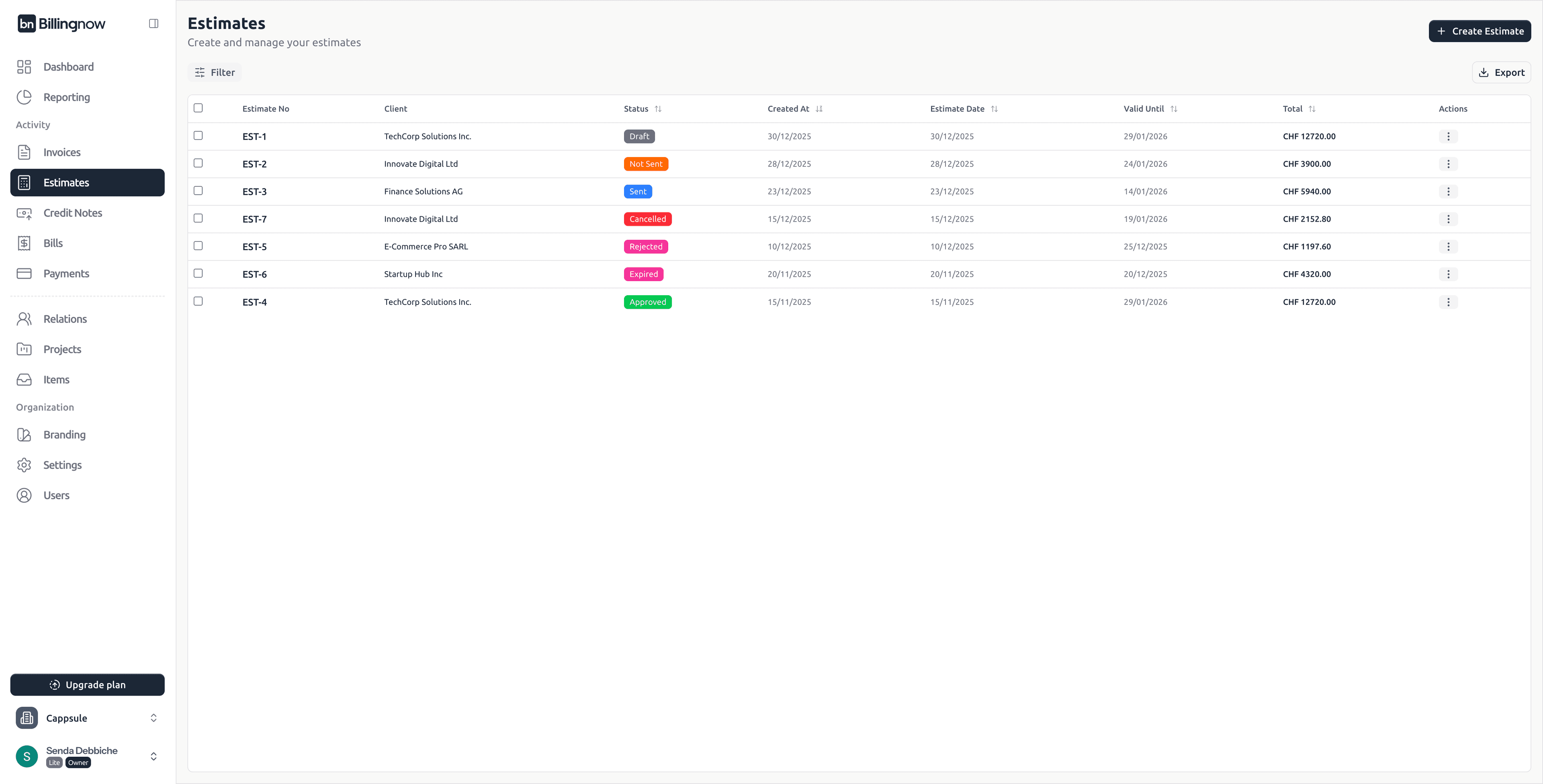
Table Columns
| Column | Description |
|---|---|
| Estimate No | Unique identifier (clickable) |
| Client | Linked customer |
| Status | Current estimate lifecycle status |
| Created At | Creation date |
| Estimate Date | Date of issue |
| Valid Until | Expiration date |
| Total | Total quoted amount |
| Actions | Contextual actions menu |
🔍 Filters & Search
The Filter panel allows you to quickly narrow down estimates using structured criteria or free-text search.
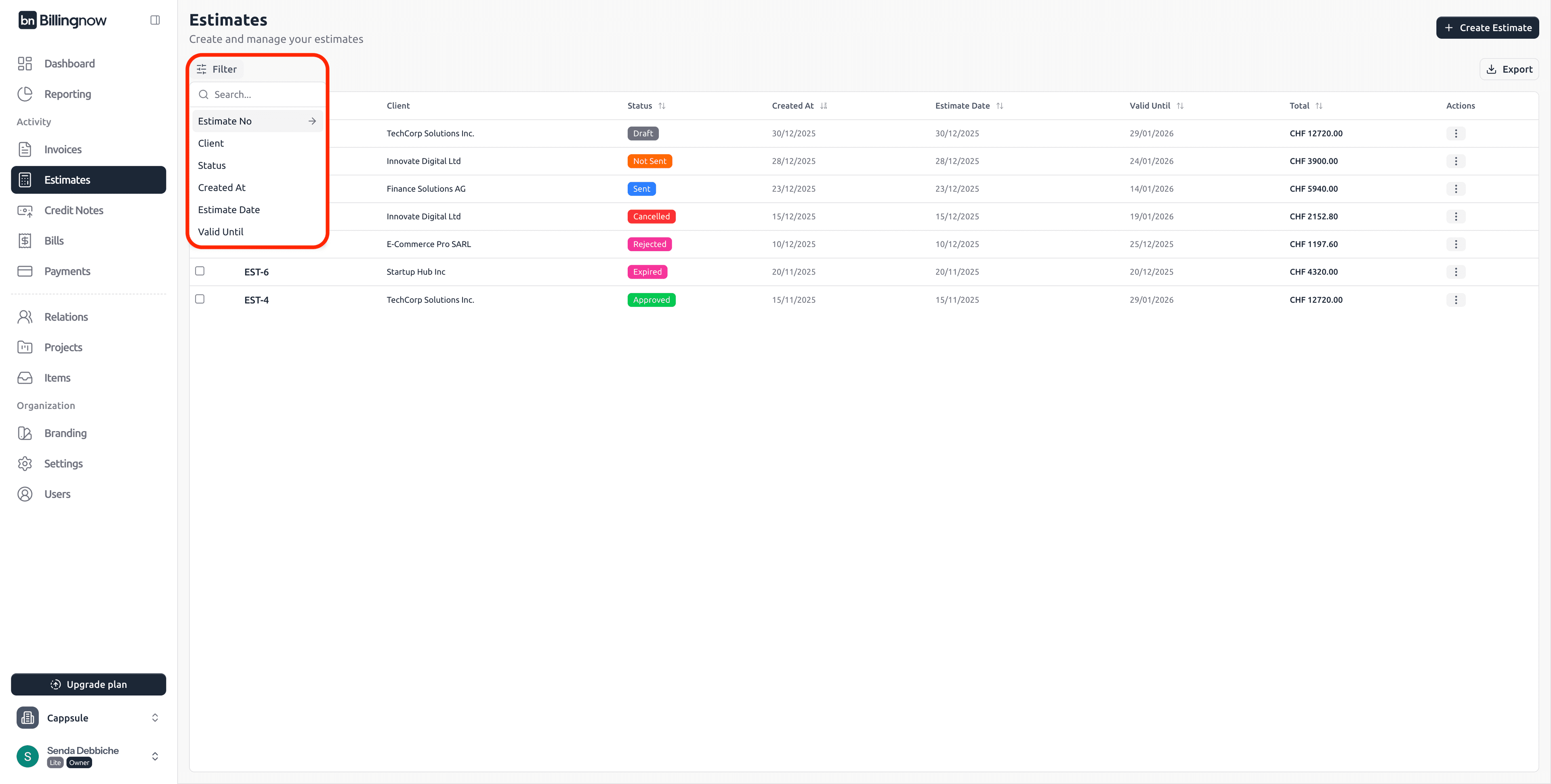
Click Filter at the top of the Estimates page to open the dropdown.
Available Filters
| Filter | Description |
|---|---|
| Estimate No | Search by estimate reference (e.g. EST-1, EST-23) |
| Client | Filter by client name |
| Status | Filter by estimate status |
| Created At | Filter by estimate creation date |
| Estimate Date | Filter by estimate issue date |
| Valid Until | Filter by estimate expiration date |
You can combine:
- One or more filters
- The Search input
- Sorting on table columns
to quickly locate specific estimates.
Use Status + Valid Until to quickly identify expired or pending estimates
Use Client + Estimate No for fast customer follow-ups
🏷️ Estimate Statuses
| Status | Meaning |
|---|---|
| ⚪ Draft | Still being prepared, not finalized |
| 🟠 Not Sent | Finalized but not yet sent |
| 🔵 Sent | Sent to client, awaiting response |
| 🟢 Approved | Accepted by client, ready for invoicing |
| 🔴 Rejected | Declined by client |
| 🟣 Expired | Validity date passed |
| ⚫ Cancelled | Cancelled by the user |
🔍 Estimate Detail Page
Click on an Estimate No to open the detail view.
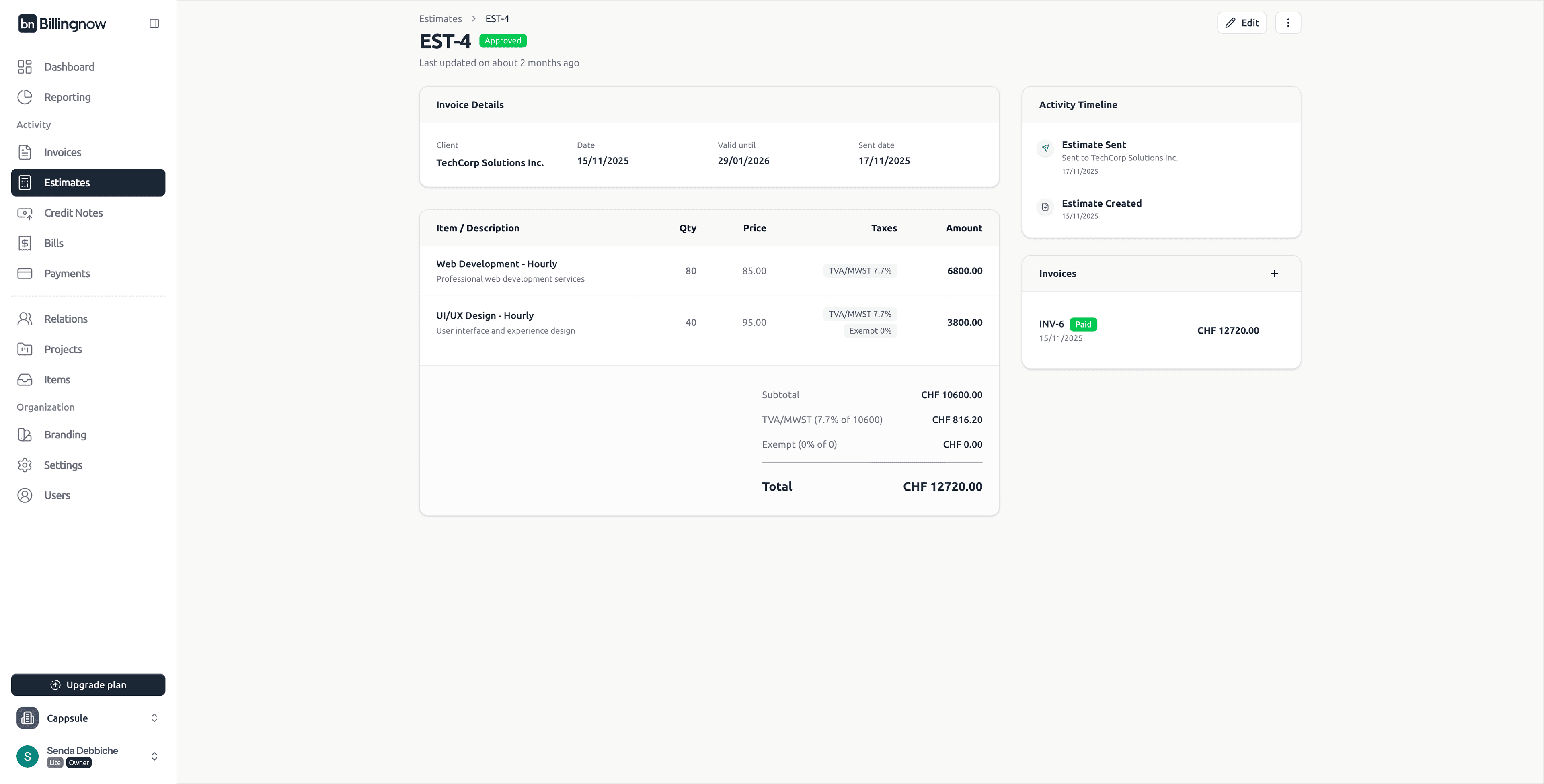
Available Sections
📄 Estimate Details
- Client
- Estimate date
- Valid until
- Sent date (if applicable)
🕒 Activity Timeline
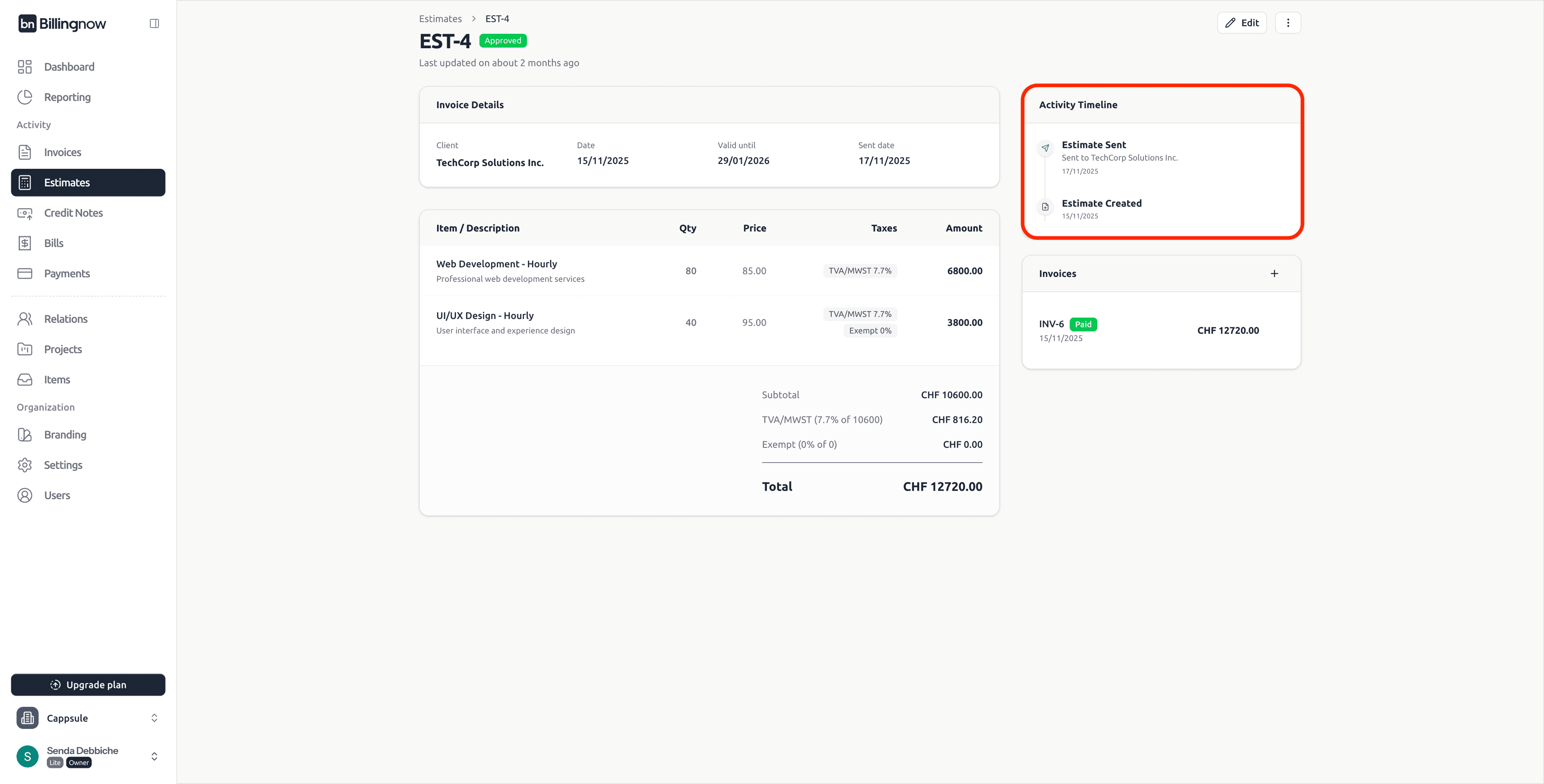
Tracks:
- Estimate created
- Estimate sent
- Approval or rejection events
📎 Linked Invoices
When an estimate is Sent or Approved, you can create an invoice directly from the estimate detail page.
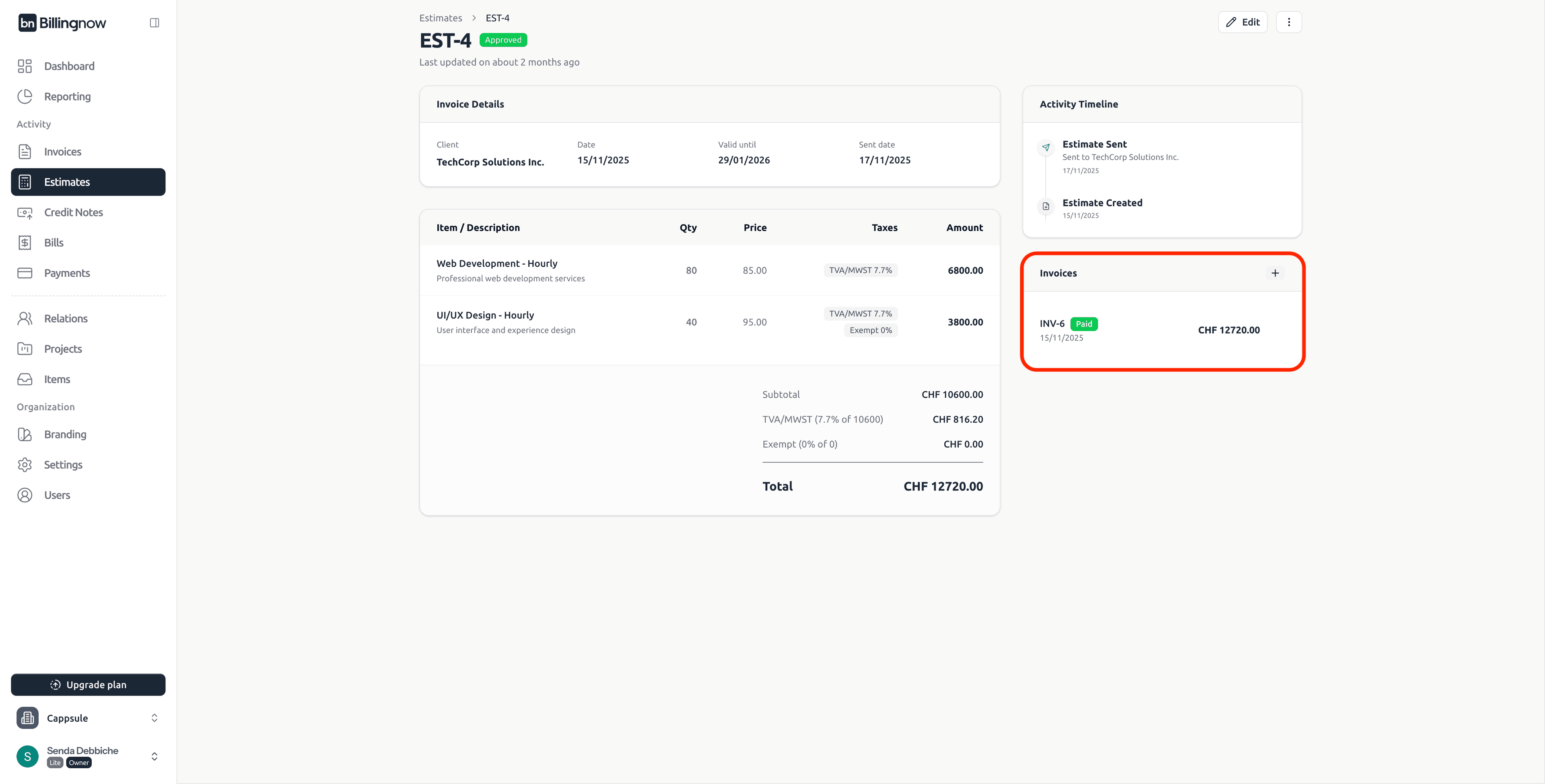
This section:
- Displays invoices created from this estimate (if any)
- Shows invoice number, status, date, and total
- Allows quick navigation to the linked invoice
An estimate can be linked to one or more invoices, depending on your workflow.
Creating an invoice from a Sent estimate is useful when approval is implicit
Creating an invoice from an Approved estimate ensures explicit client validation
⚙️ Actions by Estimate Status (Detail Page)
Actions depend on the current estimate status.
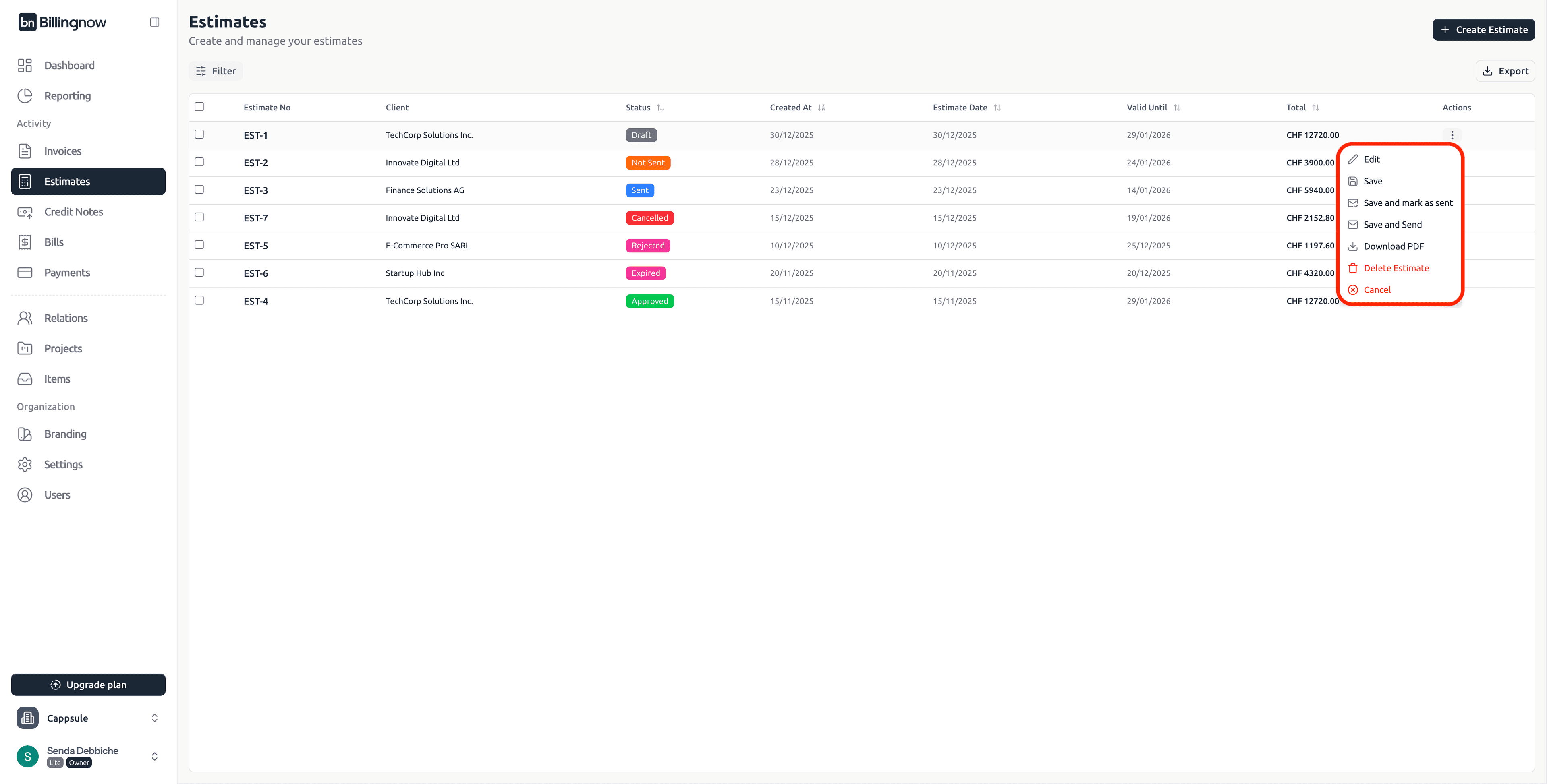
📝 Draft
Available actions:
- Edit
- Save
- Save as Draft
- Save and mark as sent
- Save and send
- Download PDF
- Delete estimate
- Cancel
🟠 Not Sent
Available actions:
- Edit
- Mark as sent
- Send
- Download PDF
- Delete estimate
- Cancel
🔵 Sent
Available actions:
- Approve
- Reject
- Download PDF
- Delete estimate
- Cancel
🟢 Approved
Available actions:
- Download PDF
- Delete estimate
- Cancel
- Create Invoice
🔴 Rejected
Available actions:
- Download PDF
- Delete estimate
- Cancel
🟣 Expired
Available actions:
- Download PDF
- Delete estimate
- Cancel
⚫ Cancelled
Available actions:
- Download PDF
- Delete estimate
➕ Creating a New Estimate (Inline Editor)
Click ➕ Create Estimate from the top-right corner.
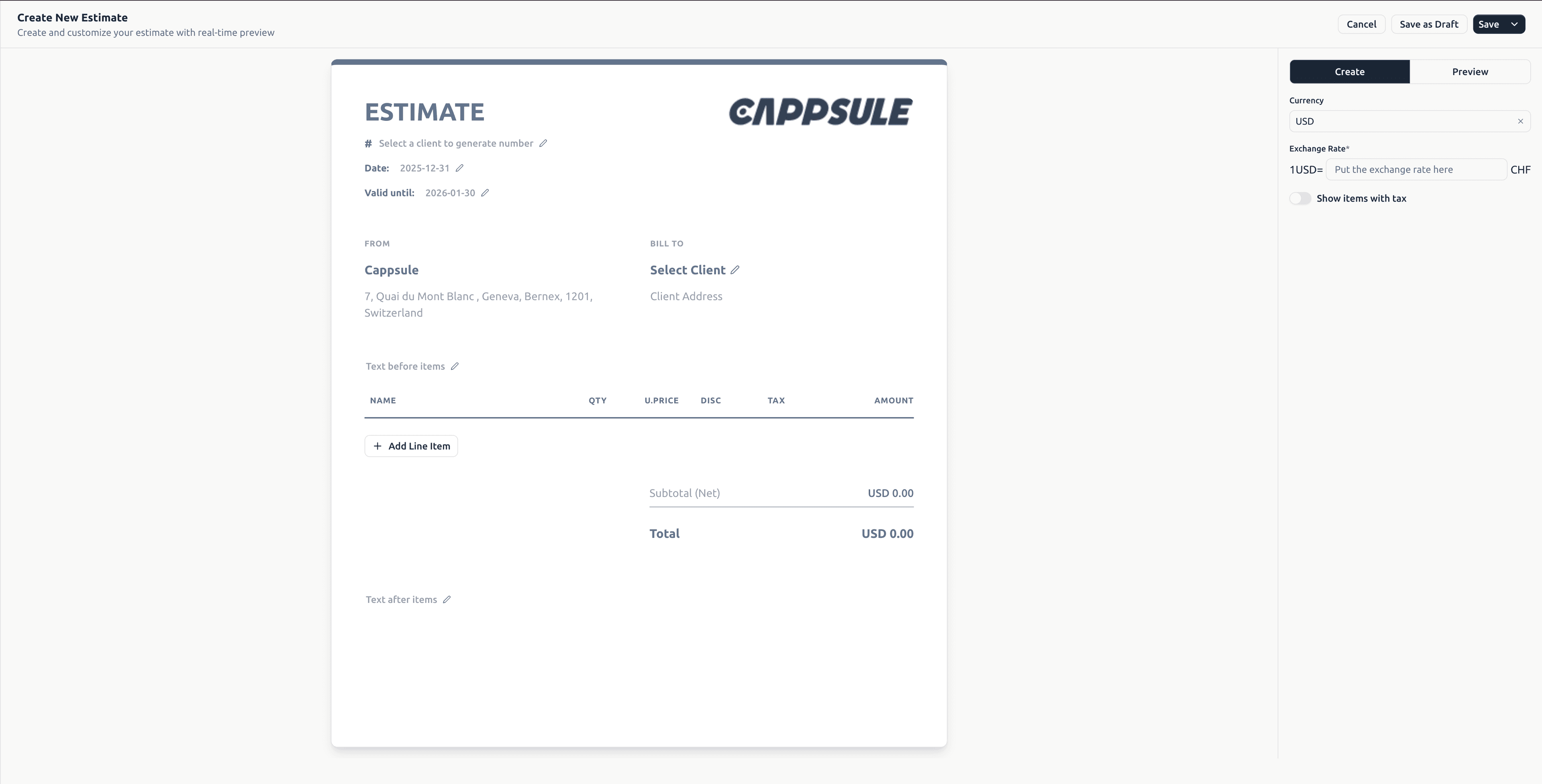
✨ Inline Estimate Editor
BillingNow uses an INLINE estimate editor.
You edit directly inside the estimate document, and all changes are applied instantly.
There is no separate form the document itself is the editor.
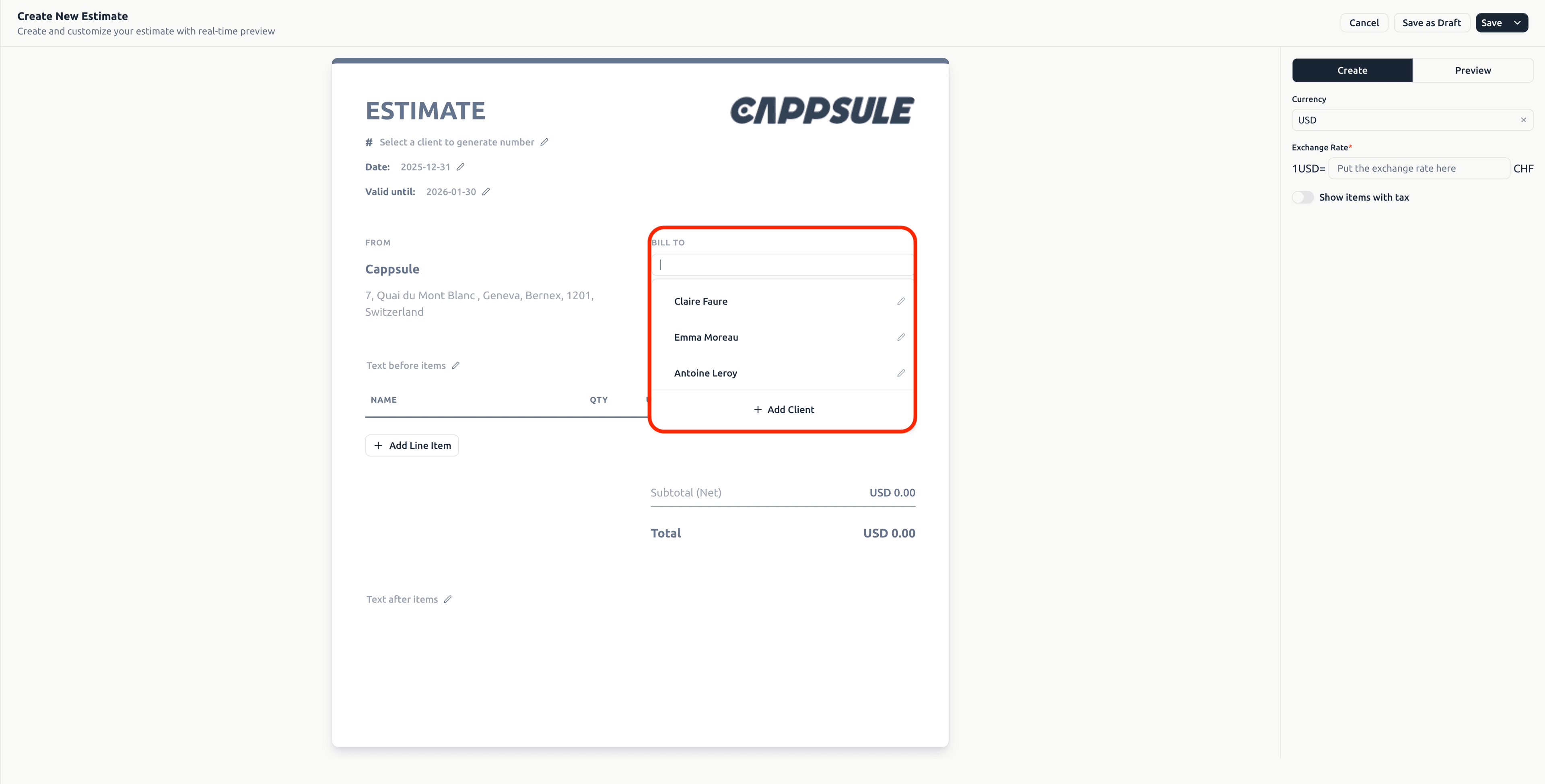
🧾 Estimate Header (Inline)
| Field | Behavior |
|---|---|
| Estimate Number | Auto-generated or editable inline |
| Estimate Date | Click to edit |
| Valid Until | Click to edit |
| From | Auto-filled from company profile |
| Bill To | Select or edit client inline |
🧮 Line Items (Inline)
Click ➕ Add Line Item inside the estimate.
Each line supports:
- Item or service name
- Quantity
- Unit price
- Discount
- Tax rate
- Auto-calculated amount
Totals update in real time.
📝 Additional Texts
Editable directly in the estimate:
| Section | Usage |
|---|---|
| Text before items | Introductory message |
| Text after items | Notes, conditions, payment terms |
| Footer | Legal or company information |
⚙️ Right Panel Settings
The right panel controls estimate configuration.
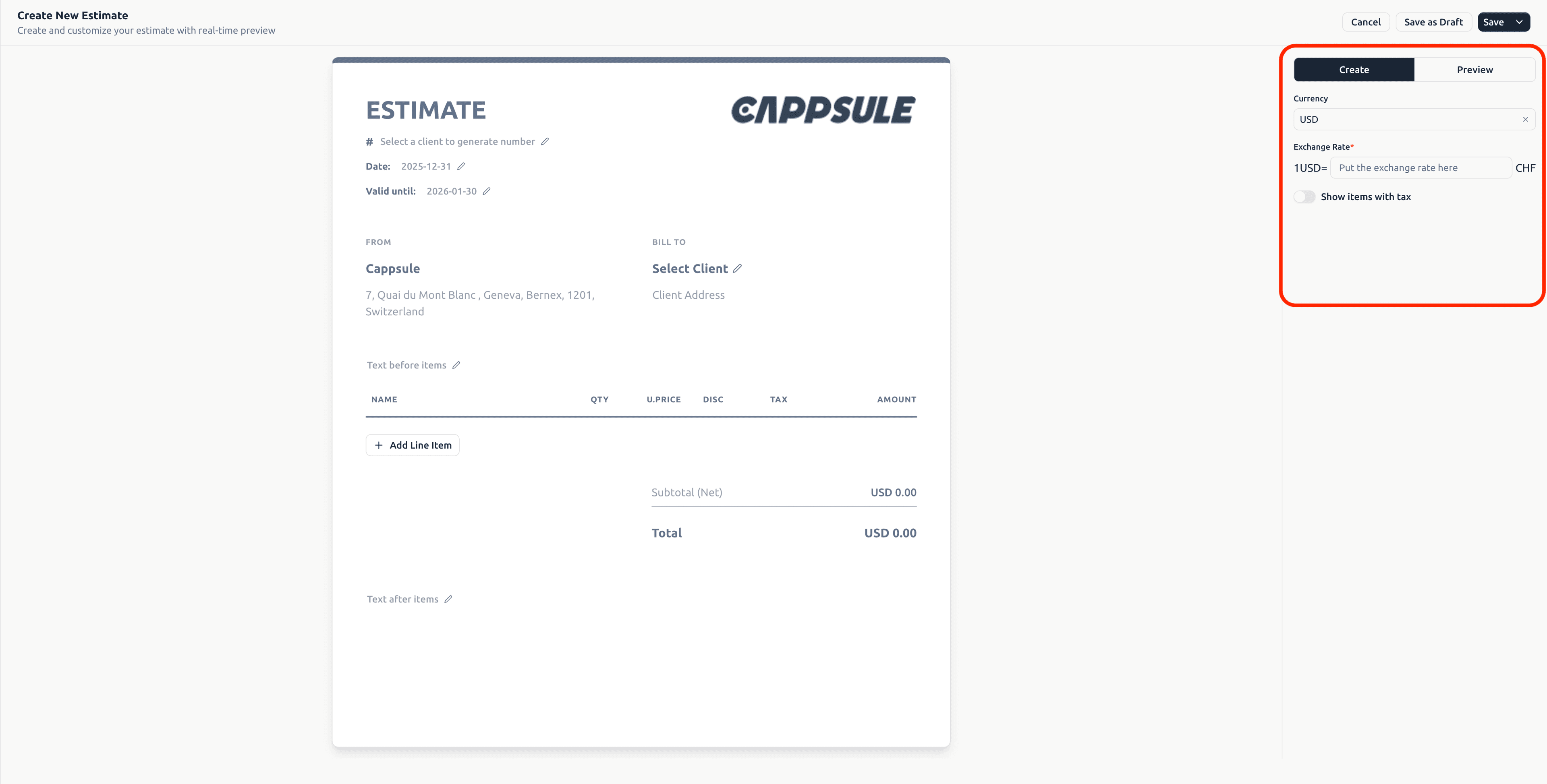
Available options:
- Currency
- Exchange rate
- Show items with tax
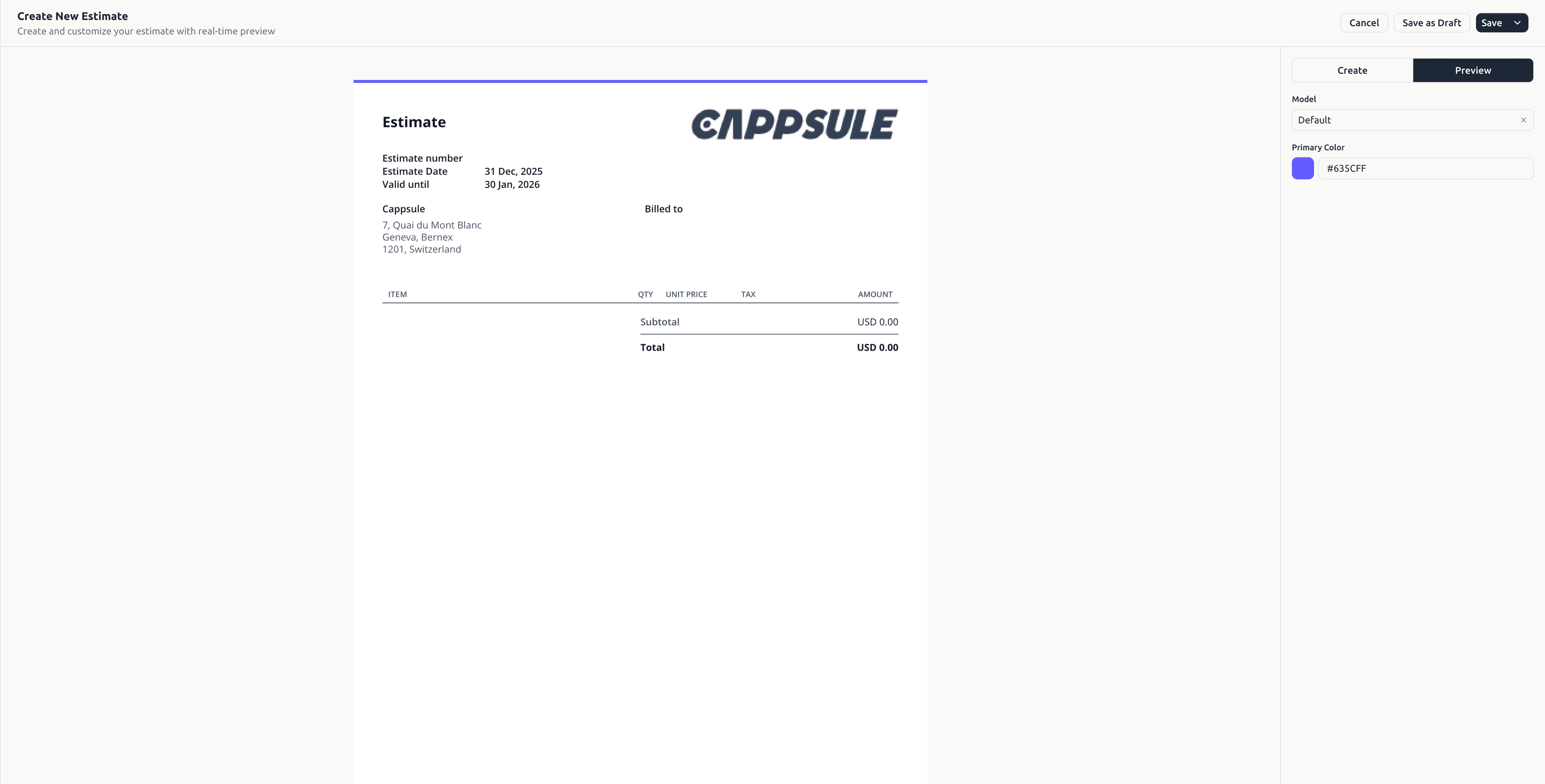
- Estimate model
- Primary color
- Preview mode
💾 Saving & Exporting
Available save actions:
- Save as Draft
- Save
- Save and mark as sent
- Save and send
- Download PDF
Actions are available:
- From the editor
- From the estimate list
- From the detail page
💌 Sending Estimates via Email
Click Send from the estimate actions.
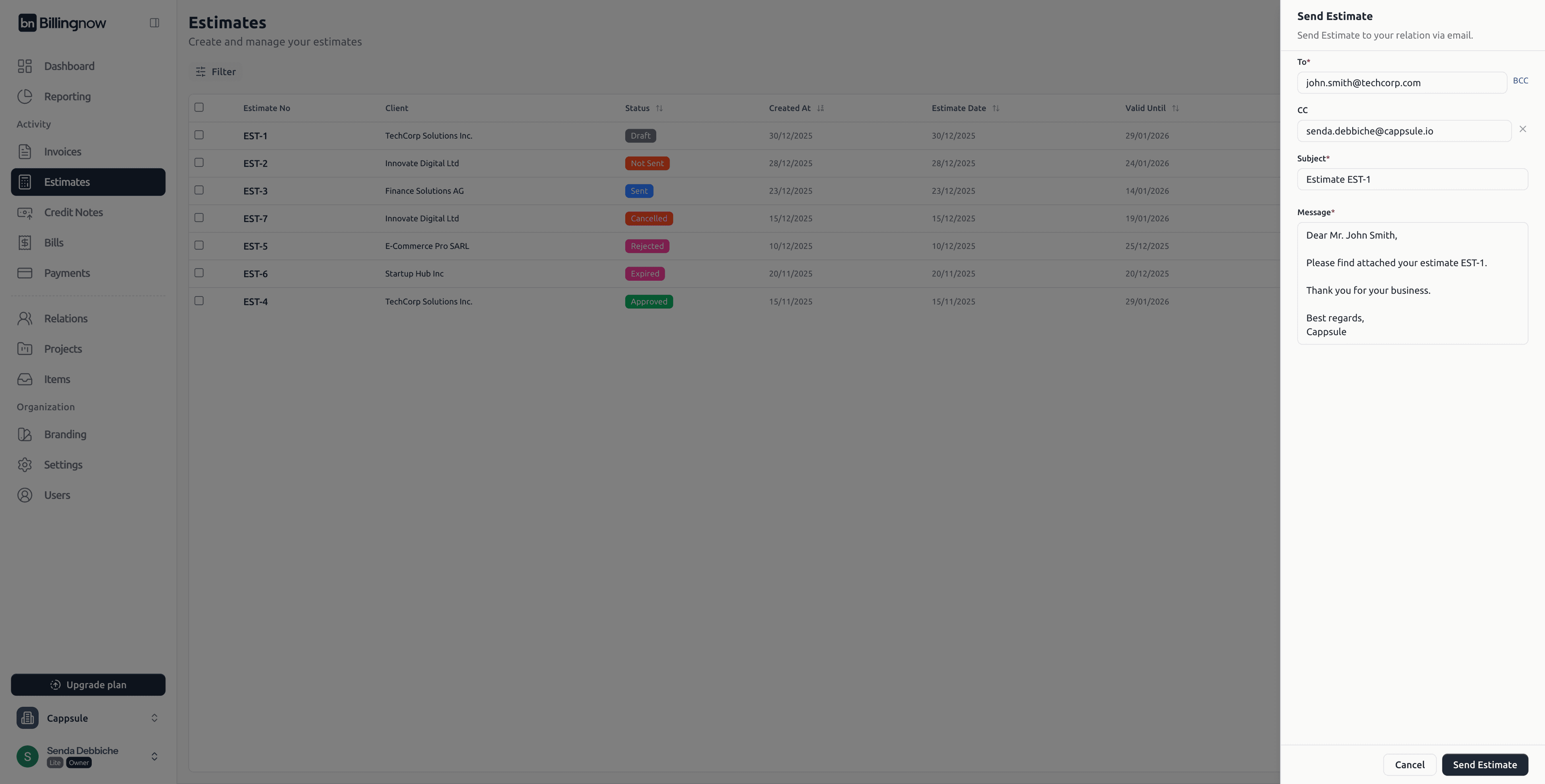
You can edit:
- To / CC / BCC
- Subject
- Message body
Example Email
Subject: Estimate EST-1

Dear Mr John Smith,

Please find attached your estimate EST-1.

Thank you for your business.

Best regards,
Cappsule
After sending:
- You can customize the subject and message body before sending.
- The client’s email address is automatically taken from their profile.
- Status changes to 🔵 Sent
- Timestamp is recorded
- PDF is attached automatically
Send Manually from Your Personal Email
If you prefer to use your own mailbox (e.g., Outlook, Gmail):
- Click Download PDF on the estimate.
- Attach the downloaded file to your personal email.
- Write your own message and send it manually.
- After sending manually, return to the estimate and click Save and mark as Sent to update its status in BillingNow.
🔁 Convert Estimate to Invoice
Only Approved estimates can be converted.
Steps:
- Open an approved estimate
- Click Create Invoice
- A new invoice is generated with all data copied
- Review and send the invoice
💡 Best Practices
✔ Always define a validity date
✔ Use Draft for internal review
✔ Send estimates directly from BillingNow for tracking
✔ Convert approved estimates to invoices to avoid re-entry
✔ Review Preview mode before sending
✅ Summary
This documentation reflects the latest BillingNow Estimates system, including:
- Inline estimate editor
- Status-based actions
- Filters and search
- Email sending drawer
- Approval and conversion workflow
- Real-time preview and PDF export