The Projects module in Billingnow allows you to organize work by client engagements and track all related financial activity in one place.
Projects act as a structuring layer between relations (clients) and documents (invoices, estimates, payments), making it easier to follow progress, billing, and history for each engagement.
With Projects, you can:
- 📂 Organize work by client engagement
- 🧾 Link invoices, estimates, credit notes, and payments
- 📊 Track project status and timeline
- 🕒 Maintain a full activity history
- 💬 Collaborate using comments
- 📤 Export project data for reporting
📂 Projects Dashboard
Navigate to Sidebar → Projects
The Projects dashboard displays all existing projects with their main attributes.
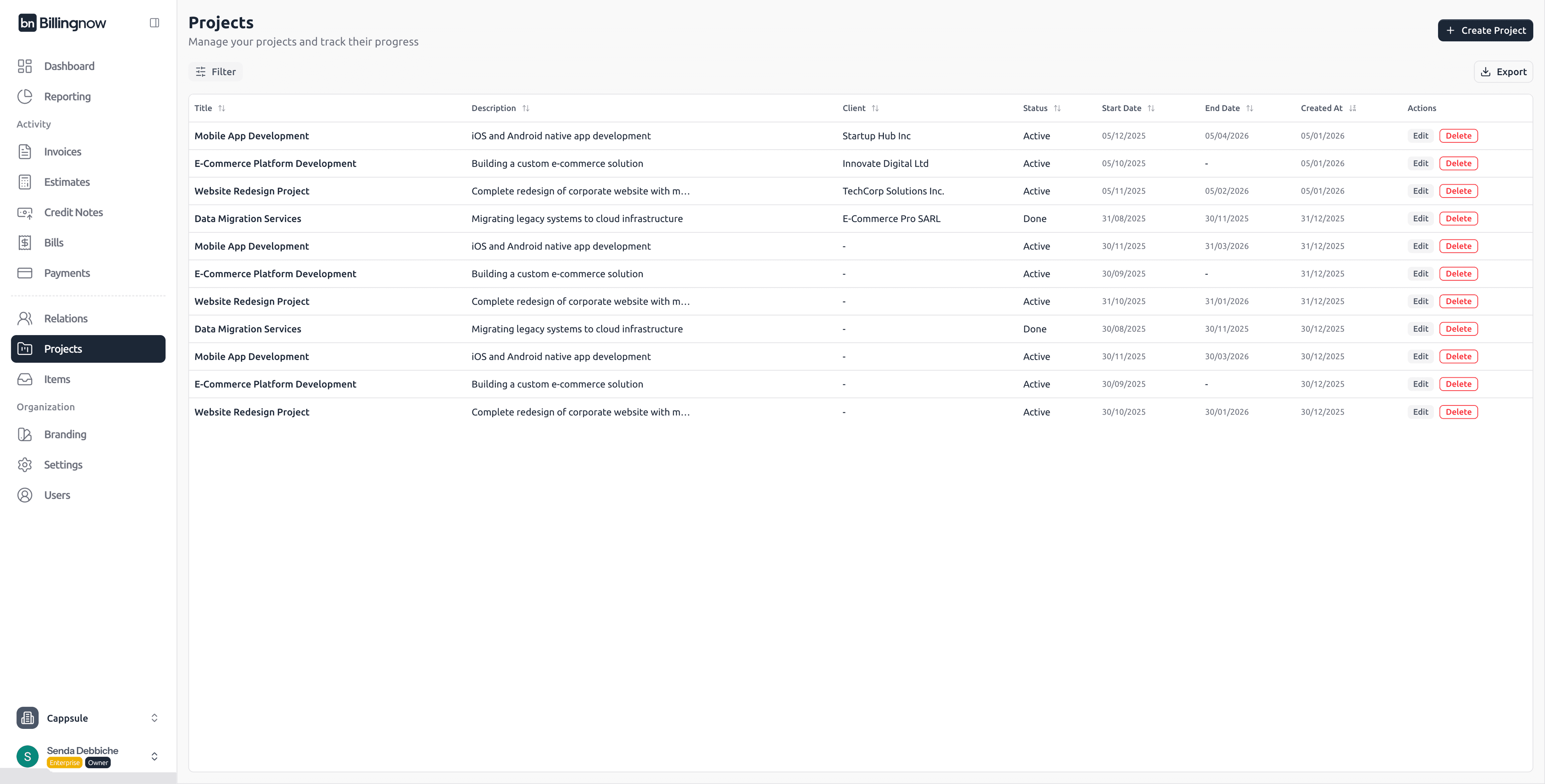
📊 Columns Overview
| Column | Description |
|---|---|
| Title | Project name |
| Description | Short project description |
| Client | Linked client relation (optional) |
| Status | Project state (Active, Done, etc.) |
| Start Date | Project start date |
| End Date | Project end date (optional) |
| Created At | Date the project was created |
| Actions | Edit or Delete |
🟢 Edit – Update project information
🔴 Delete – Permanently remove the project
🔍 Filtering & Search
Click Filter to search and refine projects.
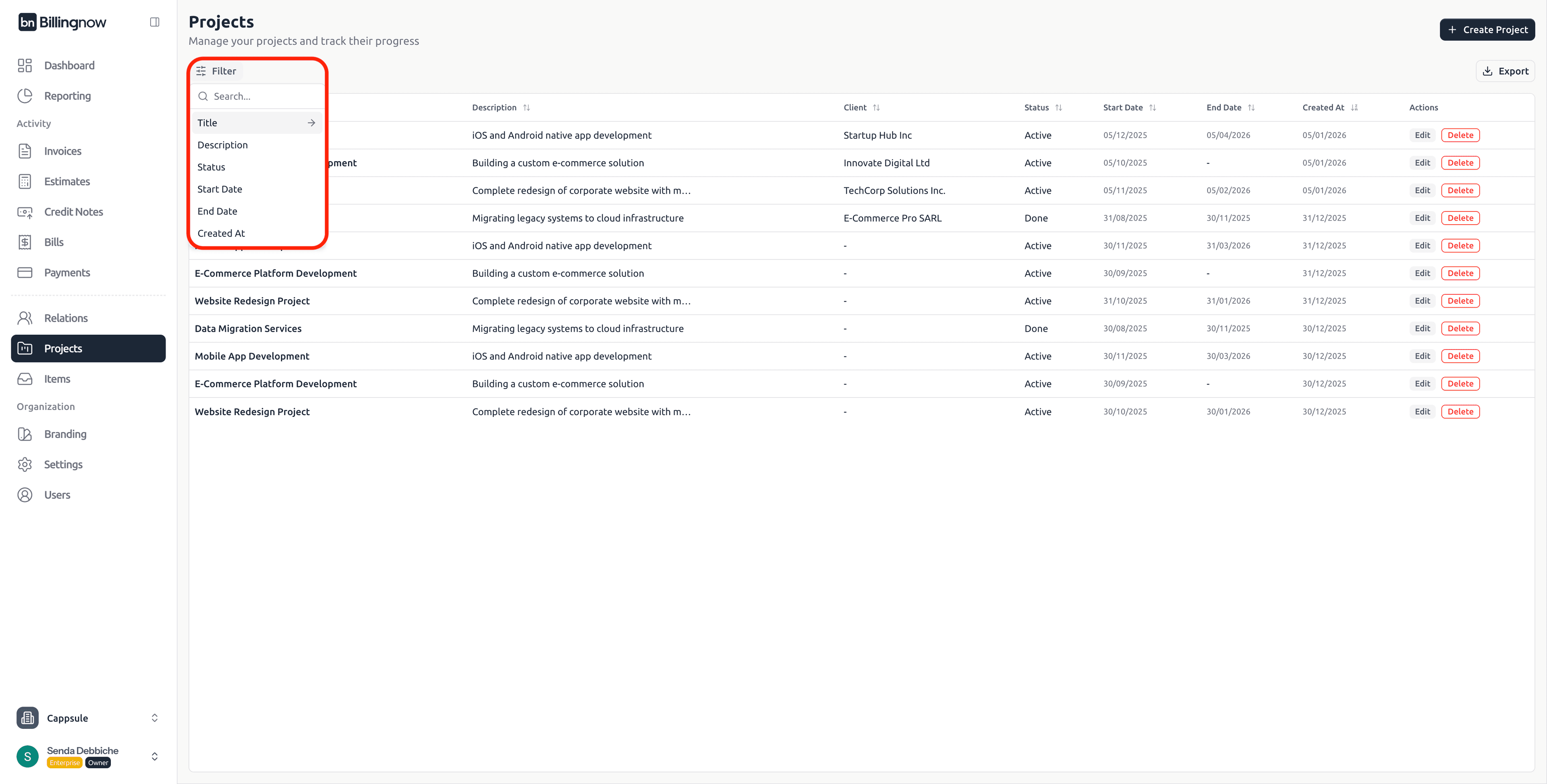
Available Filters
| Filter | Description |
|---|---|
| Title | Search by project name |
| Description | Search in description |
| Status | Active, Done, etc. |
| Start Date | Filter by start date |
| End Date | Filter by end date |
| Created At | Creation date |
Filtering is useful when managing a large number of ongoing and completed projects.
📤 Export Projects
Click Export in the top-right corner of the dashboard.
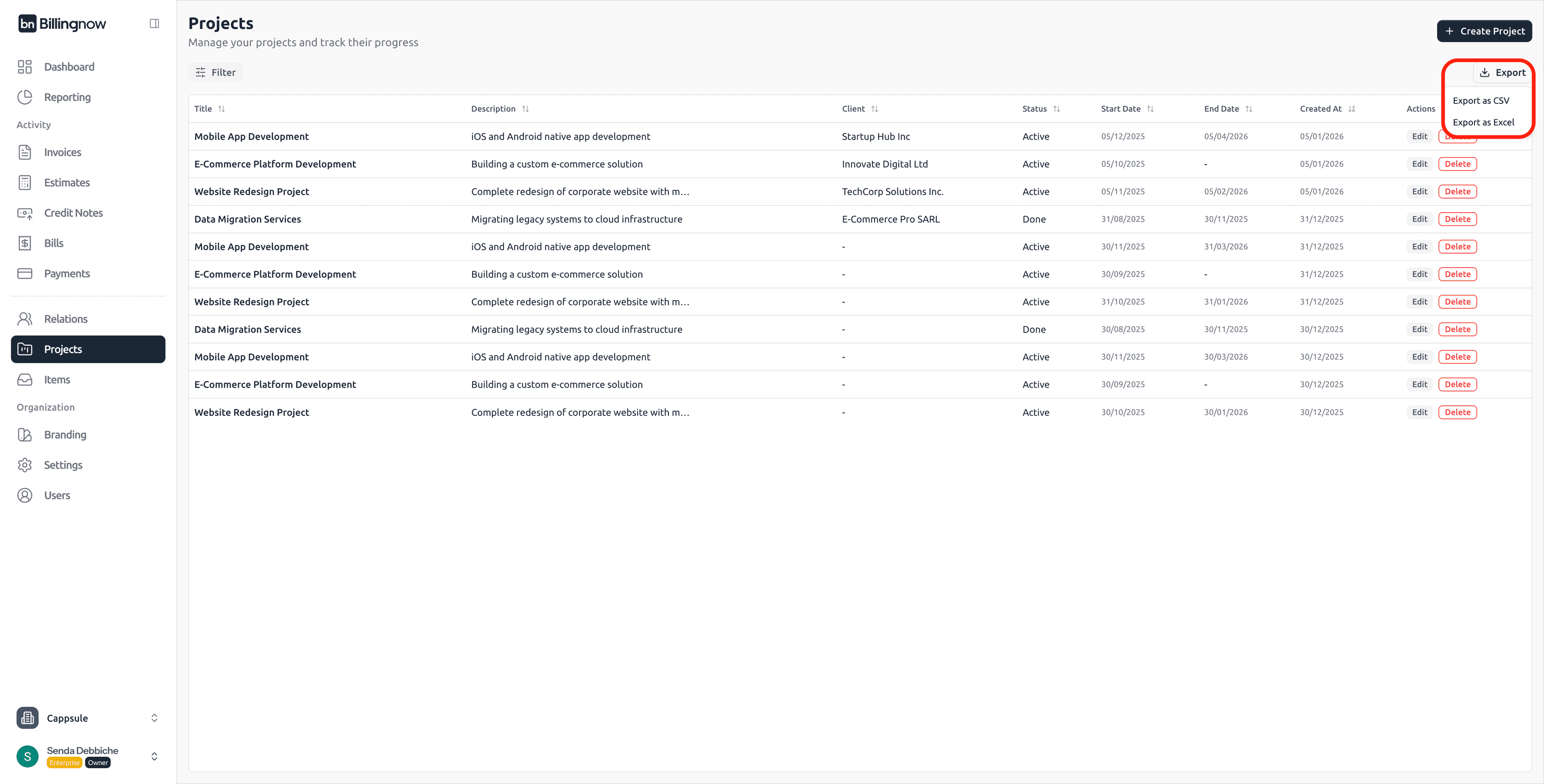
Available formats:
- Export as CSV
- Export as Excel
Exports respect the currently applied filters.
➕ Creating a New Project
Click Create Project in the top-right corner.
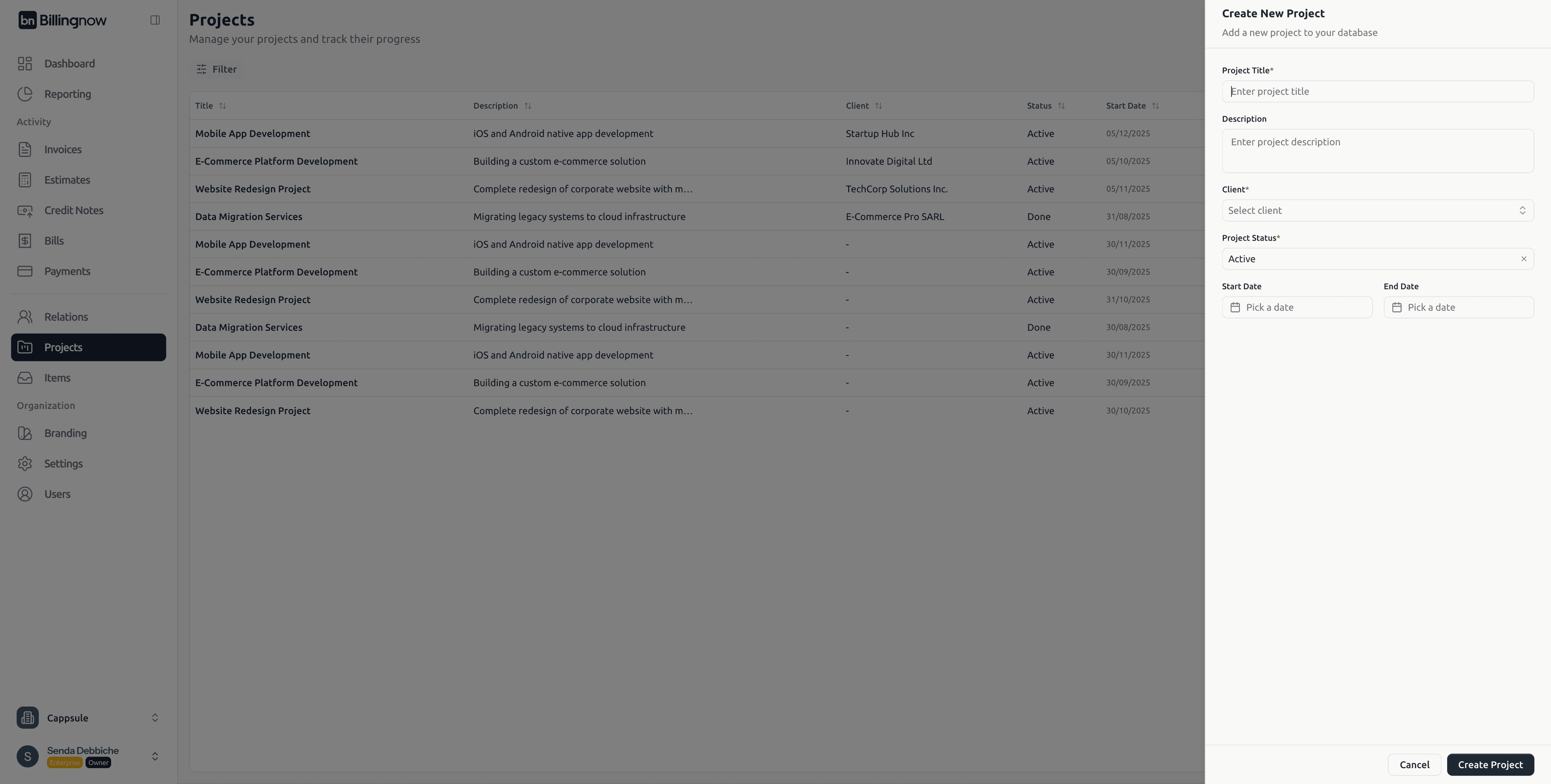
🧾 Project Fields
| Field | Description |
|---|---|
| Project Title | Name of the project (required) |
| Description | Short explanation of the project |
| Client | Linked client relation (optional) |
| Project Status | Active, Done, etc. |
| Start Date | Project start date (optional) |
| End Date | Project end date (optional) |
Linking a client allows documents created from the project to automatically inherit client data.
Click Create Project to save.
✏️ Editing a Project
To edit a project:
- Click Edit
- Update the project fields
- Click Update Project
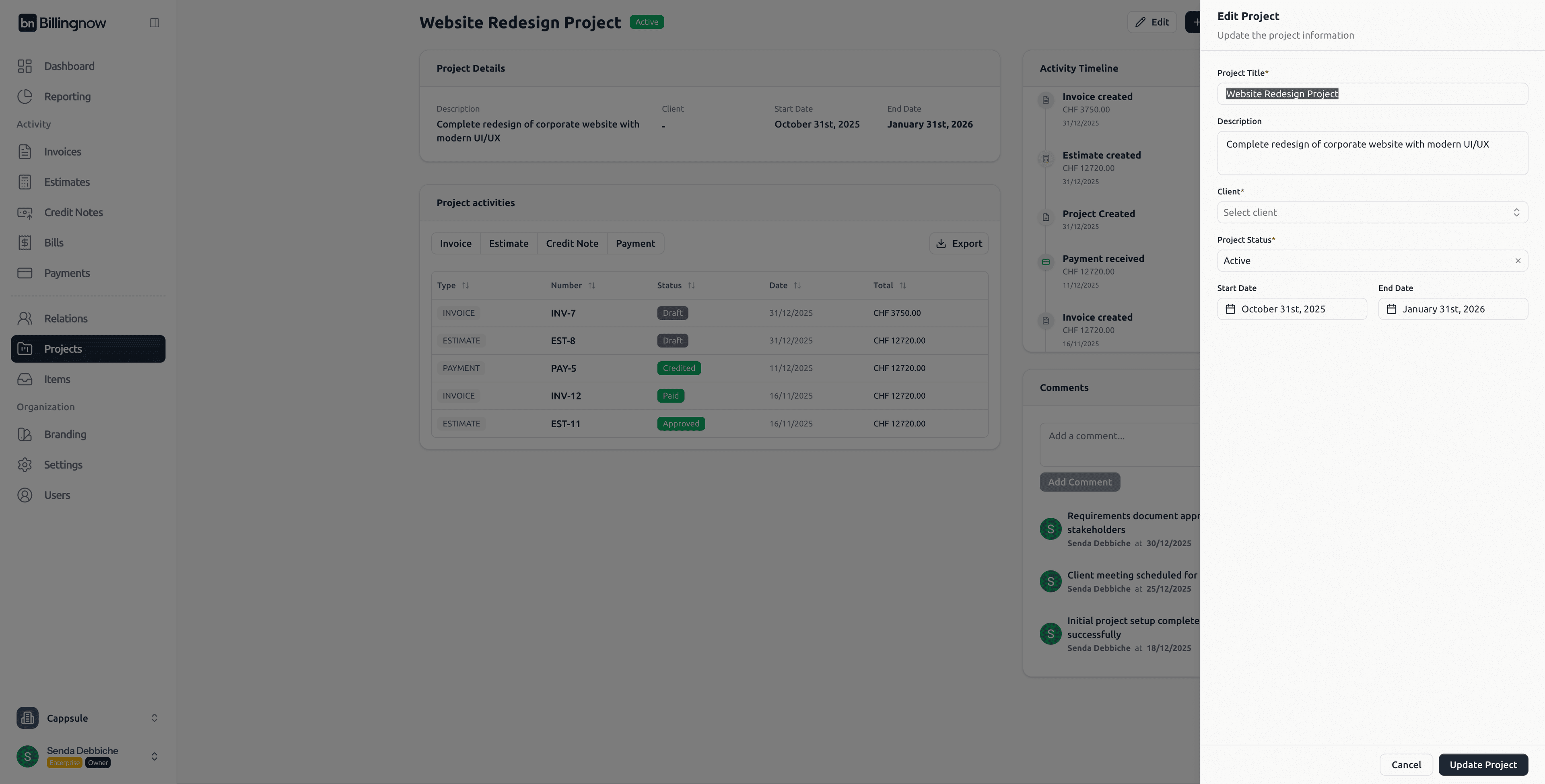
Editing a project does not affect existing invoices or payments already linked.
🔗 Project Detail Page
Click on a project title to open the Project Detail Page.
This page provides a 360° view of the project, including documents, payments, comments, and activity history.
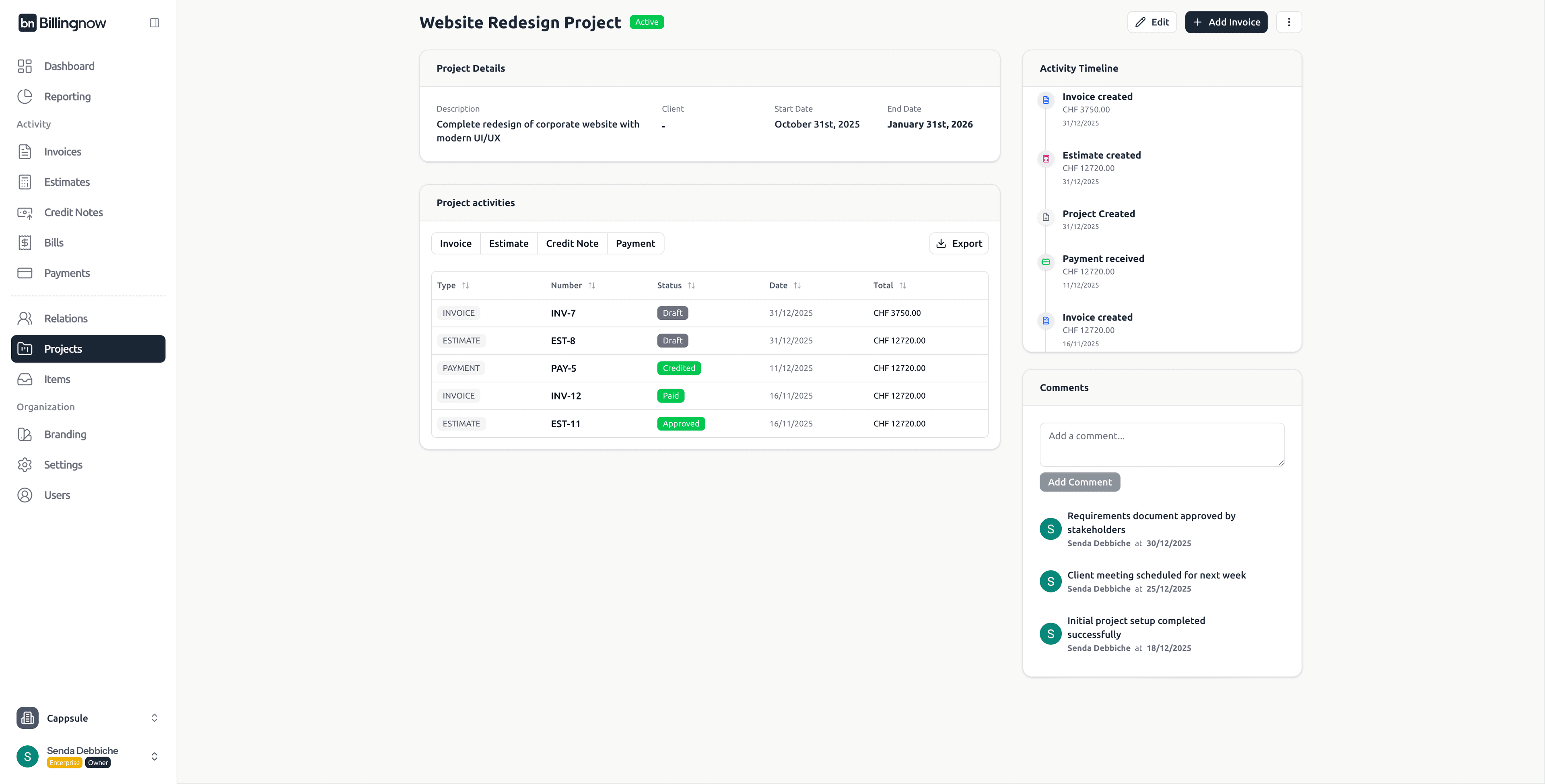
🧾 Project Details Section
At the top of the page, the Project Details card displays:
- Description
- Client
- Start Date
- End Date
This information helps contextualize all related financial activity.
⚡ Quick Actions
In the top-right corner of the project detail page:
| Action | Description |
|---|---|
| Edit | Update project information |
| Add Invoice | Create an invoice linked to the project |
| More (⋮) | Additional actions |
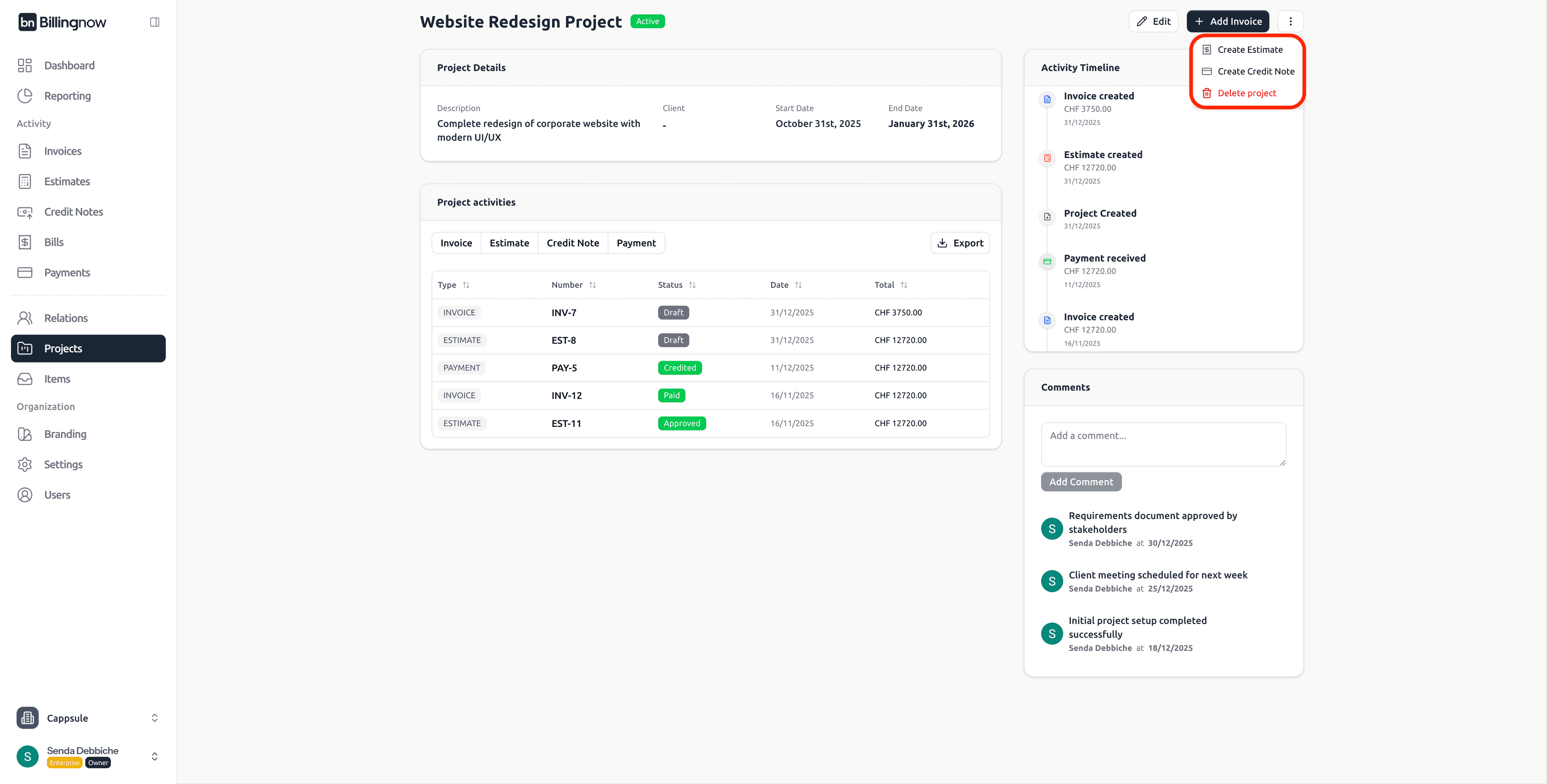
More Actions Menu
From the More (⋮) menu you can:
- Create Estimate
- Create Credit Note
- Delete Project
➕ Create Documents from a Project
Documents created from a project are automatically linked to it.
Available actions:
- Add Invoice
- Create Estimate
- Create Credit Note
This ensures:
- Correct project tracking
- Clean reporting
- Consistent client linkage
🔁 Project Activities
The Project Activities section lists all financial documents linked to the project.
Available tabs:
- Invoice
- Estimate
- Credit Note
- Payment
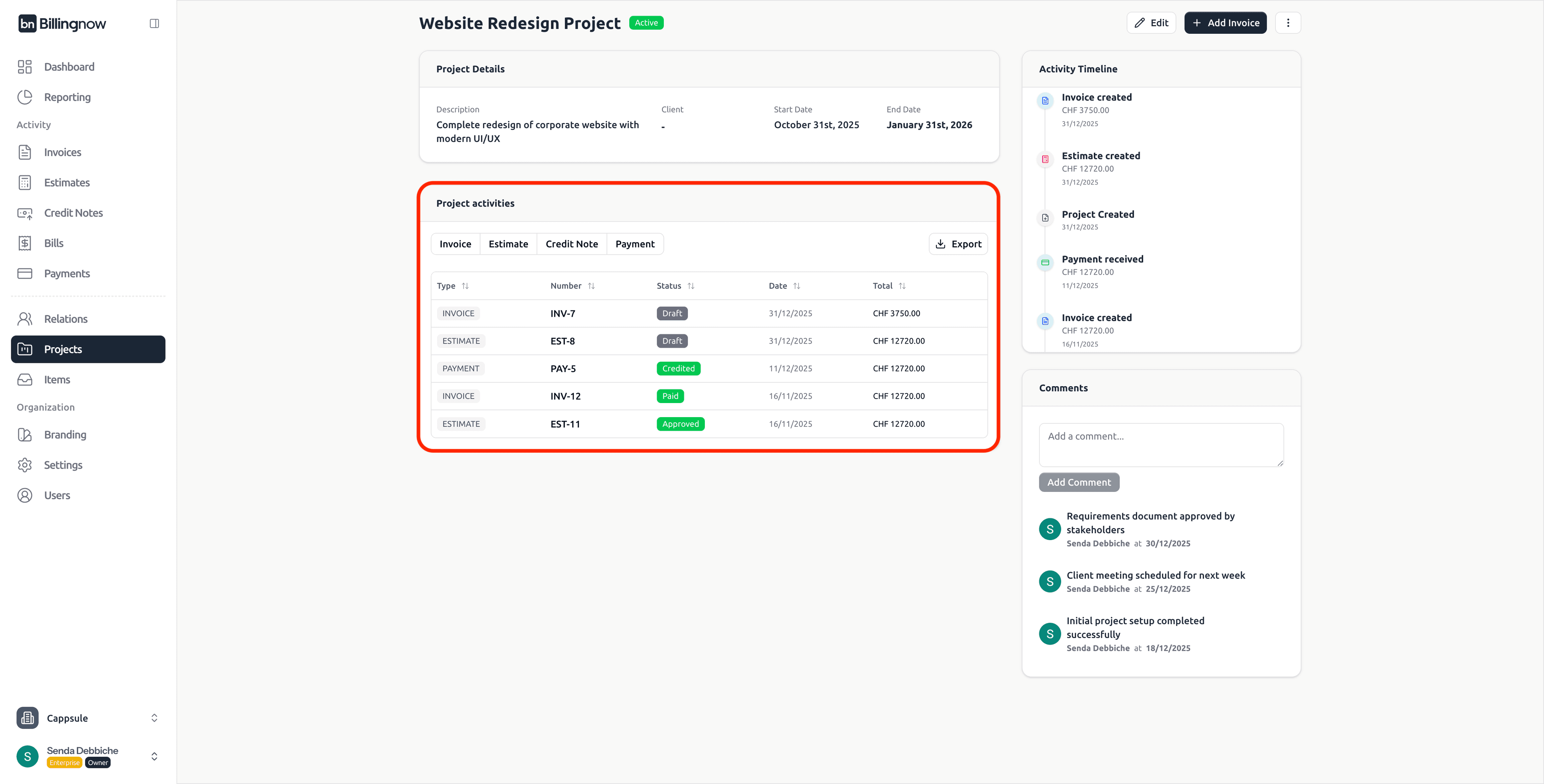
Available Columns
| Column | Description |
|---|---|
| Type | Document type |
| Number | Document reference |
| Status | Draft, Paid, Approved, etc. |
| Date | Document or payment date |
| Total | Document amount |
Use this section to monitor project billing progress and outstanding amounts.
🕒 Activity Timeline
The Activity Timeline displays a chronological history of project events:
- Project created
- Invoice created
- Estimate created
- Payment received
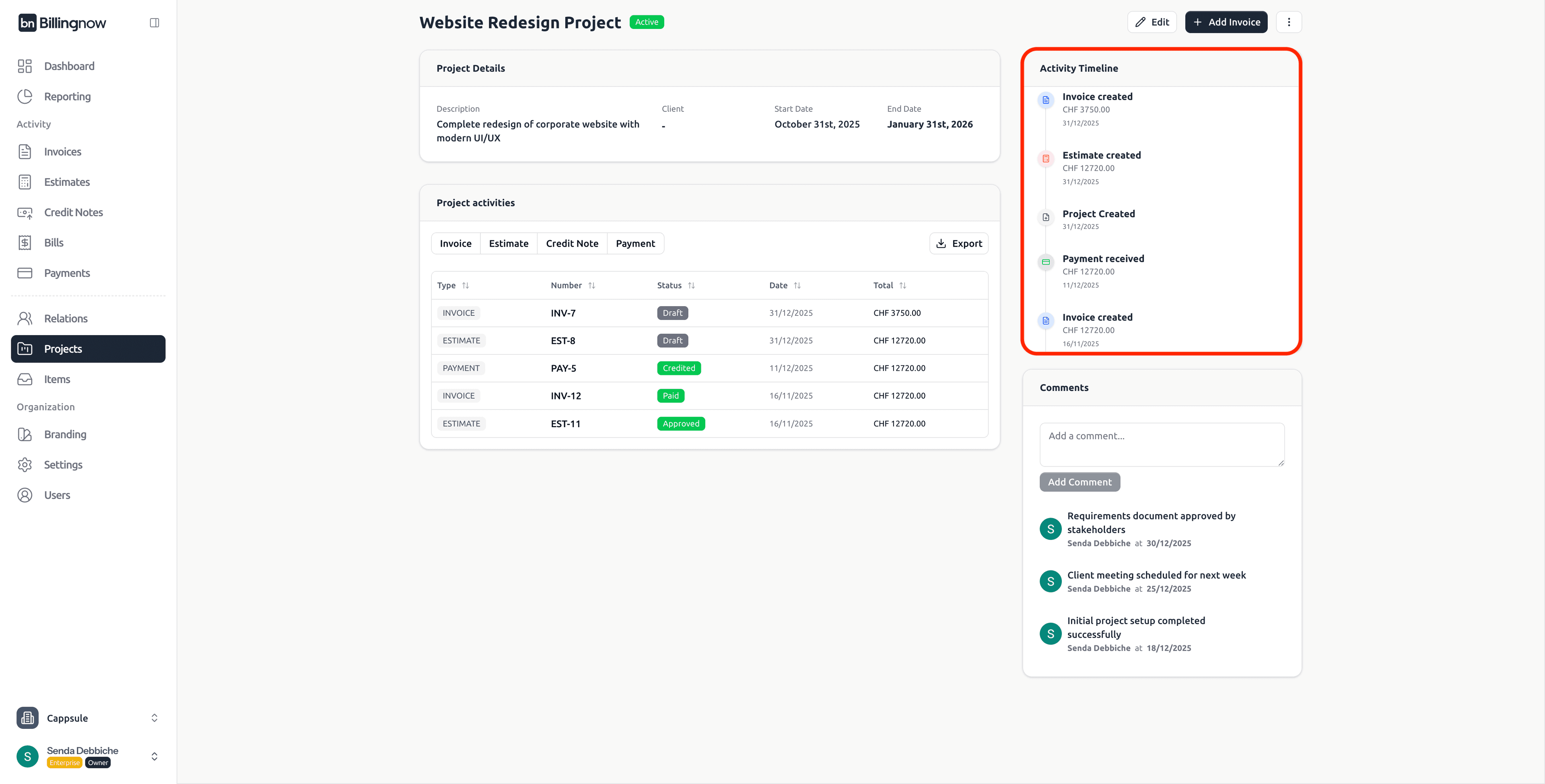
This acts as a full audit trail for the project.
💬 Comments
The Comments section allows you to leave internal notes and updates related to the project.
You can:
- Add comments
- Track decisions and milestones
- Maintain collaboration context
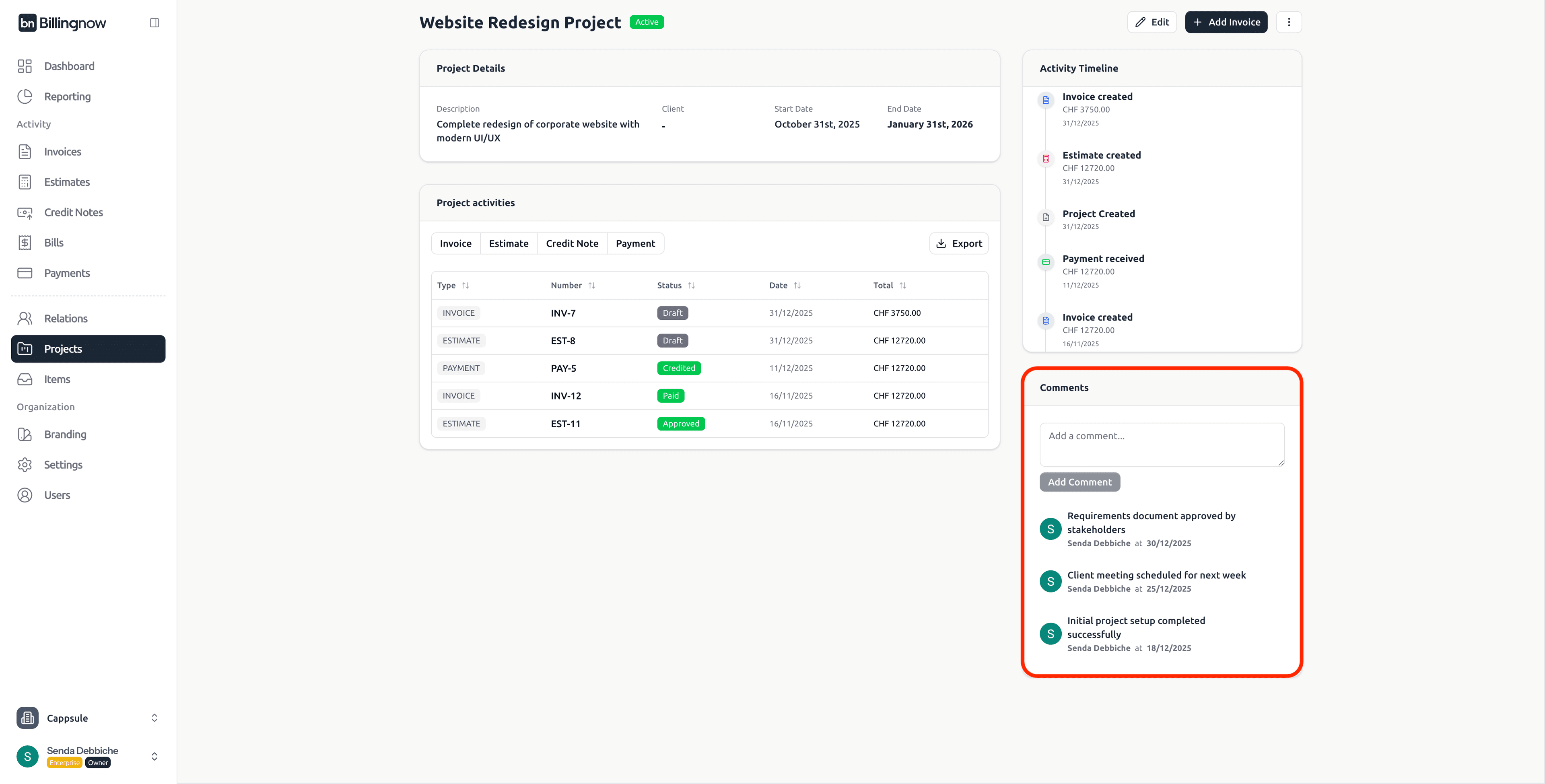
Comments are ideal for tracking non-financial project updates.
🗑️ Deleting a Project
To delete a project:
- Open the More (⋮) menu
- Click Delete Project
- Confirm deletion
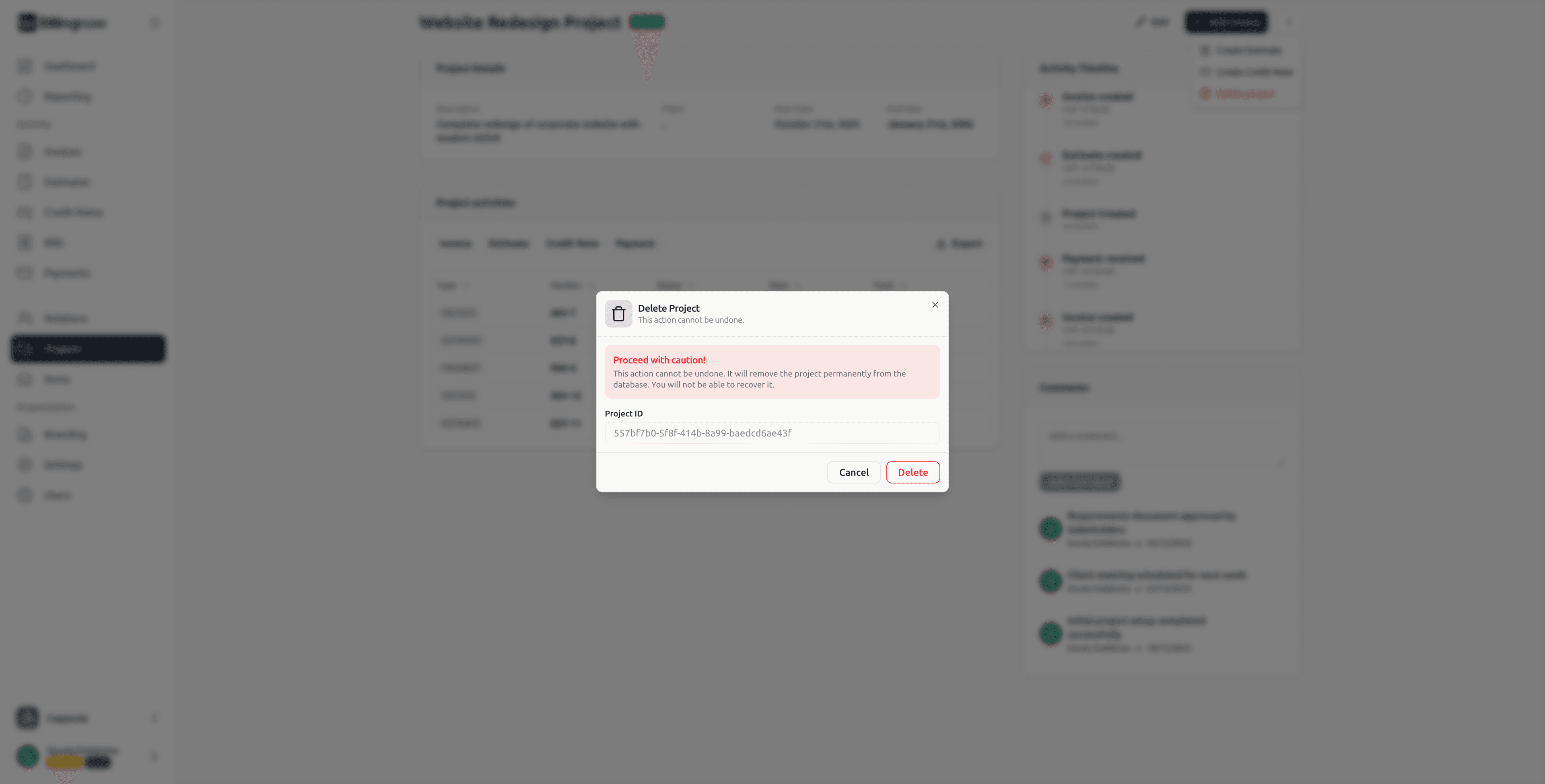
This action is irreversible.
The project and all its links will be permanently removed.
🔁 Usage Across BillingNow
Projects integrate seamlessly with:
- 🧾 Invoices
- 📑 Estimates
- 💳 Credit Notes
- 💰 Payments
This ensures consistent tracking across all financial documents.
💡 Best Practices
✔ Use clear project names
✔ Close projects when completed
✔ Link projects to clients whenever possible
✔ Use comments for internal collaboration
✔ Regularly review active projects
✅ Summary
The Projects module helps you structure your business activity by grouping documents and payments under a single engagement.
With Projects, you gain:
- Clear financial visibility
- Better organization
- Improved reporting
- Full historical traceability
This makes Billingnow more structured, scalable, and audit-friendly.