The Invoices section allows you to create, edit, send, and monitor invoices for your clients - all in one place.
From this module, you can:
- Generate professional invoices
- Edit invoices inline with real-time preview
- Track payment status and history
- Manage drafts, sent, and paid invoices
- Add and edit payments
- Create and manage credit notes
- Export, resend, cancel, or delete invoices
📂 Invoice Management Dashboard
Navigate to Sidebar → Invoices
The invoice dashboard displays all your invoices in a structured, sortable table.
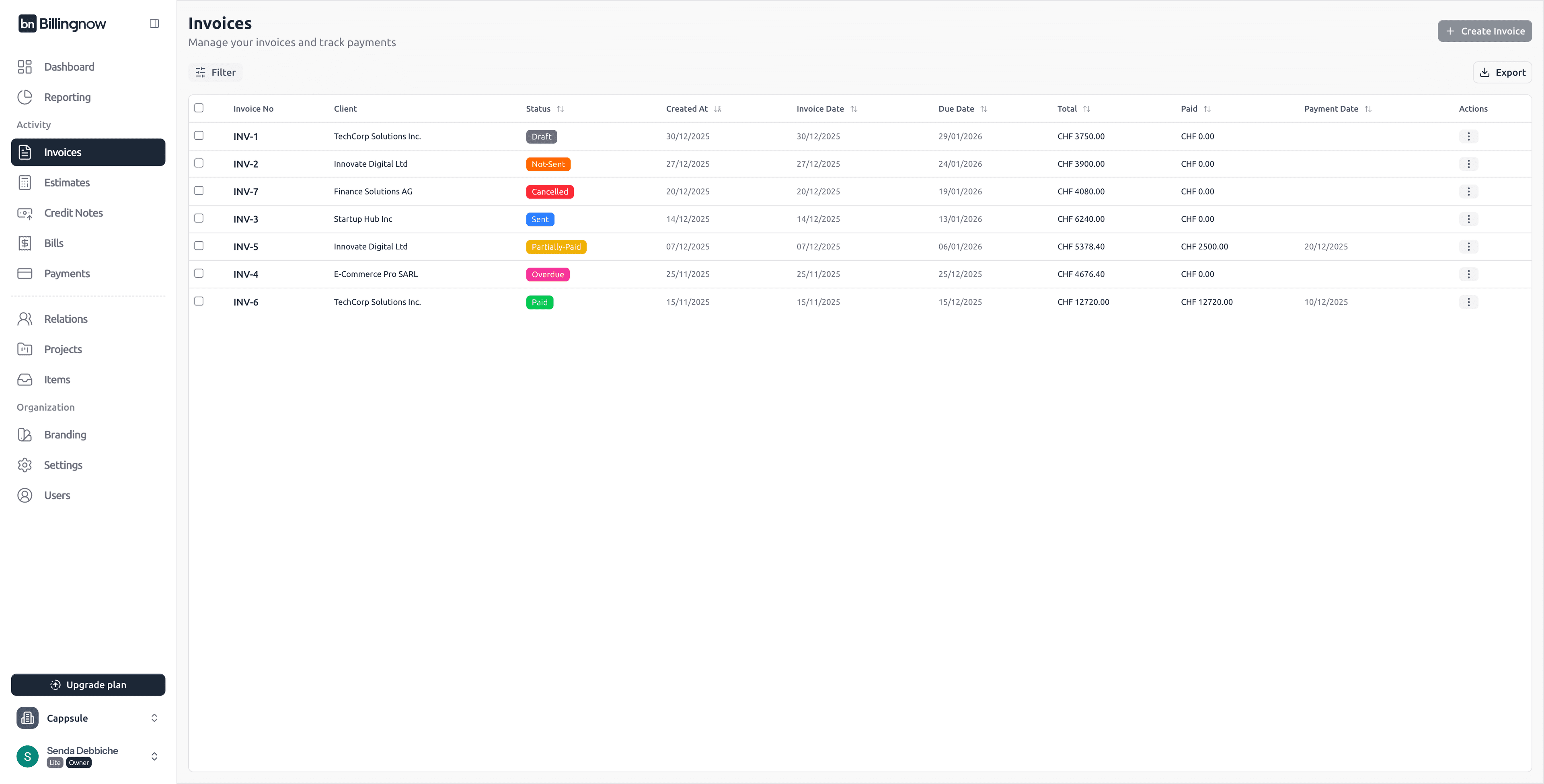
Table Columns
| Column | Description |
|---|---|
| Invoice No | Unique identifier (clickable) |
| Client | Linked customer |
| Created At | Invoice creation date |
| Invoice Date / Due Date | Issue date and payment deadline |
| Total | Final amount including taxes |
| Paid | Amount already paid |
| Payment Date | Last payment date (if any) |
| Status | Current invoice lifecycle status |
| Actions | Contextual actions menu |
🏷️ Status Color Indicators
- ⚪ Draft – Not finalized
- 🟠 Not Sent – Saved but not yet sent
- 🔵 Sent – Sent to client
- 🟡 Partially Paid – Partial payment received
- 🟢 Paid – Fully paid
- 🟣 Overdue – Past due date without full payment
- 🔴 Cancelled – Cancelled invoice
🔎 Invoice Filters
The Invoices page includes a powerful filtering system that allows you to quickly find and narrow down invoices based on multiple criteria.
Click the Filter button at the top-left of the invoice list to open the filter panel.
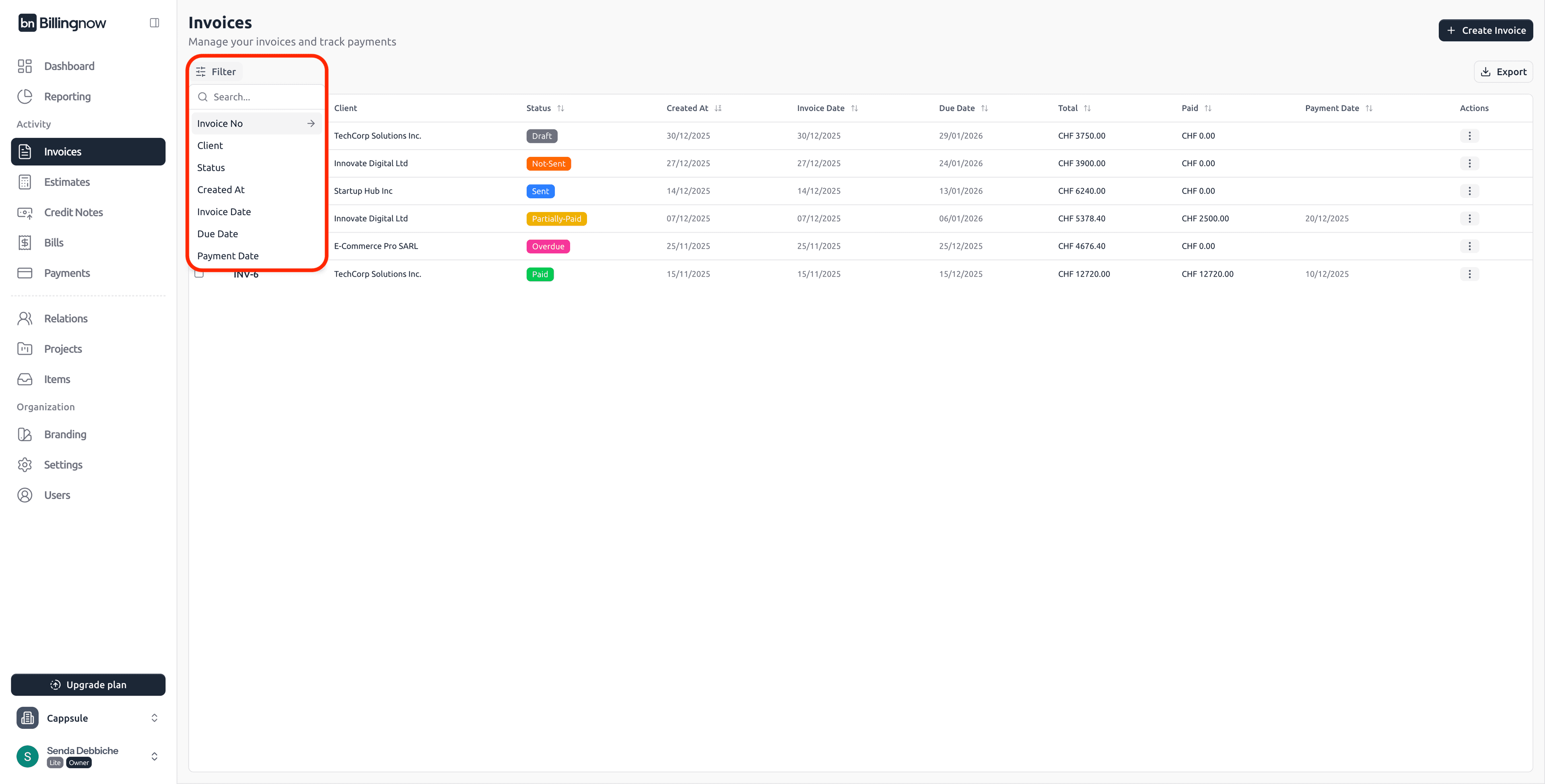
Available Filters
You can filter invoices using the following fields:
| Filter Field | Description |
|---|---|
| Invoice No | Search by invoice reference (e.g. INV-6). |
| Client | Filter invoices by client name. |
| Status | Filter by invoice status (Draft, Not Sent, Sent, Paid, etc.). |
| Created At | Filter by invoice creation date. |
| Invoice Date | Filter by invoice issue date. |
| Due Date | Filter invoices based on due date. |
| Payment Date | Filter invoices that have been paid on a specific date. |
Each filter can be used independently or combined with others for more precise results.
Search Bar
At the top of the filter panel, a search input allows you to quickly locate invoices by:
- Invoice number
- Client name
Results update instantly as you type.
Sorting & Table Interaction
In addition to filters:
- Table columns support sorting (ascending / descending)
- Filters apply instantly without page reload
- Exported data respects active filters and sorting
Use Status + Due Date to quickly identify overdue invoices
Use Client + Invoice Date for client-specific reviews
Use Payment Date to reconcile payments with bank statements
This filtering system makes it easy to manage large volumes of invoices while keeping full control over visibility and reporting accuracy.
🔍 Invoice Detail Page
Click on an Invoice No (first column) to open the invoice detail page.
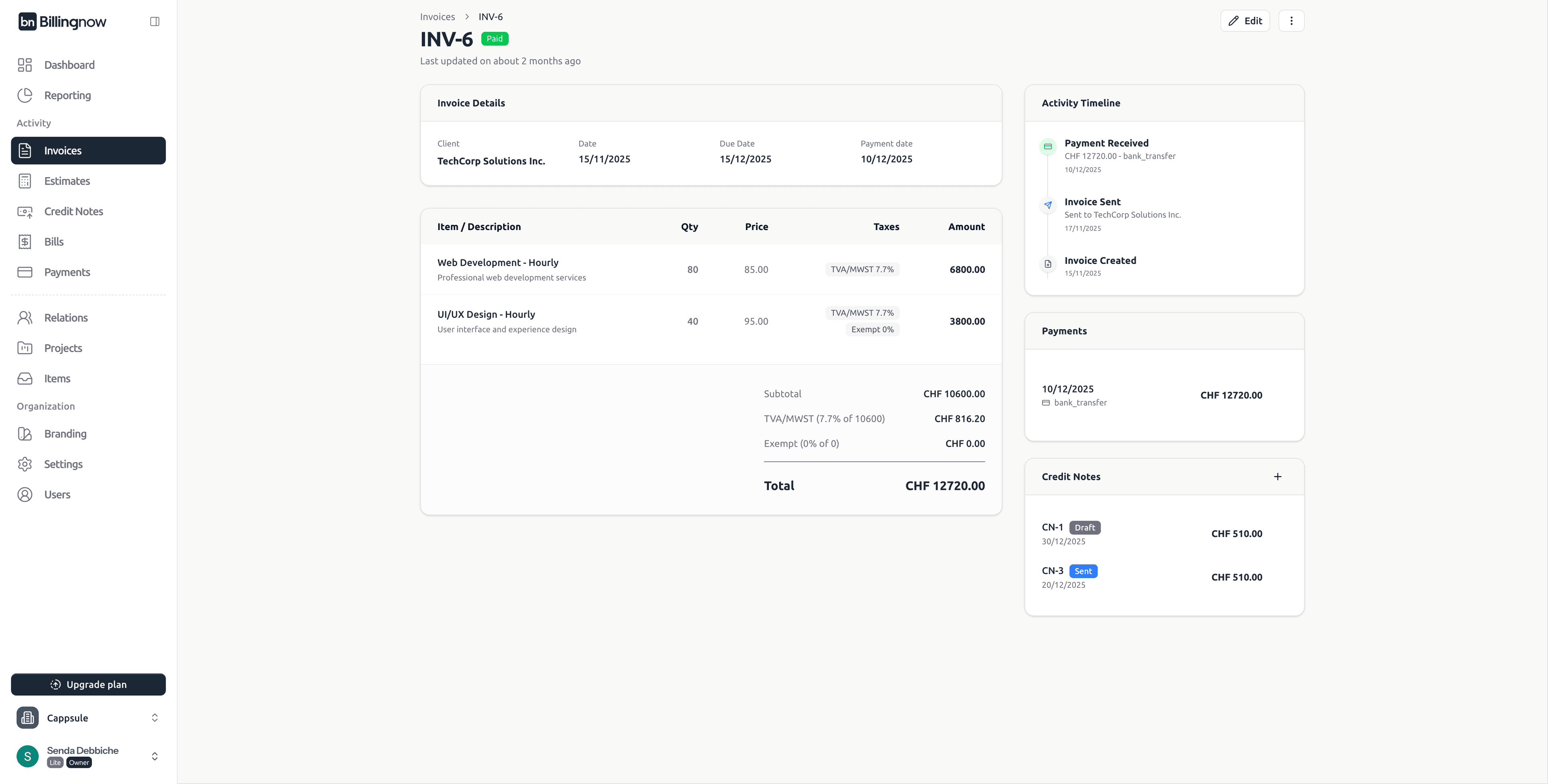
Available Sections
📄 Invoice Details
- Client
- Invoice date
- Due date
- Payment date (if paid)
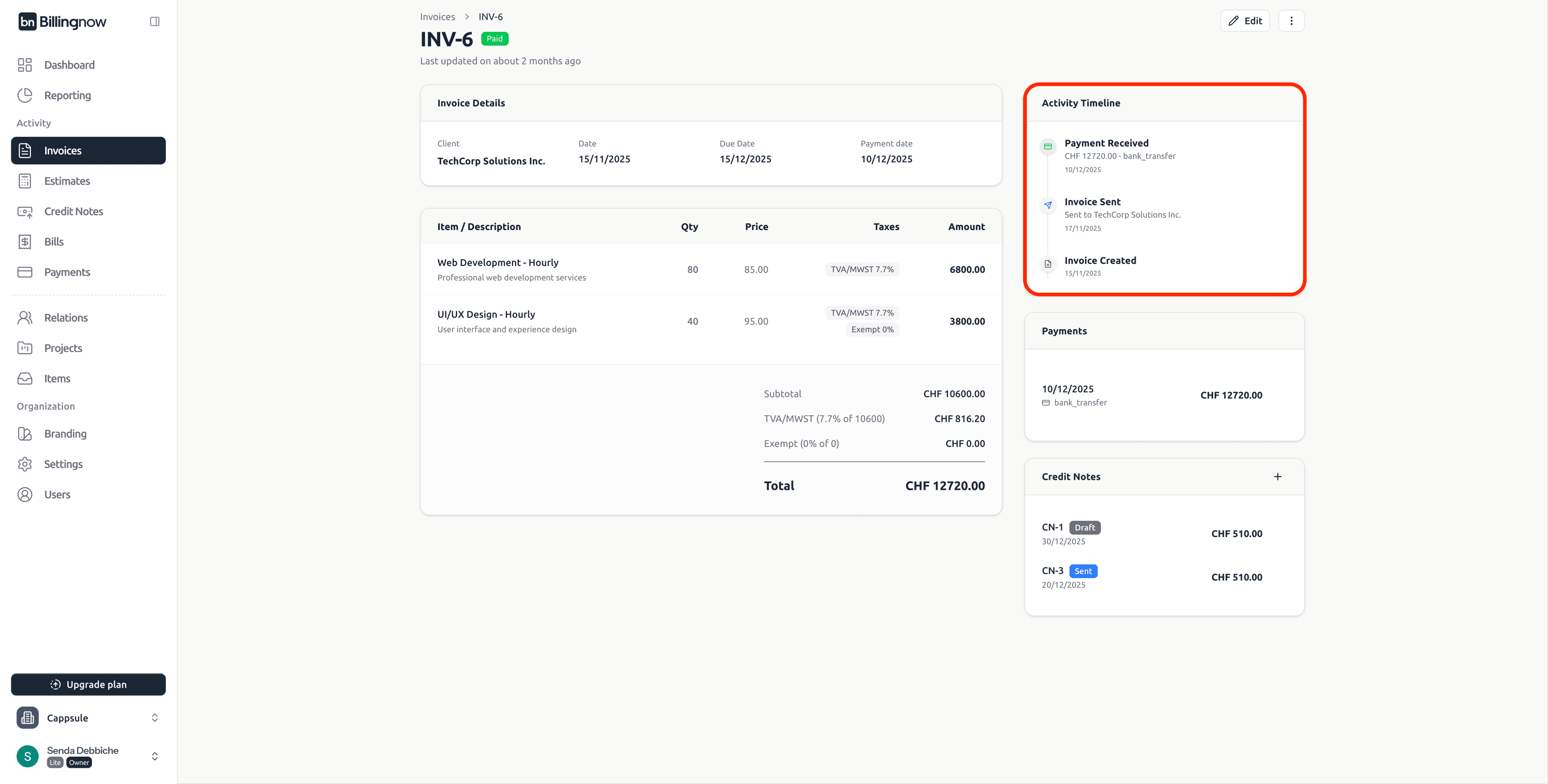
🕒 Activity Timeline
Tracks all events:
- Invoice created
- Invoice sent
- Payment received
- Credit notes created
💳 Payments (Detail Page)
Add Payment
Payments can be added only if the invoice is Sent or Partially Paid
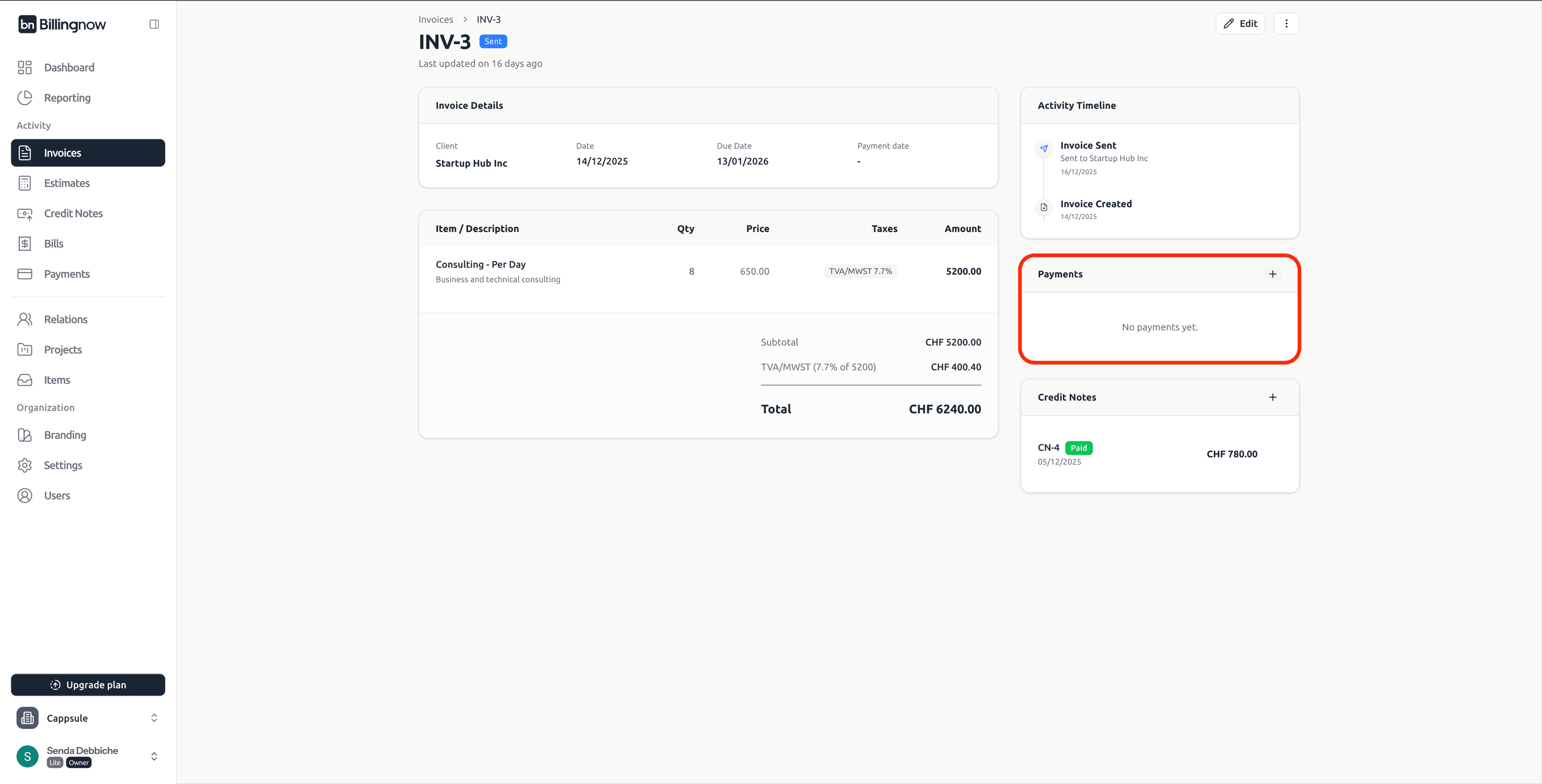
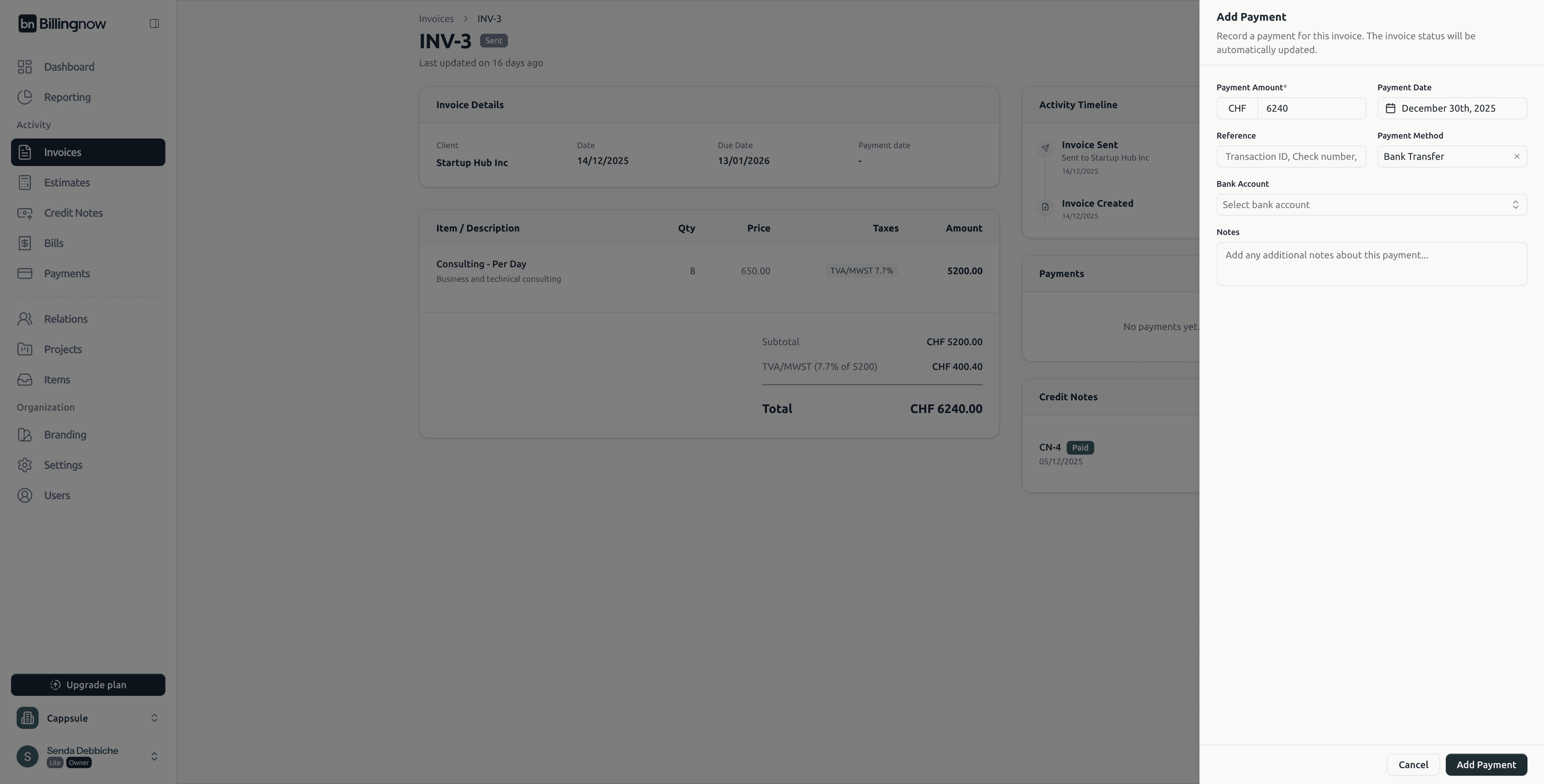
Click ➕ to add a payment:
- Amount
- Date
- Method (bank transfer, cash, card, etc.)
Edit / Delete Payment
If the invoice is Paid, payments can still be edited or deleted.
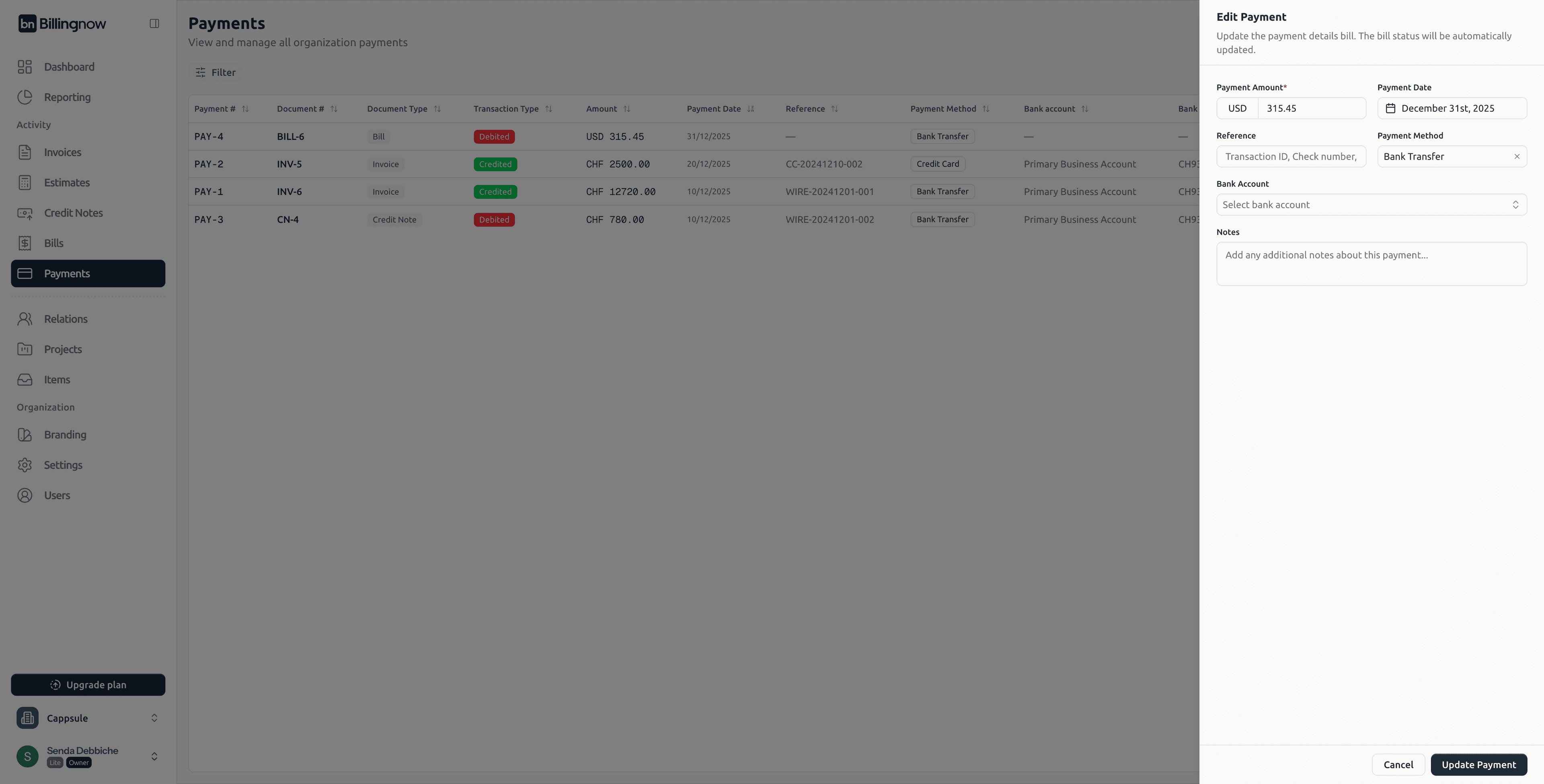
Invoice status updates automatically:
- Partial payment → Partially Paid
- Full payment → Paid
🧾 Credit Notes
Credit notes can be created:
- From the invoice actions menu
- From the invoice detail page
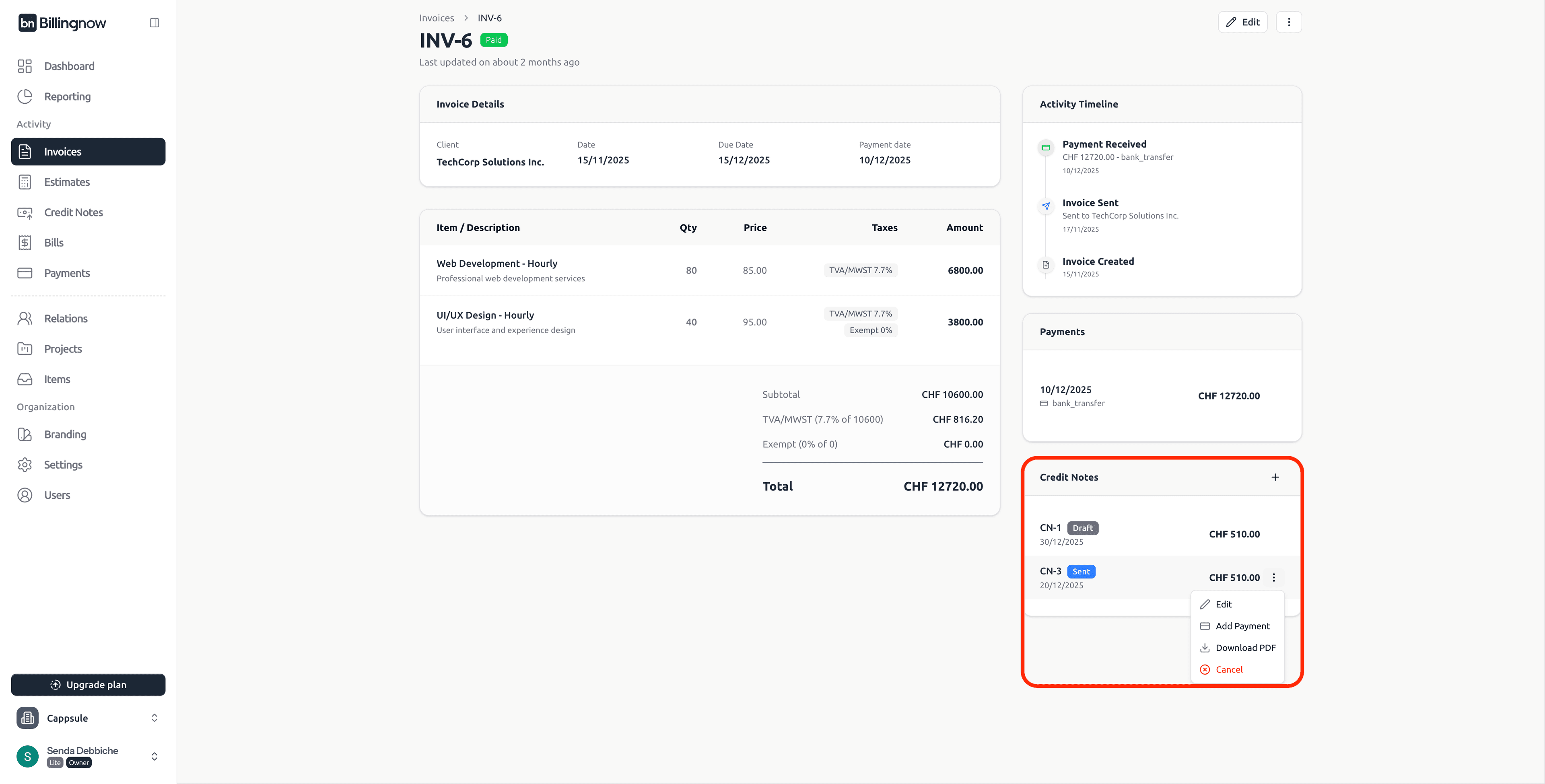
Each credit note shows:
- Reference number
- Status (Draft / Sent / Paid)
- Amount
- Date
➕ Creating a New Invoice (Inline Editor)
Click ➕ Create Invoice (top-right).
✨ Inline Invoice Editor
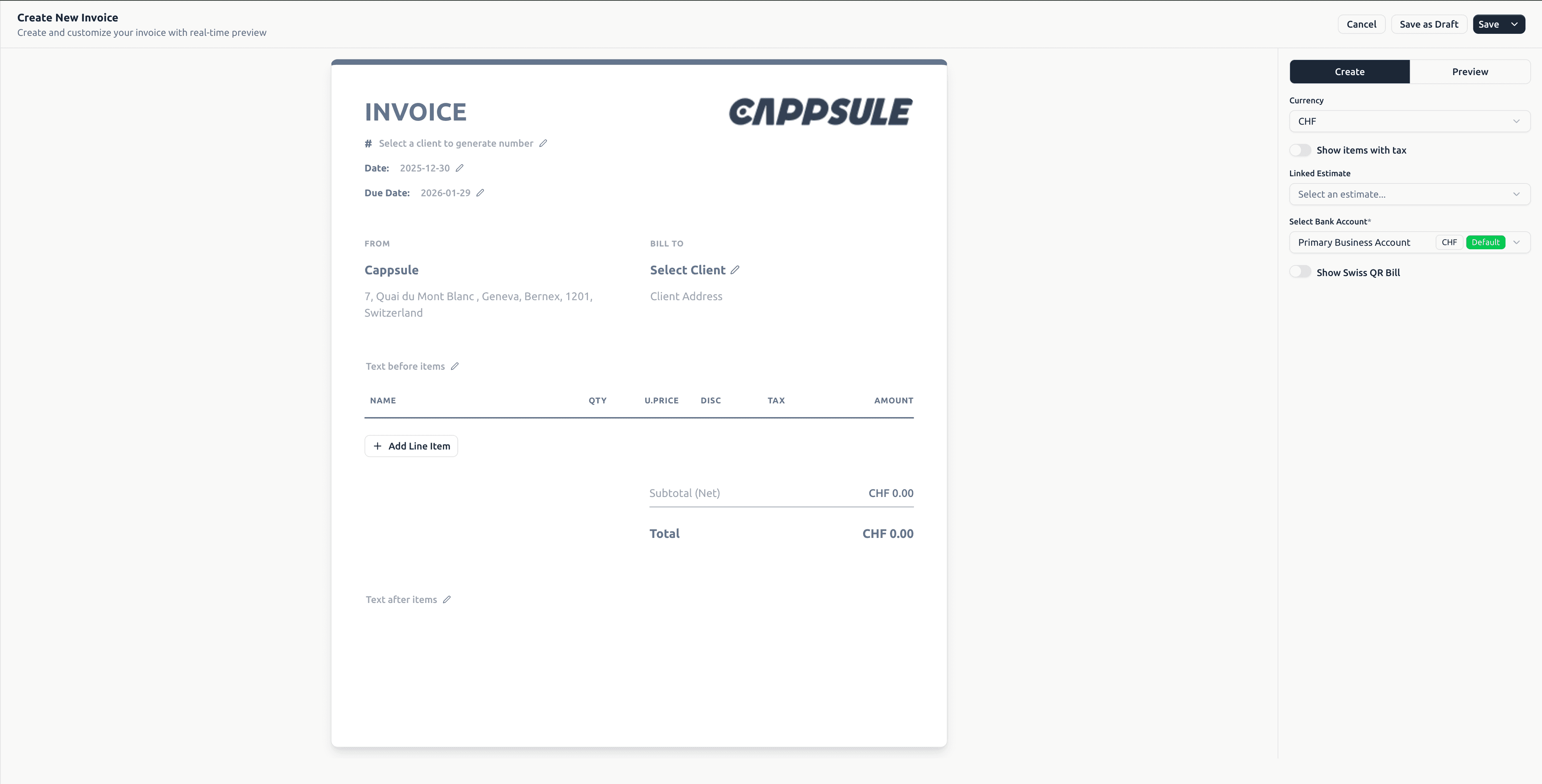
Billingnow uses an INLINE invoice editor.
You edit directly inside the invoice document, and changes are applied instantly.
There is no separate form - the invoice itself is the editor.
🧾 Invoice Header (Inline)
| Field | Behavior |
|---|---|
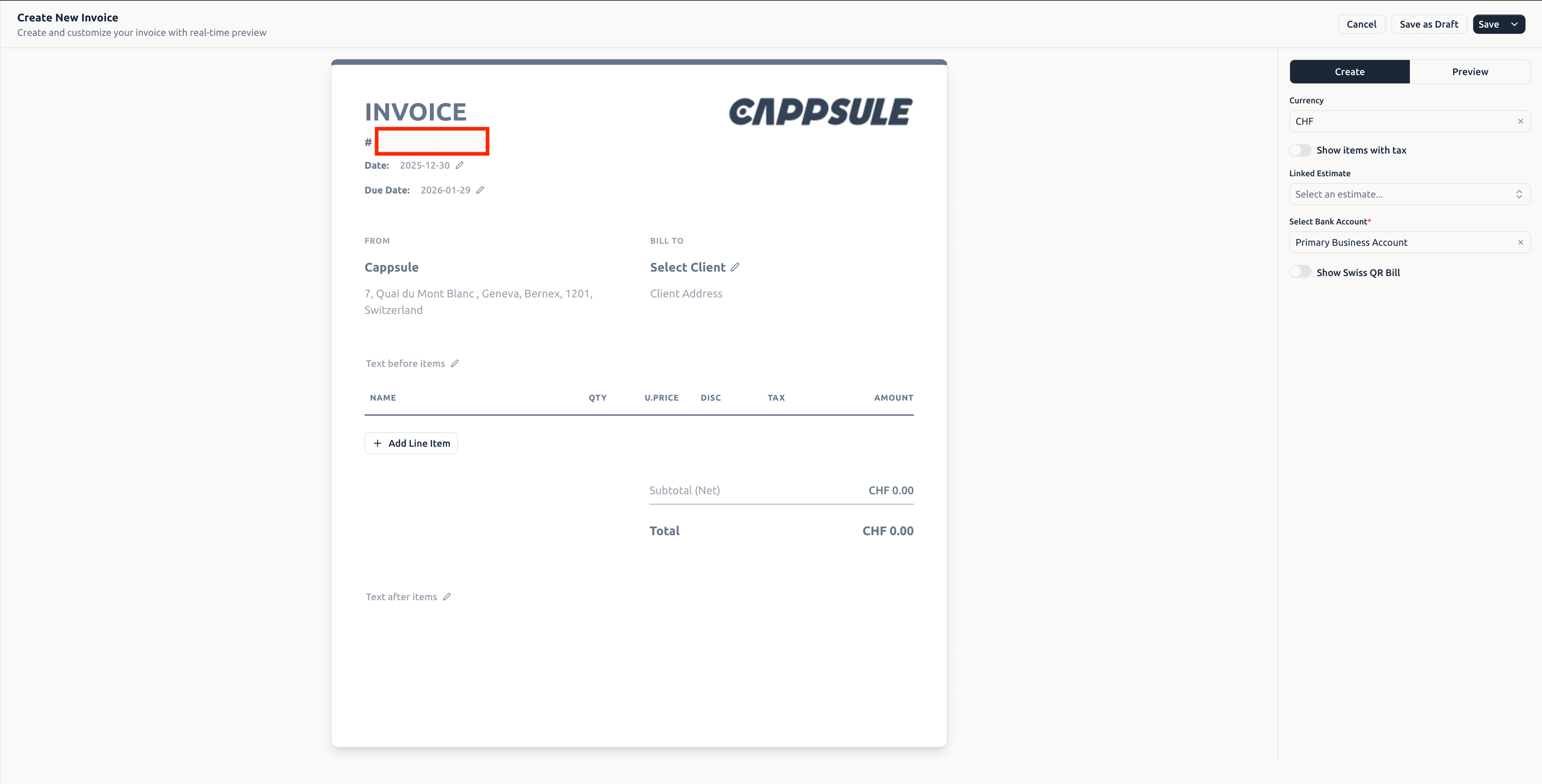
| Invoice Number | Auto-generated or editable inline |
| Invoice Date | Click to edit |
| Due Date | Click to edit |
| From | Auto-filled from company profile |
| Bill To | Select or edit client inline |
🧮 Line Items (Inline)
Click ➕ Add Line Item directly inside the invoice.
Each line supports:
- Item name & description
- Quantity
- Unit price
- Discount
- Tax rate
- Amount (auto-calculated)
Totals and taxes update in real time.
📝 Additional Texts
Editable directly in the invoice:
| Section | Usage |
|---|---|
| Text before items | Introductory notes |
| Text after items | Payment instructions / thank-you text |
| Footer | Legal, tax, or company information |
⚙️ Right Panel Settings
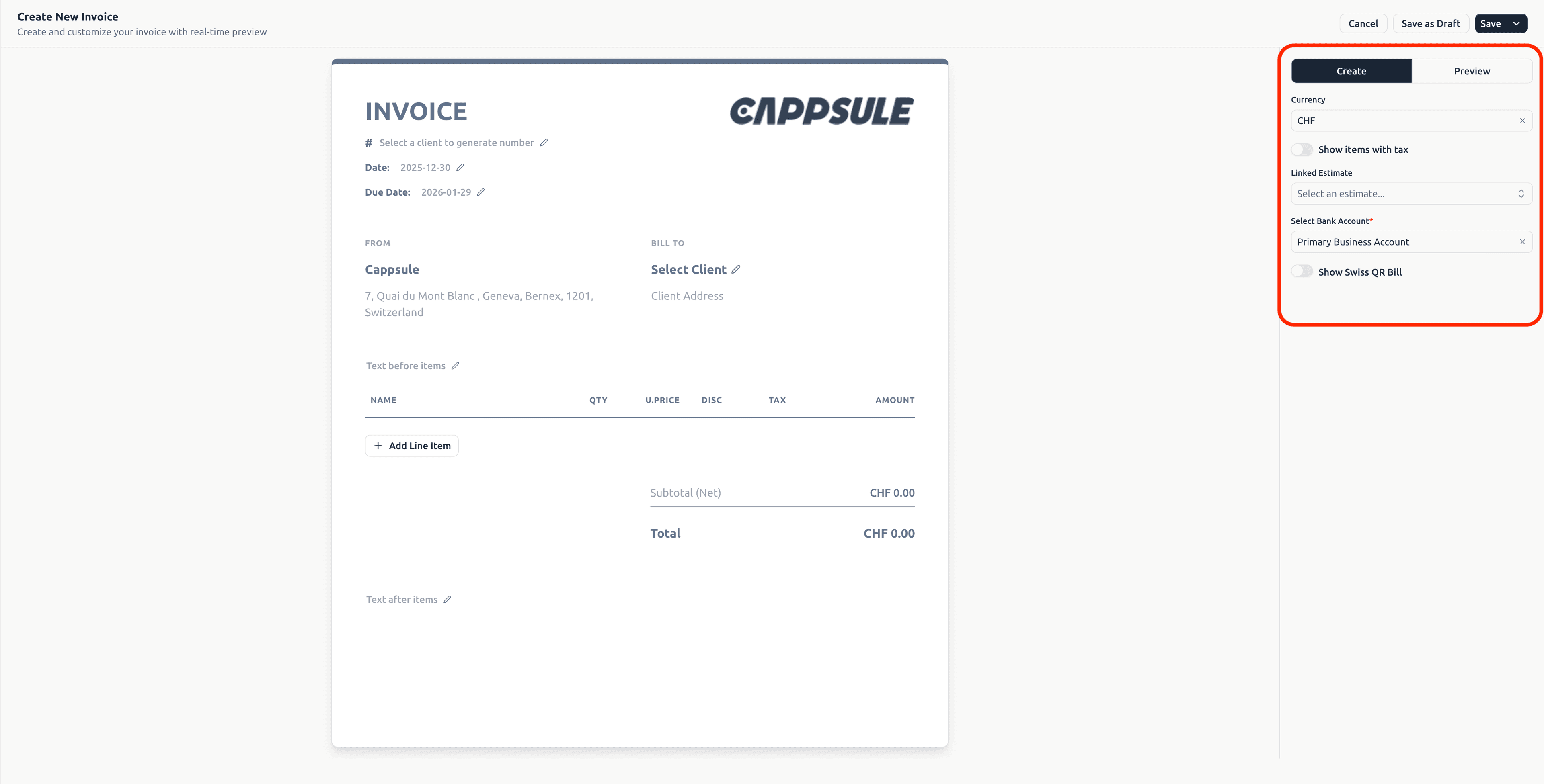
The right panel controls invoice configuration.
Available Options
- Currency
- Show items with tax
- Linked estimate
- Bank account
- Swiss QR Bill
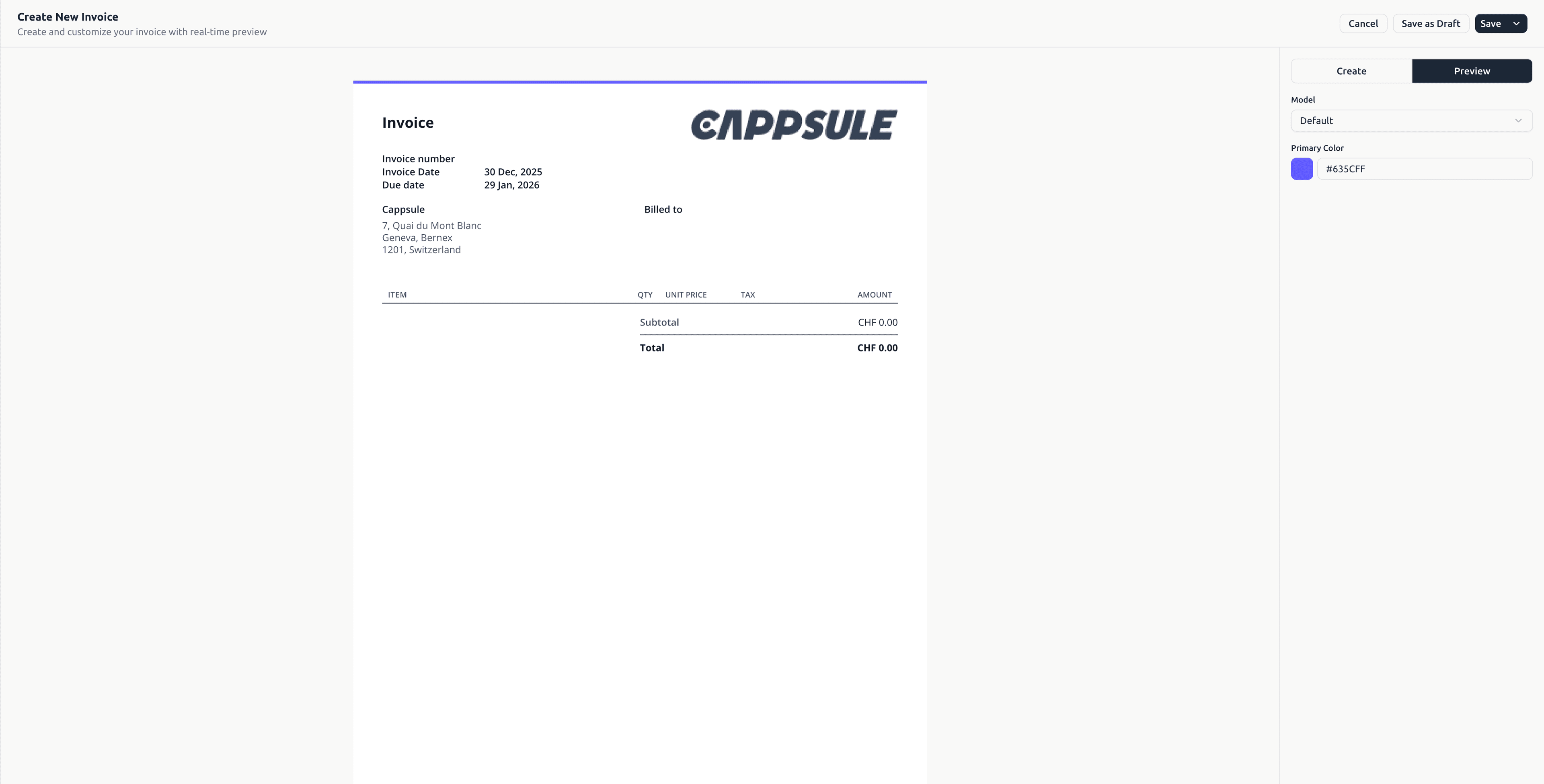
- Preview mode
- Invoice model
- Primary color
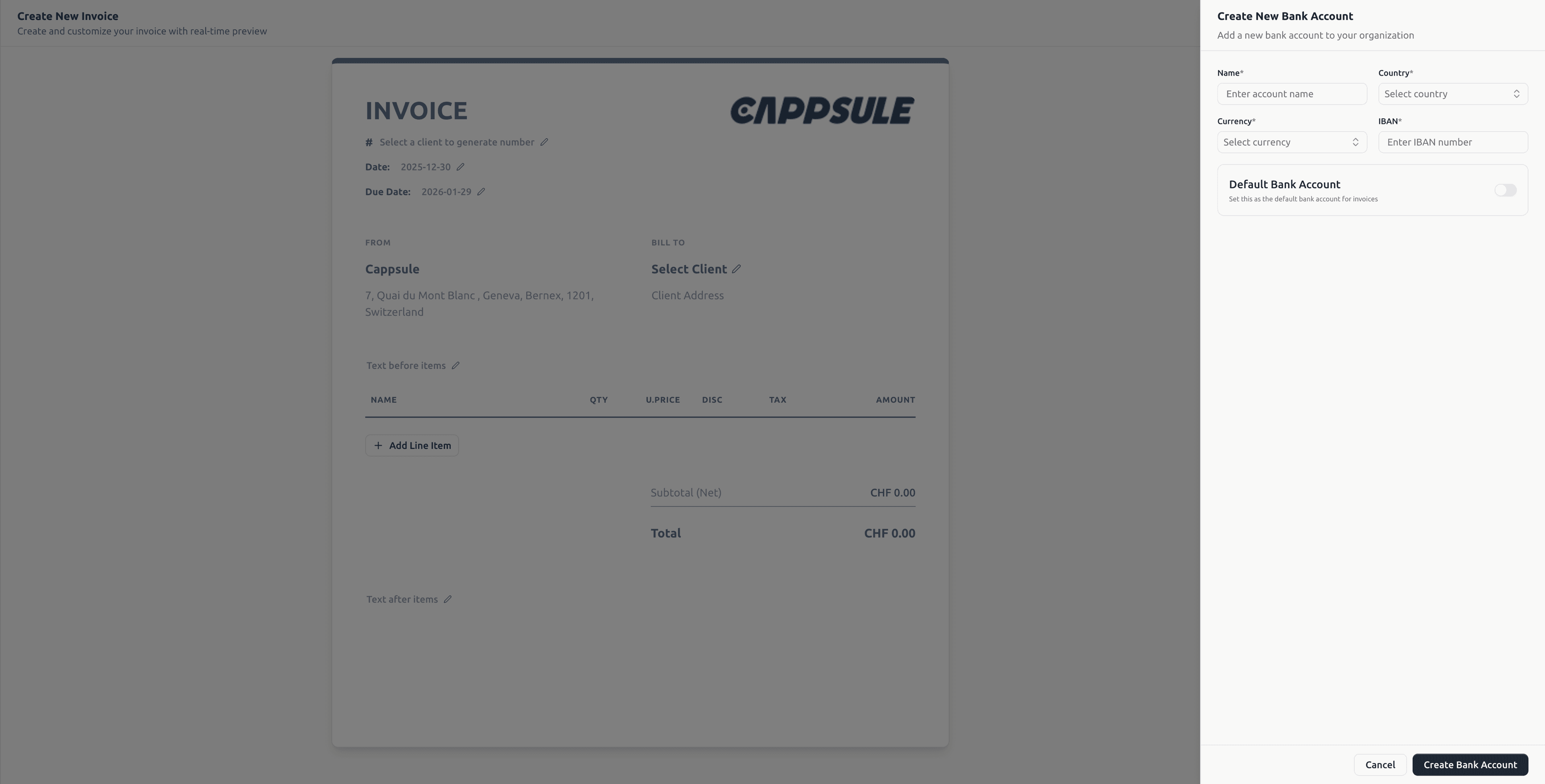
🏦 Bank Account Creation
If no bank account exists, you can create one without leaving the invoice.
💾 Saving & Actions
Actions are available:
- From the invoice editor
- From the invoice list
- From the detail page
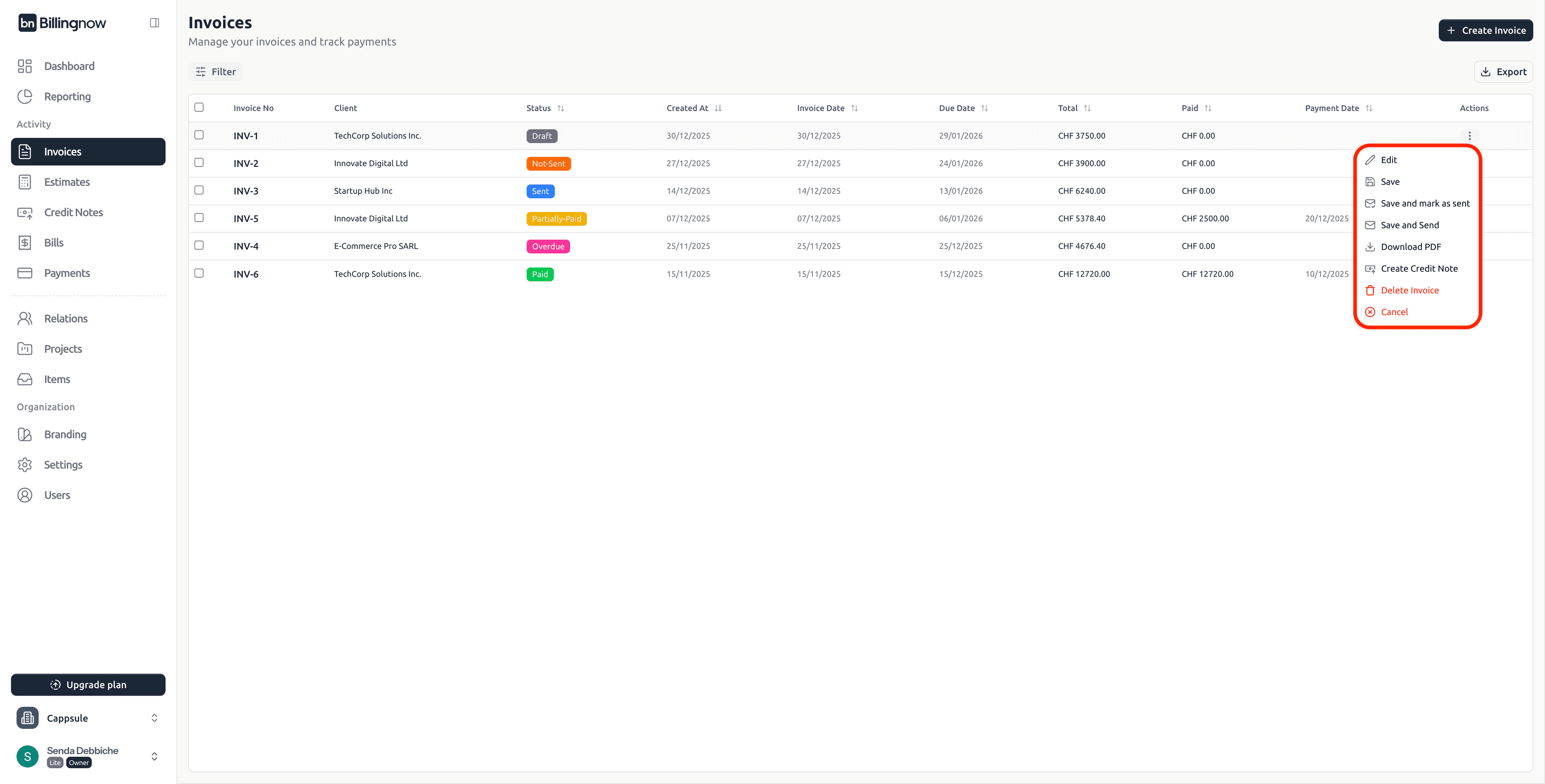
| Action | Result |
|---|---|
| Save as Draft | Keeps invoice editable |
| Save | Saves as Not Sent |
| Save and mark as sent | Manual sending |
| Save and send | Sends invoice by email |
| Download PDF | Downloads PDF |
| Create Credit Note | Creates linked credit note |
| Delete Invoice | Permanent deletion |
| Cancel | Discards changes |
💌 Sending Invoices via Email
Send Directly from BillingNow
Click Save and Send or Send.
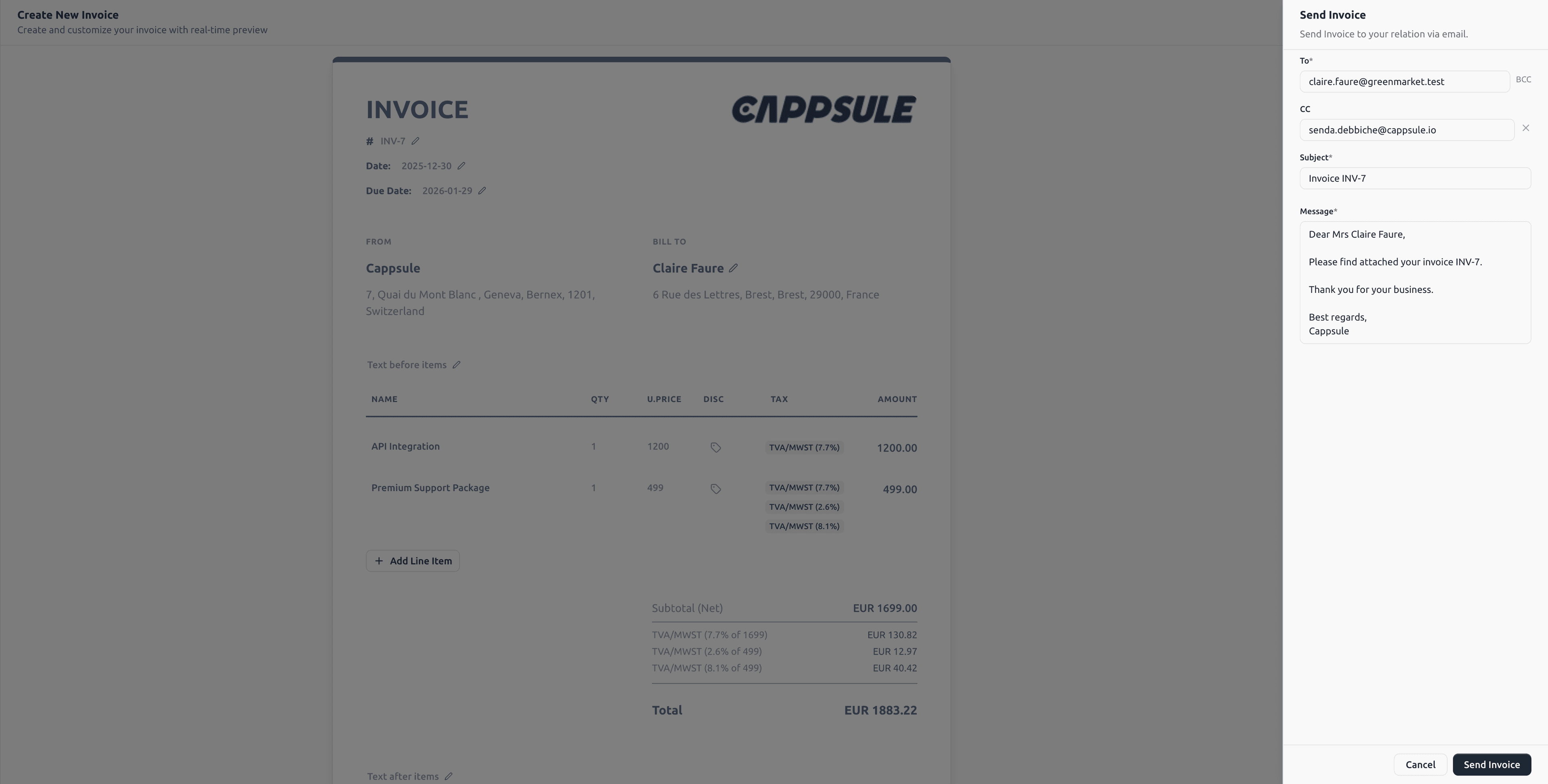
The email content is fully editable.
Example Email
Subject: Invoice INV-7

Dear Mrs Claire Faure,

Please find attached your invoice INV-7.

Thank you for your business.

Best regards,
Cappsule
After Sending
- Status changes to 🔵 Sent
- Timestamp is recorded
- PDF is attached automatically
- Invoice can be resent anytime
💡 Best Practices
✔ Use Draft for internal review
✔ Edit directly in the invoice for faster workflow
✔ Always verify invoice number & dates
✔ Keep consistent numbering (INV-001, INV-002…)
✔ Add shipping as a separate line item
✔ Review Preview mode before sending
✅ Summary
This documentation reflects the latest BillingNow invoice system, including:
- Inline invoice editor
- Invoice detail page
- Activity timeline
- Payments & credit notes
- Updated actions menus
- Email sending workflow