The Bills module in BillingNow allows you to create, manage, and track all your supplier bills (expenses) in one centralized workspace.
While Invoices represent money your company receives, Bills represent money you owe to suppliers for goods or services.
With this module, you can:
- Upload supplier invoices (PDF or image)
- Automatically extract data using AI
- Track payment status and due dates
- Add partial or full payments
- Manage suppliers and bank accounts
- Monitor bill lifecycle with activity history
📂 Bills Management Dashboard
Navigate to Sidebar → Bills
The Bills dashboard displays all your bills in a structured and sortable table.
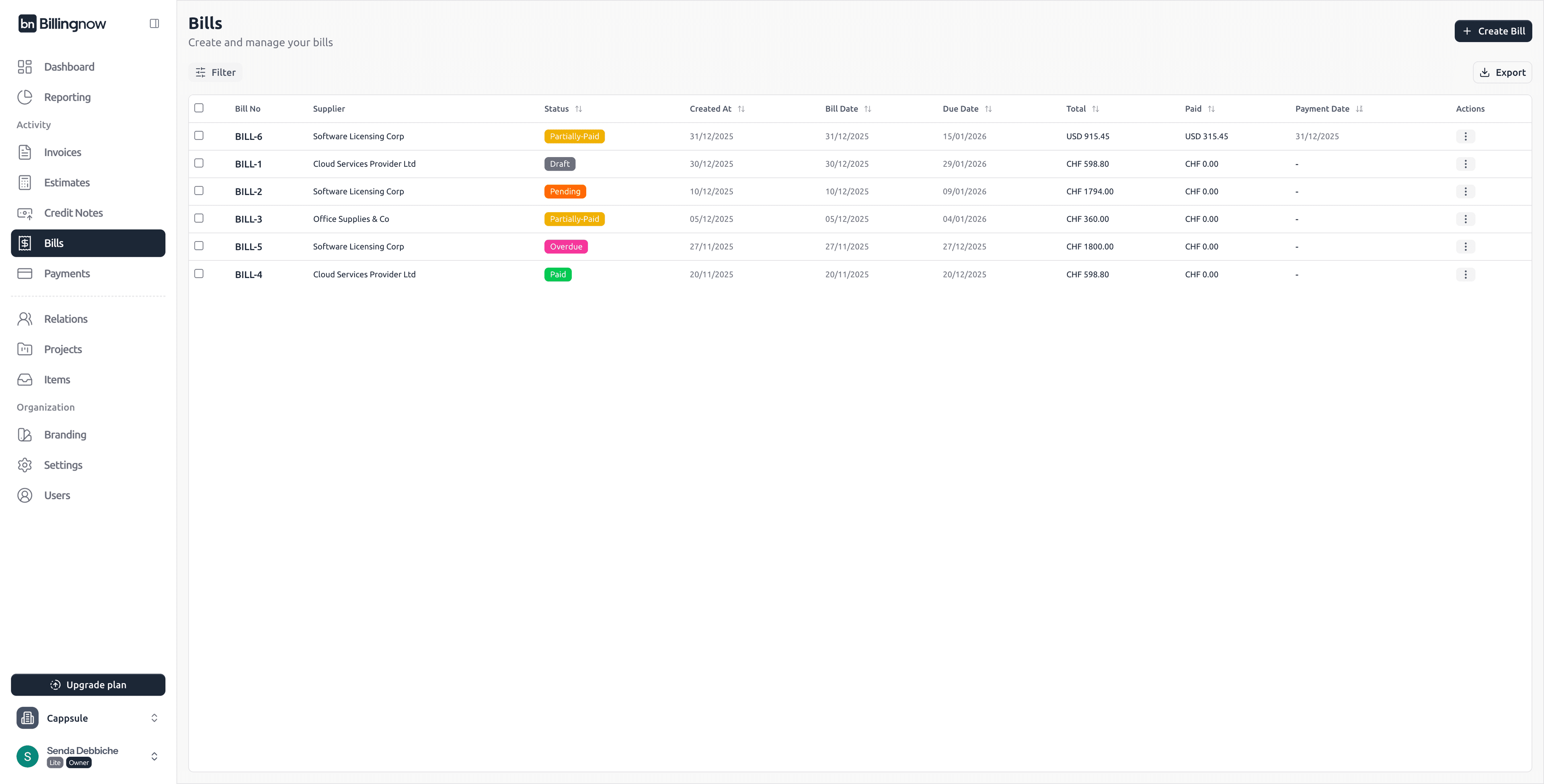
Table Columns
| Column | Description |
|---|---|
| Bill No | Unique bill identifier (clickable) |
| Supplier | Supplier linked to the bill |
| Status | Current bill status |
| Created At | Bill creation date |
| Bill Date | Supplier invoice date |
| Due Date | Payment deadline |
| Total | Total bill amount |
| Paid | Amount already paid |
| Payment Date | Last payment date (if any) |
| Actions | Contextual actions menu |
🔍 Filters & Search
Click Filter at the top of the Bills page to narrow results.
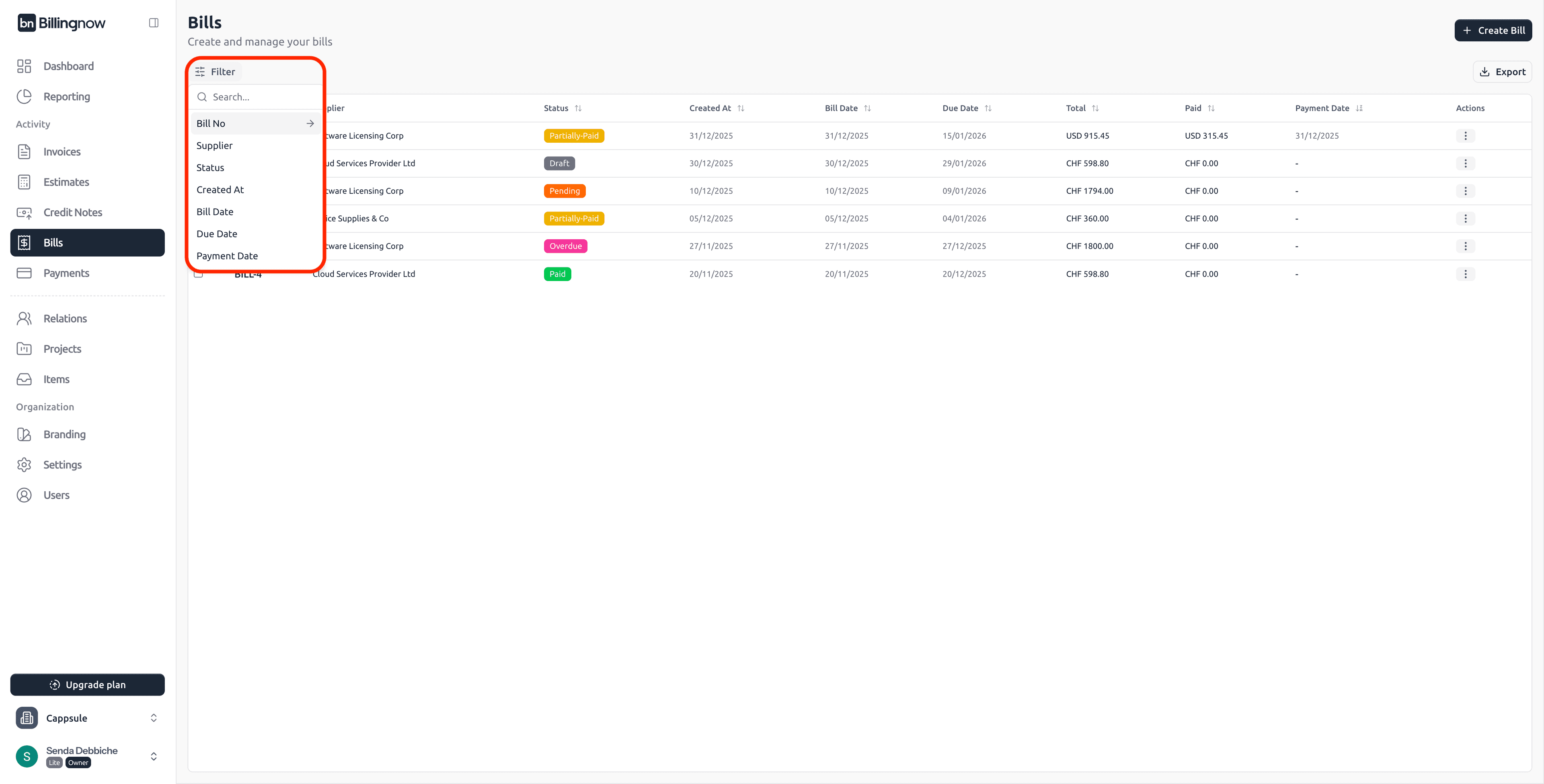
Available Filters
| Filter | Description |
|---|---|
| Bill No | Search by bill reference |
| Supplier | Filter by supplier name |
| Status | Filter by bill status |
| Created At | Filter by creation date |
| Bill Date | Filter by bill issue date |
| Due Date | Filter by due date |
| Payment Date | Filter by payment date |
You can combine:
- Filters
- Search input
- Column sorting
to quickly locate specific bills.
🏷️ Bill Statuses
| Status | Meaning |
|---|---|
| ⚪ Draft | Bill created but not finalized |
| 🟠 Pending | Awaiting payment |
| 🟡 Partially Paid | Partial payment recorded |
| 🟢 Paid | Fully paid |
| 🔴 Overdue | Past due date and unpaid |
⚙️ Actions by Bill Status
Actions vary depending on the bill status.
⚪ Draft
- Edit
- Save
- Delete
🟠 Pending
- Edit
- Add Payment
- Delete
🟡 Partially Paid
- Edit
- Add Payment
- Delete
🔴 Overdue
- Edit
- Add Payment
- Delete
🟢 Paid
- Edit
- Delete
🔍 Bill Detail Page
Click on a Bill No to open the detail view.
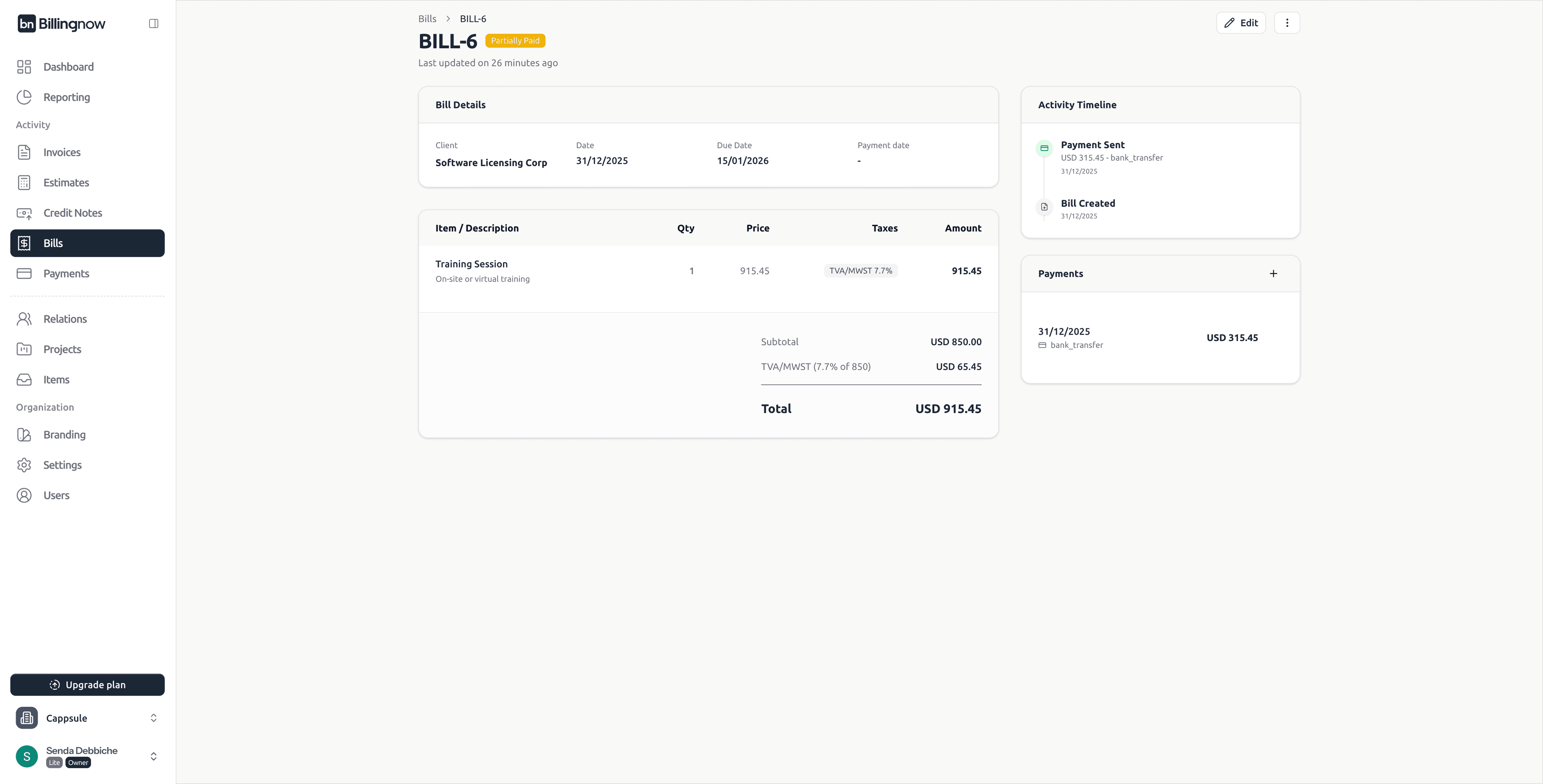
Available Sections
🧾 Bill Details
- Supplier
- Bill date
- Due date
- Payment date
🧮 Line Items
- Item description
- Quantity
- Unit price
- Taxes
- Total
🕒 Activity Timeline
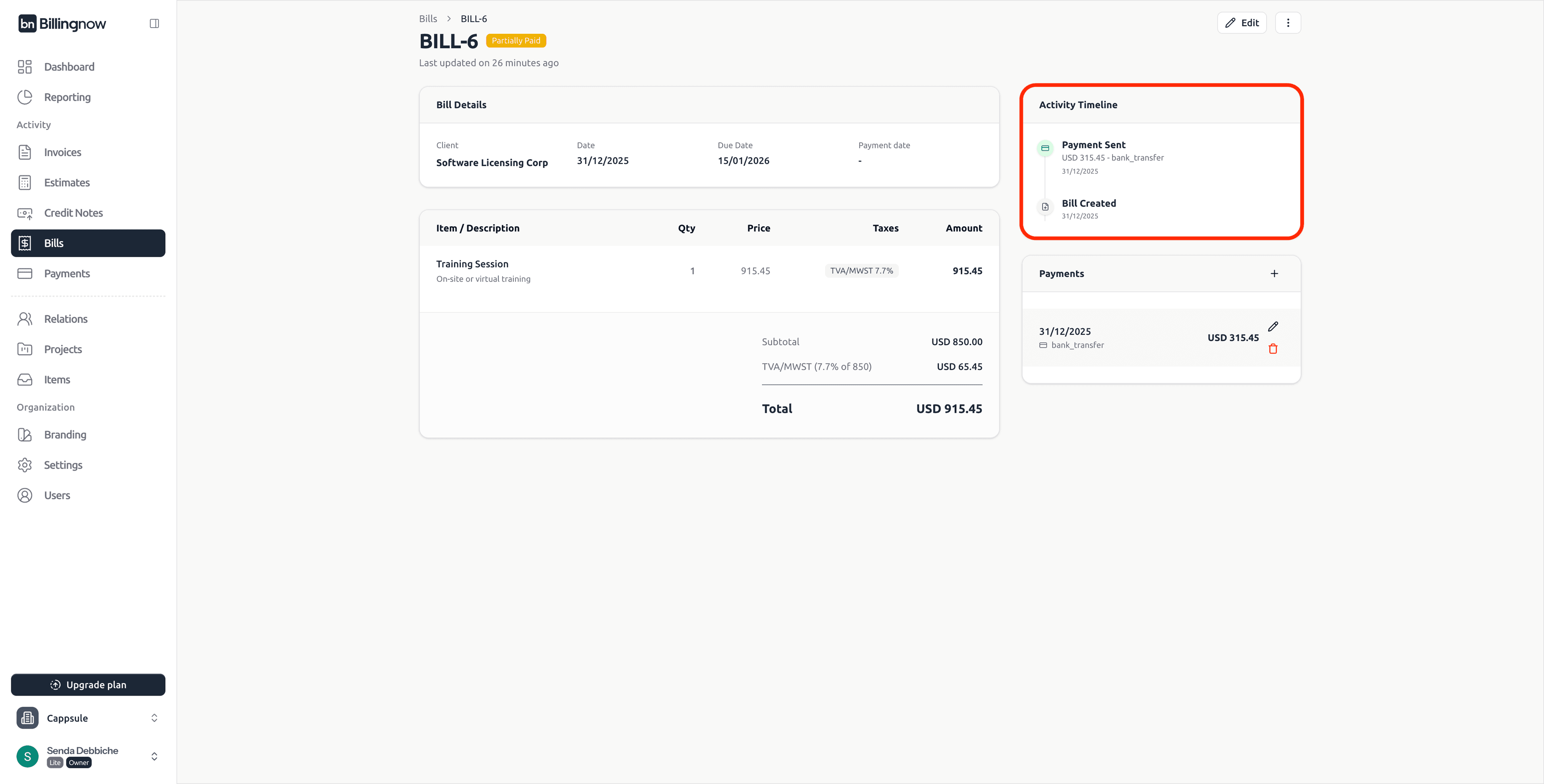
Tracks:
- Bill created
- Payments added
💳 Payments
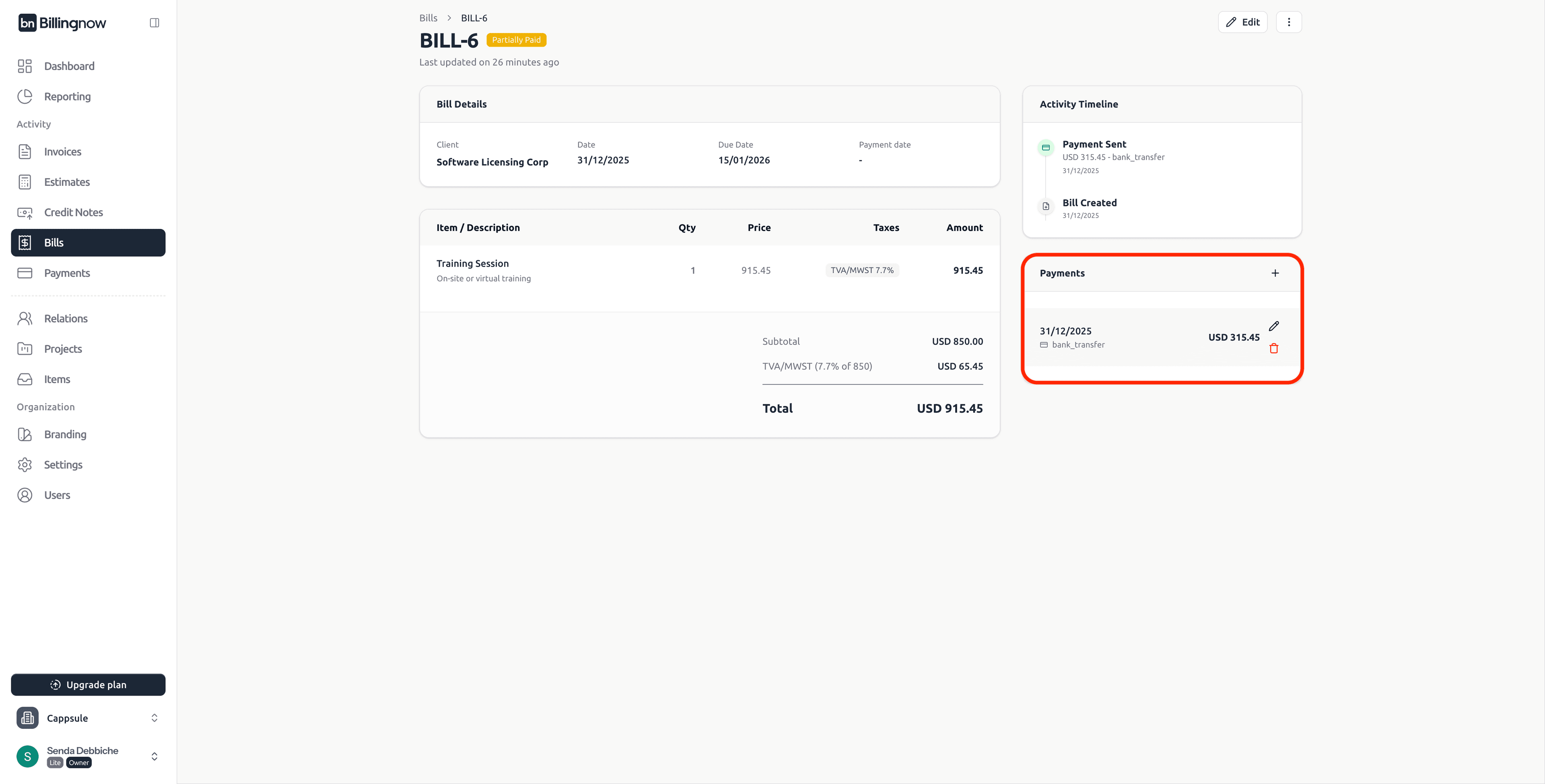
- Displays all recorded payments
- Allows edit or delete of payments
💳 Payments
Add Payment
Payments can be added for Pending, Partially Paid, or Overdue bills.
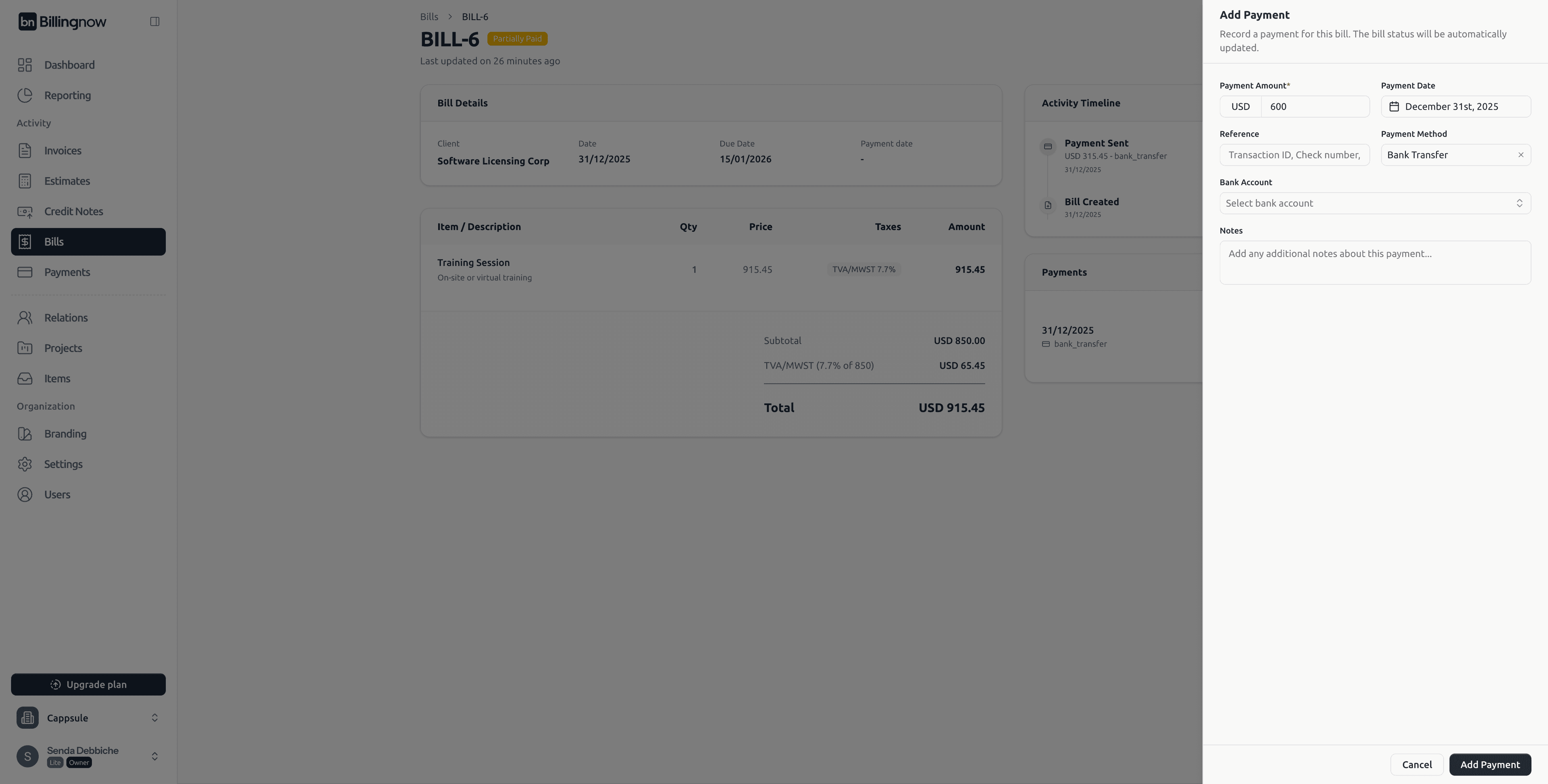
Fields:
- Payment amount
- Payment date
- Method (bank transfer, cash, etc.)
- Bank account
- Notes
Bill status updates automatically:
- Partial payment → Partially Paid
- Full payment → Paid
➕ Creating a New Bill
Click ➕ Create Bill (top-right).
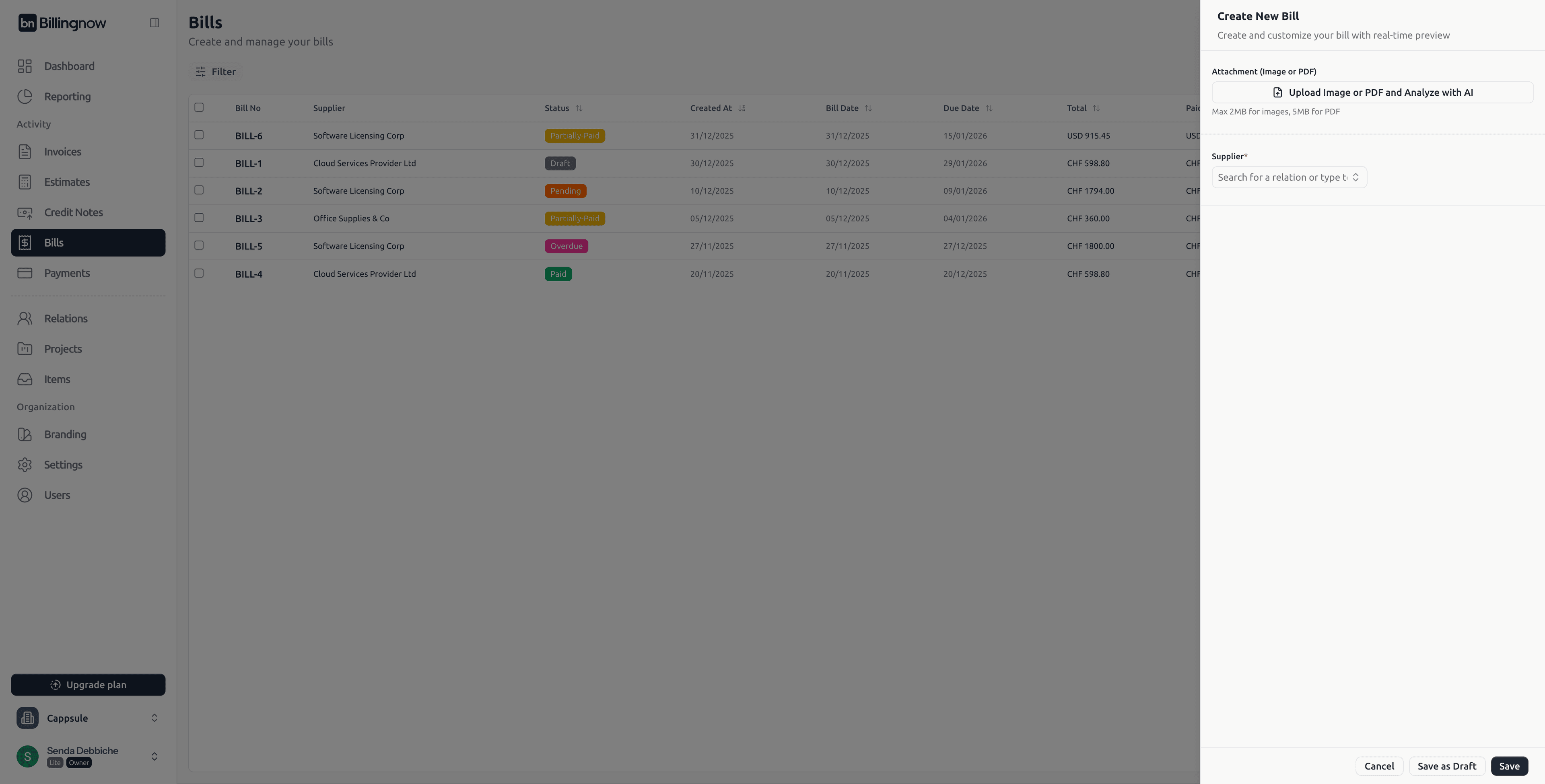
🤖 Upload & Analyze with AI
Step 1: Upload Document
Upload a PDF or image of the supplier invoice.
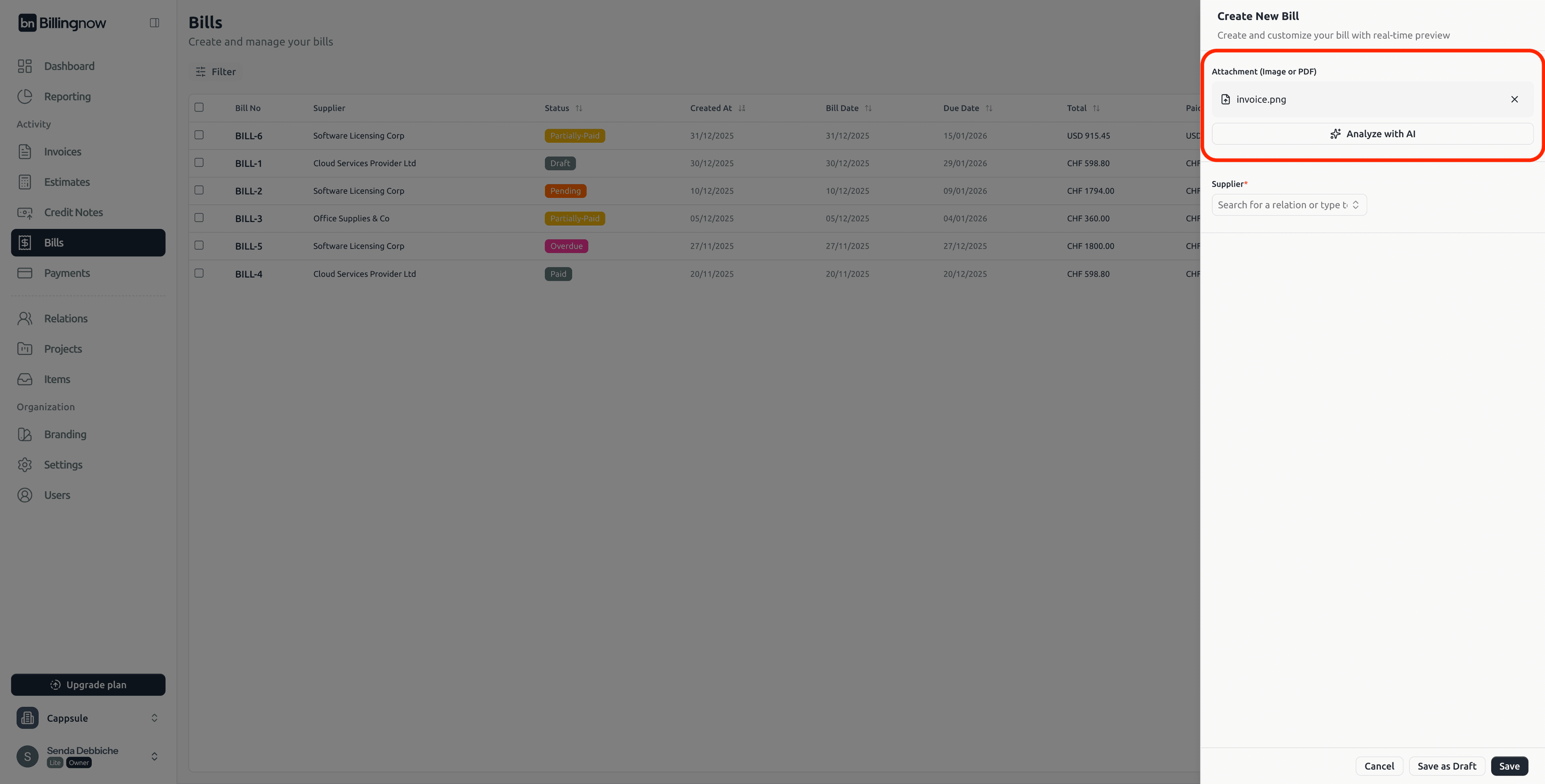
Click Analyze with AI to extract data automatically.
Step 2: AI Extracted Data Modal
After analysis, a modal opens showing all detected information.
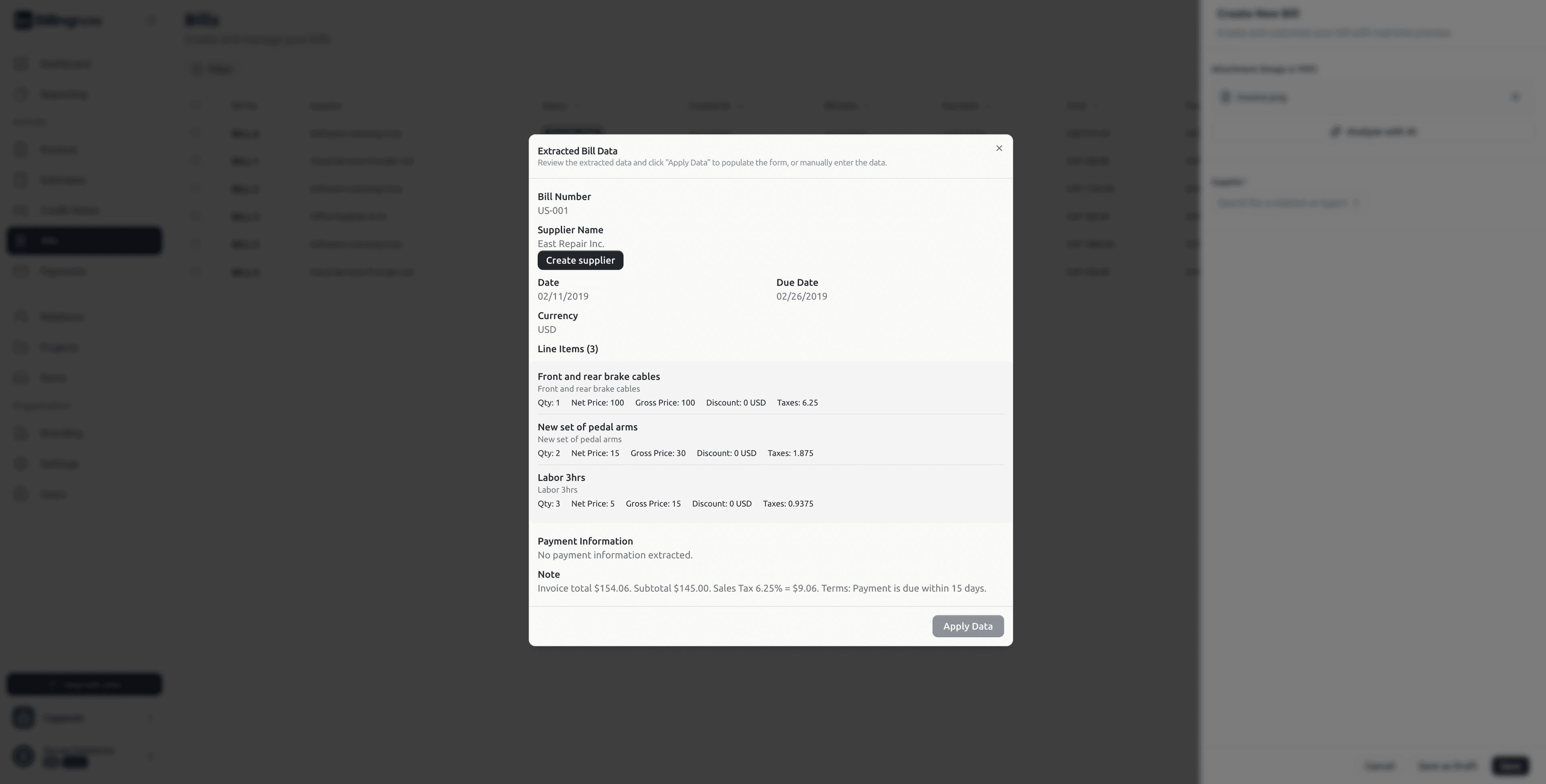
Extracted fields may include:
- Bill number
- Supplier name
- Bill date & due date
- Currency
- Line items (qty, price, tax)
- Notes & payment terms
You can:
- Review extracted data
- Edit fields manually
- Click Apply Data to populate the bill form
➕ Create Supplier from AI Modal
If the supplier does not exist, click Create Supplier directly from the AI modal.
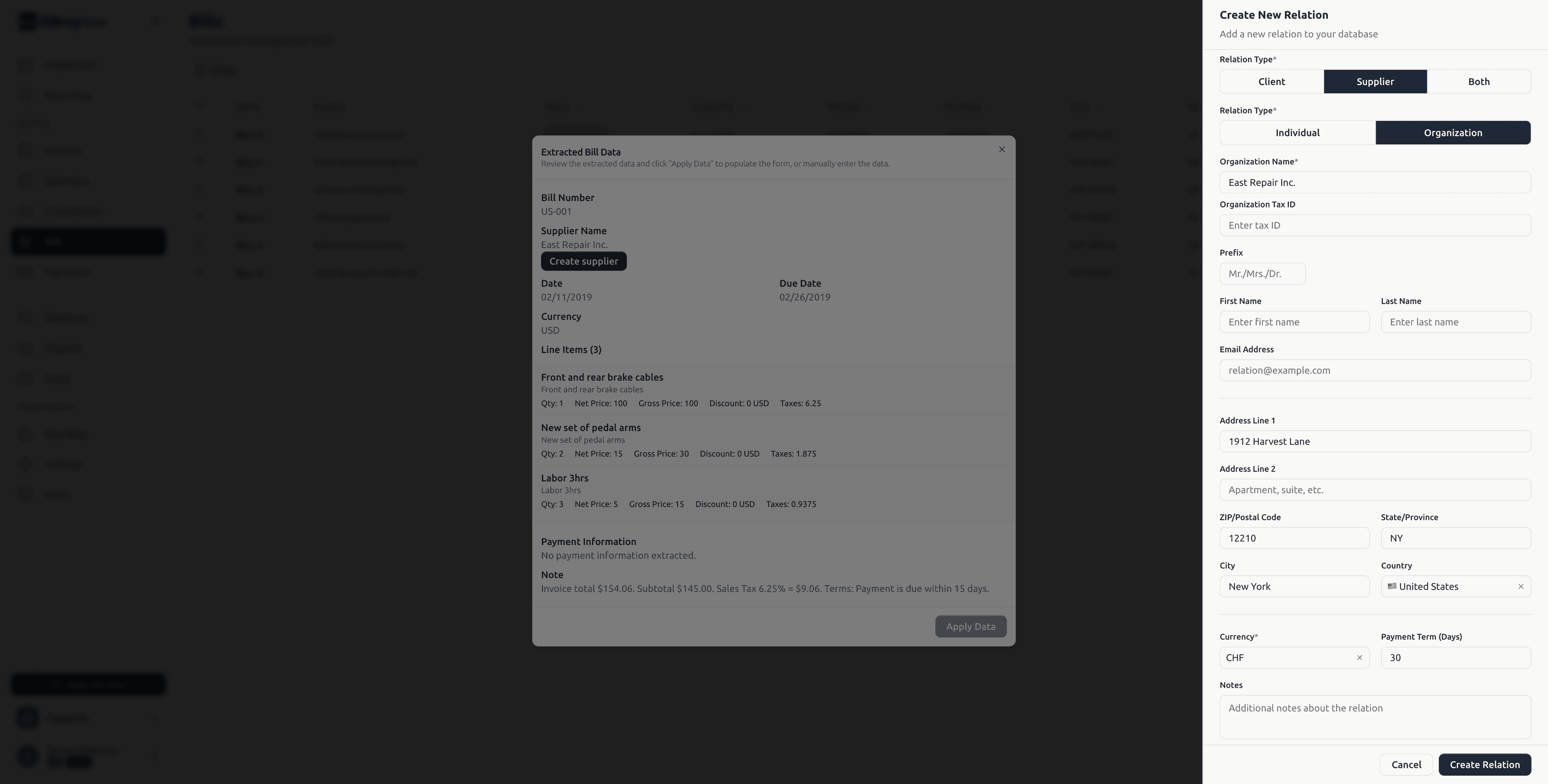
This opens the Create Relation panel.
Supplier Creation Fields
- Type: Supplier
- Individual or Organization
- Name
- Address
- Currency
- Payment terms
- Notes
Once created, the supplier is automatically linked to the bill.
🧾 Bill Form Fields
After applying AI data or manual entry:
| Field | Description |
|---|---|
| Supplier | Linked supplier |
| Bill Number | Editable bill reference |
| Bill Date / Due Date | Issue and deadline dates |
| Currency | Bill currency |
| Exchange Rate | If applicable |
| Line Items | Items/services with tax & totals |
| Bank Account | Supplier payment account |
| Notes | Internal notes |
💾 Save Options
| Action | Description |
|---|---|
| Save as Draft | Keep editable |
| Save | Confirm and create the bill |
| Cancel | Exit without saving |
💡 Best Practices
✔ Upload clear invoices for best AI accuracy
✔ Always verify extracted data
✔ Use Draft for validation before saving
✔ Track partial payments carefully
✔ Keep suppliers updated for reporting accuracy
✅ Summary
This documentation reflects the latest BillingNow Bills system, including:
- Filters & search
- Status-based actions
- Payments management
- AI invoice extraction
- Supplier creation from AI
- Detailed bill lifecycle tracking